





Microsoft is quietly building a knob into Windows 11 that decides how much of a PC’s shared memory pool gets set aside for graphics and AI work. It showed up as an unfinished, hidden feature in a recent Insider build, and on the right hardware it adds a brand-new section to the Settings app called “Unified memory.”
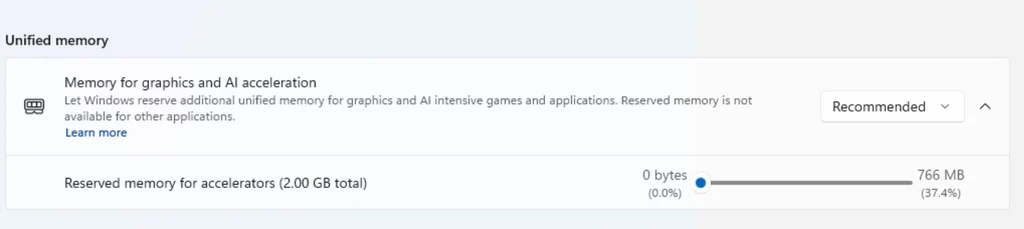
The new setting, labeled “Memory for graphics and AI acceleration,” lets you decide how much of that pool Windows holds back for accelerators. Reserve more and a big local model or a demanding game gets a bigger slice. Reserve less and the operating system and regular apps keep more room to work with. The description string in the build spells out the trade-off:
What Microsoft is testing here is an actual carve-out. Memory set aside for accelerators is taken off the table for normal applications, which is why the internal name for the feature is IntelligentCarveout.
Confirm the machine actually has an NPU. The feature is gated to supported unified memory hardware, so it will not appear on a conventional desktop with a discrete graphics card.
Open an elevated Command Prompt in the folder where ViVeTool is stored and turn on the feature ID.
Restart the computer so the change takes effect.
Verify it worked by opening Settings, then System, then Advanced. A “Unified memory” section with the “Memory for graphics and AI acceleration” control should be visible. If that section is missing, the feature did not activate.
Because IntelligentCarveout sits in the Feature Platforms branch rather than being tied to one vendor, other unified memory systems could pick it up as well.
What the Unified memory setting does in Windows 11
Unified memory is one shared pool of high-bandwidth memory that the CPU, GPU, and AI accelerators all draw from. There is no separate bucket of video memory sitting on a discrete graphics card. That is great for local AI models, which often need more memory than a laptop GPU’s dedicated VRAM can offer, but it also means games, apps, and AI workloads are all fighting over the same pool.The new setting, labeled “Memory for graphics and AI acceleration,” lets you decide how much of that pool Windows holds back for accelerators. Reserve more and a big local model or a demanding game gets a bigger slice. Reserve less and the operating system and regular apps keep more room to work with. The description string in the build spells out the trade-off:
Early builds show a slider for manual control alongside preset options named Custom, Recommended, High, Maximum, and Don’t allow.
Reserved memory vs. Shared GPU Memory in Task Manager
Windows already reports “Shared GPU Memory” in Task Manager, and it is easy to assume this is the same thing dressed up in a new interface. It is not. Shared GPU Memory is a ceiling, that is, system RAM the GPU is allowed to borrow when it needs to, typically up to roughly half of total RAM depending on the hardware, OEM, firmware, and drivers. Windows can move between dedicated and shared memory as the workload changes.What Microsoft is testing here is an actual carve-out. Memory set aside for accelerators is taken off the table for normal applications, which is why the internal name for the feature is IntelligentCarveout.
IntelligentCarveout: Build, feature ID, and Settings path
| Detail | Value |
|---|---|
| Internal feature name | IntelligentCarveout |
| Feature ID | 61121285 |
| New system file | SettingsHandlers_UnifiedMemory.dll |
| Build | 29648.1000 (Feature Platforms, Experimental channel), released August 17, 2026 |
| Settings location | Settings > System > Advanced |
| Section name | Unified memory |
| Setting name | Memory for graphics and AI acceleration |
| Options | Custom, Recommended, High, Maximum, Don’t allow |
| Hardware requirement | Supported device with an NPU, such as a Copilot+ PC |
How to enable the hidden Unified memory setting with ViVeTool
Enroll the PC in the Experimental channel of the Windows Insider Program and install build 29648. Preview builds are also available as ISO files from the Windows Insider Preview Downloads page for a limited time.Confirm the machine actually has an NPU. The feature is gated to supported unified memory hardware, so it will not appear on a conventional desktop with a discrete graphics card.
Open an elevated Command Prompt in the folder where ViVeTool is stored and turn on the feature ID.
Code:
vivetool /enable /id:61121285Restart the computer so the change takes effect.
Verify it worked by opening Settings, then System, then Advanced. A “Unified memory” section with the “Memory for graphics and AI acceleration” control should be visible. If that section is missing, the feature did not activate.
Why the setting may not appear
- The device does not have an NPU or a unified memory pool, so the section is never shown.
- The PC is not on build 29648 in the Experimental channel of the Feature Platforms version.
- The command was run without administrator rights, or the system was not restarted afterward.
- The feature is unfinished. Microsoft cautions that experimental features can change or be pulled entirely.
Which hardware this is aimed at
Chip designs that fuse CPU, GPU, and AI hardware onto a single piece of silicon are the target. NVIDIA’s RTX Spark platform is the loudest example, pairing a Blackwell GPU and a Grace Arm CPU with up to 128GB of unified memory, and Windows is already being reworked around it with changes to scheduling, memory management, Prism emulation, and power management. AMD’s Ryzen AI Max “Halo” parts lean on the same shared-pool approach.Because IntelligentCarveout sits in the Feature Platforms branch rather than being tied to one vendor, other unified memory systems could pick it up as well.