



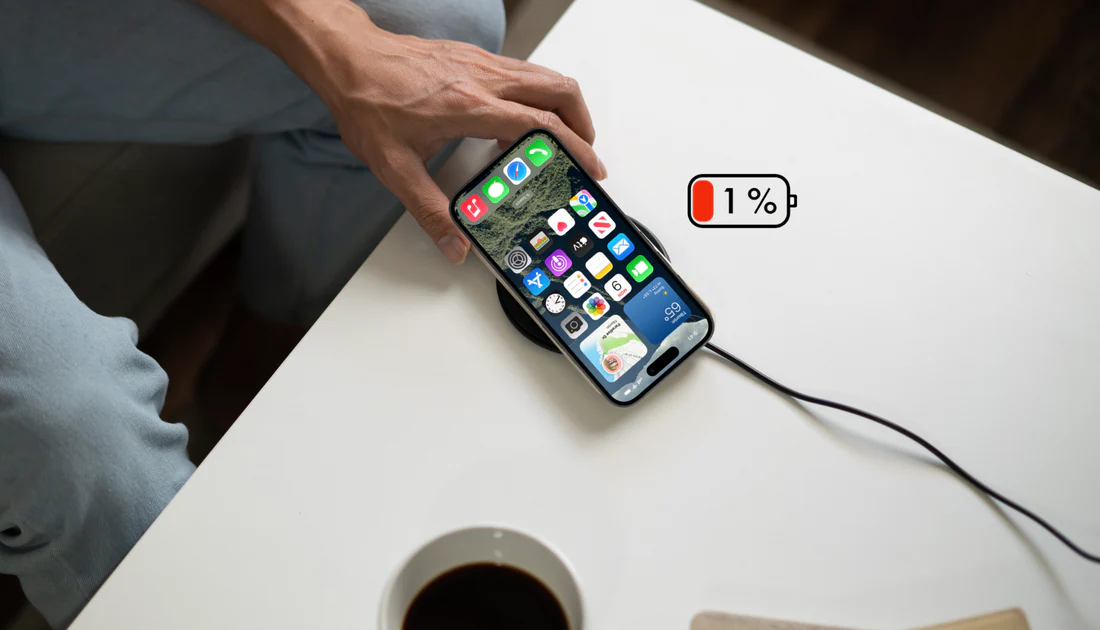
If your iPhone battery health still looks decent but your phone struggles to survive a full day, you’re probably blaming the wrong thing.
Battery degradation is only half the story. The real enemy is background work — small, cosmetic iOS features that quietly run all day, wake the system, hit the network, or activate hardware components you never consciously asked for.
On modern versions of iOS, three settings stand out. They don’t look dangerous. They don’t feel heavy. But together, they create a constant drain that adds up hour by hour.

The good news? None of them are essential. Turning them off takes minutes and can noticeably extend your daily battery life — without making your iPhone feel crippled.
First: Make Sure Your Battery Isn’t the Problem
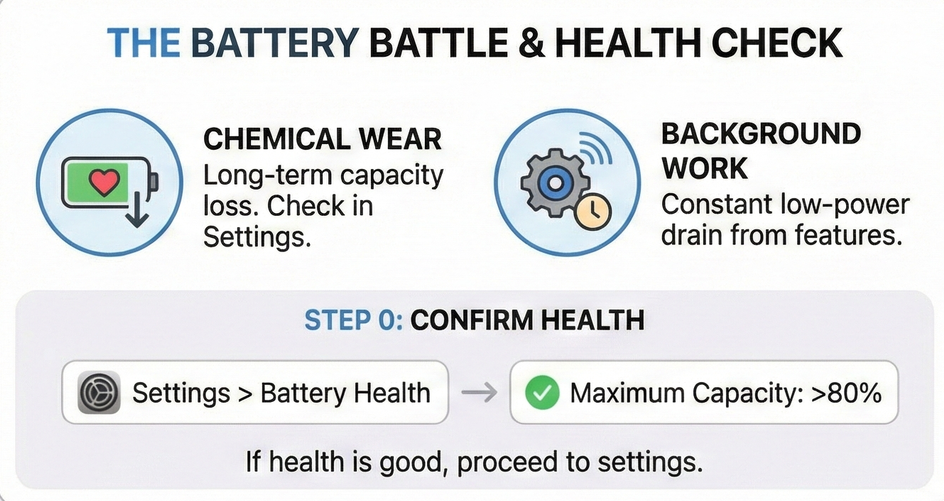
Before changing anything, check whether your hardware is still in good shape.
Go to Settings → Battery → Battery Health & Charging and look at Maximum Capacity.
- 80% or higher: Your battery is still serviceable. Fast drain is likely software-related.
- Below 80%: Some drain is expected, and a replacement may be worth considering.
While you’re there, enable Optimized Battery Charging. It doesn’t fix today’s drain, but it slows long-term wear by avoiding unnecessary time at 100%.
If your battery health is fine and your phone still dies early, keep reading — settings matter more than you think.
1. Lock Screen Widgets: Small Panels, Constant Activity
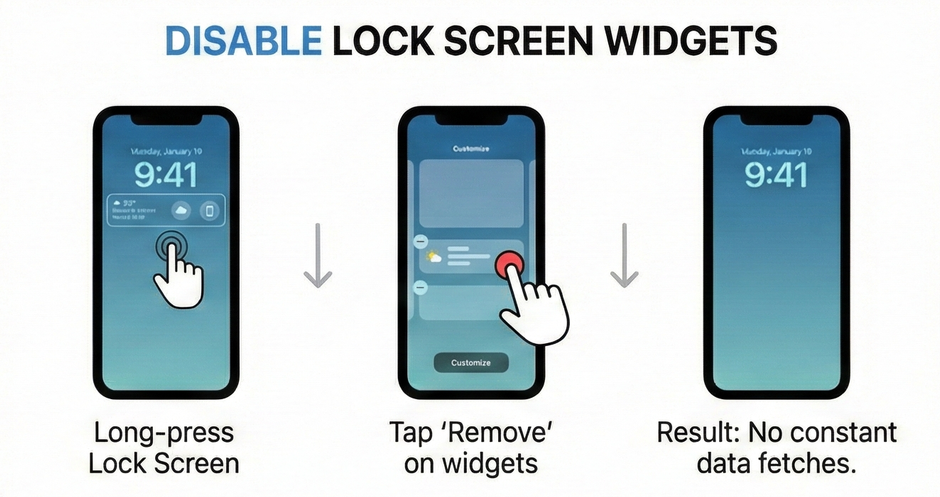
Lock screen widgets look harmless. Weather, calendar, reminders, sports scores — quick info at a glance.
What you don’t see is the work behind them.
To stay “ready,” widget apps regularly:
- Wake in the background
- Fetch new data
- Refresh visuals
- Maintain network connections
All of this happens even if you never look at them.
Why they drain battery
The system can’t predict when you’ll glance at the lock screen, so those widgets stay fresh all the time. That means background refreshes you didn’t ask for.
How to remove lock screen widgets
- Wake your iPhone and stay on the lock screen
- Press and hold an empty area until customization appears
- Tap Customize → Lock Screen
- Tap the widget area below the clock
- Remove widgets using the “–” button
- Tap Done
A clean lock screen equals fewer background updates and better standby time.
Extra tip: If you want maximum battery life, keep home screen widgets minimal too. Same logic, same savings.
2. Motion Effects: Pretty Animations, Real Power Cost

iOS loves motion — zooming app launches, layered blurs, parallax wallpapers, depth effects that react to movement.
They look great. They also keep the GPU and motion sensors busy.
Why this matters
Every animation is rendered frame by frame. Over a full day, that’s a lot of unnecessary graphical work — especially when it adds no real function.
Apple already reduces animations in Low Power Mode for a reason.
How to reduce motion system-wide
- Open Settings
- Go to Accessibility → Motion
- Turn on Reduce Motion
You’ll still have a smooth, usable interface — just without decorative transitions burning power in the background.
Bonus: Devices often run slightly cooler with reduced motion, which also helps battery efficiency.
3. Keyboard Haptics: Tiny Vibrations, Big Accumulated Cost
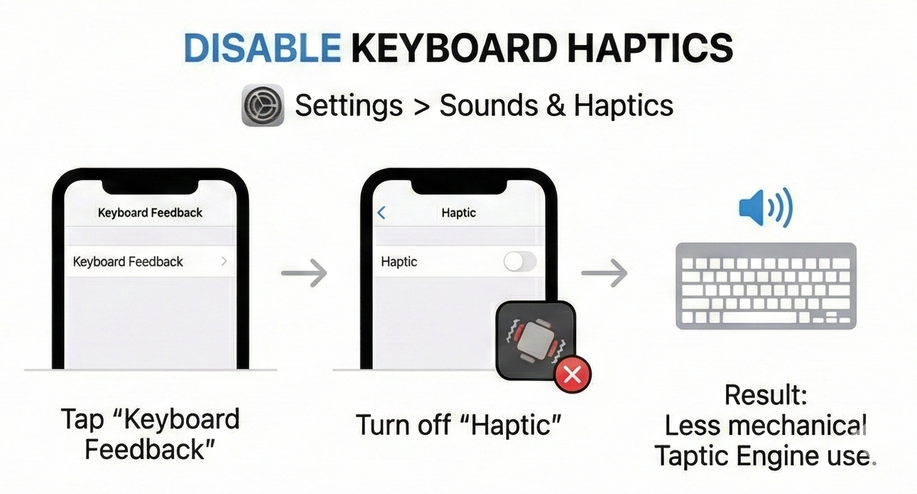
Haptic feedback on the iPhone keyboard feels nice. Every key press triggers a subtle vibration.
Now do the math:
- Hundreds of messages
- Thousands of key presses
- A physical motor activating every time
That motor is the Taptic Engine, and it consumes real power.
Why this drains battery
The system has to:
- Power the motor
- Time the vibration
- Sync it with sound and touch input
If you type a lot, this is one of the most underrated battery drains on the entire phone.
How to turn off keyboard haptics
- Open Settings
- Tap Sounds & Haptics
- Tap Keyboard Feedback
- Turn off Haptic
(Optional: turn off Sound as well)
Your keyboard will still work perfectly — just like older iPhones did — without constantly firing hardware components.
Why These Small Changes Actually Matter
Individually, none of these features feel dramatic. That’s exactly why they’re dangerous.
They:
- Run all day
- Work in the background
- Consume power whether you notice them or not
Disabling them lowers your iPhone’s baseline energy load, so the battery you do spend goes toward things you actually care about — messaging, navigation, calls, work, or entertainment.
If your battery still drops quickly after this, check Settings → Battery and review:
- Which apps use the most power on screen
- Which ones dominate background usage
Social media, maps, video streaming, and games will always consume energy while you use them. That’s normal.
The goal here is simpler: eliminate silent waste, so your battery lasts longer without changing how you use your phone.
Sometimes, the biggest battery wins come not from replacing hardware — but from turning off the features you never needed in the first place.


