
Google Docs has added a new audio generation feature powered by Gemini, offering an entirely new way to interact with text documents. Instead of reading content the traditional way, you can now turn a document into spoken audio and listen to it directly within the editor.
This feature is particularly useful when you need to review reports, study materials, or lengthy documents but don’t have much time to read. In addition to generating an audio version of the entire document, Gemini can also create an audio summary, offer multiple voice options, adjust playback speed, and let you insert an audio button into the document so others can listen to it.
In this guide, we’ll show you how to use the audio feature in Google Docs.
How to Listen to a Google Docs Document
Note: To use this feature, you need an eligible Google plan and must switch the Google Docs interface to English. The feature currently does not support Vietnamese-language content.
Step 1:
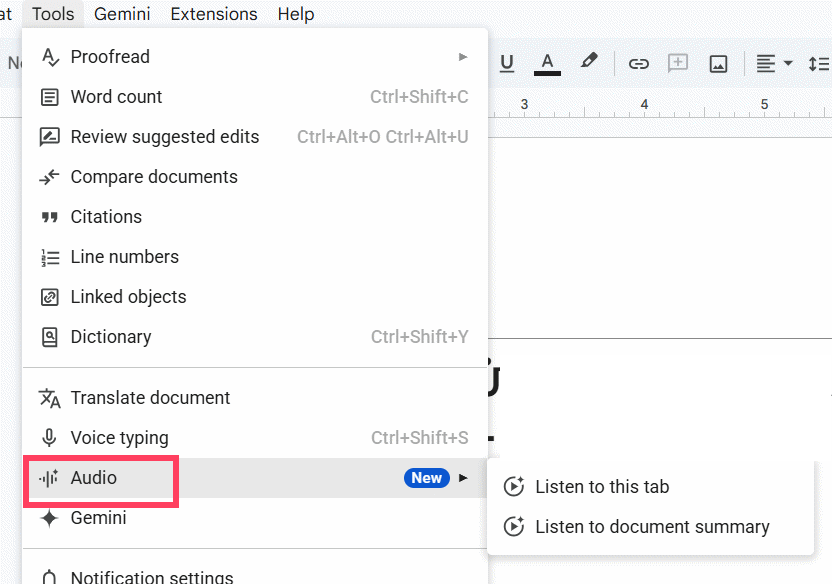
In Google Docs, click Tools, then select Audio.
You’ll see options to listen to the document in the current tab or listen to a summary of the document generated by Gemini.
Click Listen to this tab.
Step 2:
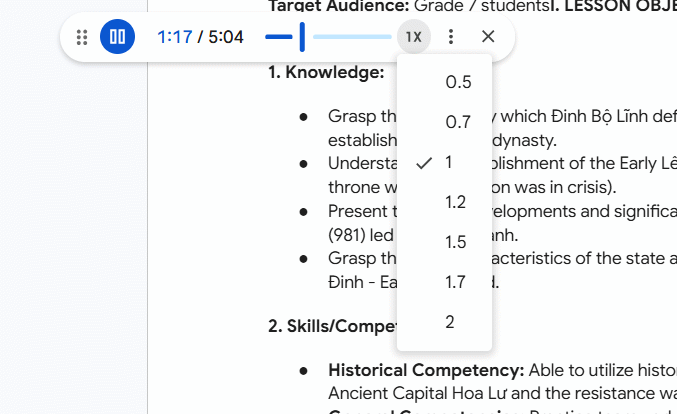
The audio player will then appear in Google Docs. You can adjust the playback speed according to your preference.
Step 3:
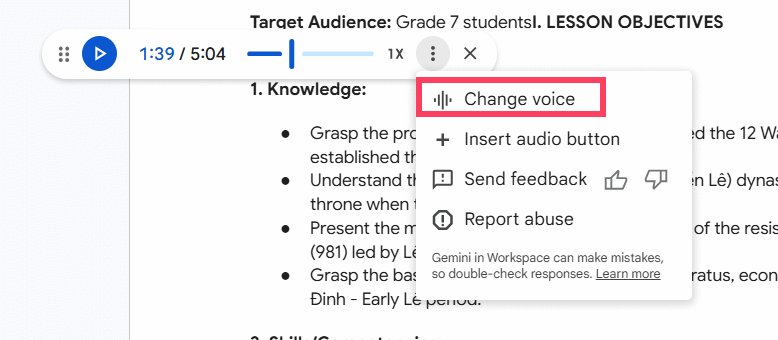
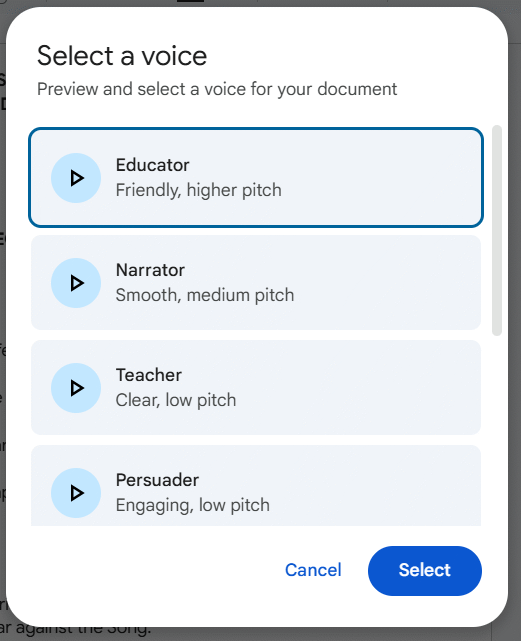
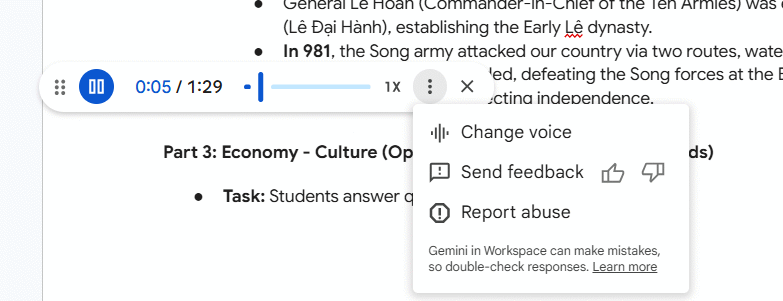
Click the three-dot icon on the audio player, then select Change audio to switch to a different voice.
Step 4:
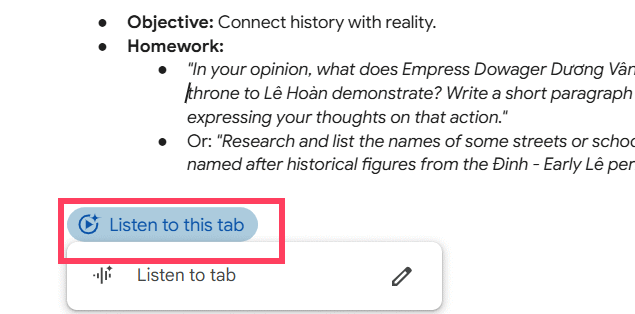
From the same menu, you can also select Insert audio button to add an audio playback button to the Google Docs document.
The audio button will then appear at the end of the document, allowing you to listen to the content whenever needed.
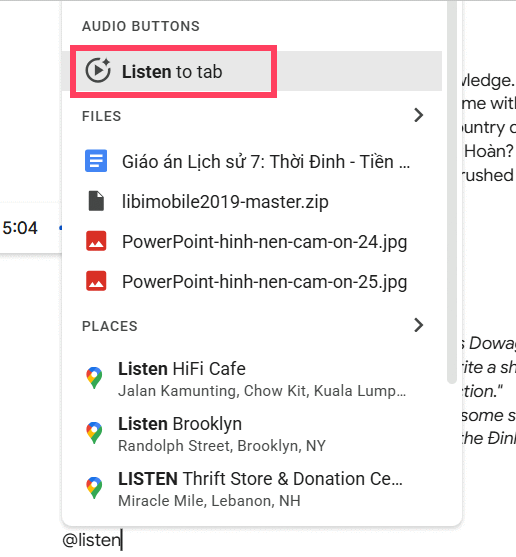
You can also activate the document audio tool in Google Docs by using @Listen to tab.
Step 5:
To listen to a summary of the document, select Listen to document summary.
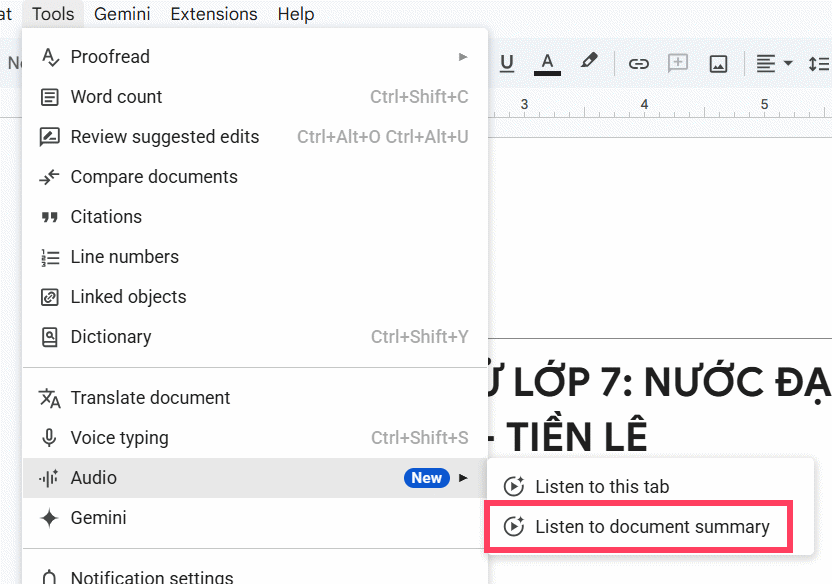
Google Docs will then generate an audio version of the document summary that you can listen to directly.
What Can the Google Docs Audio Tool Do?
The audio generation feature turns document content into spoken audio, giving users a more convenient way to access information. Some of its key capabilities include:
Listen to the entire document: Convert the full content of a Google Docs document into spoken audio so you can listen instead of reading it directly on the screen.
Create an audio summary: Gemini can summarize the key points of a document and read the summary aloud, helping you save time when working with lengthy documents.
Insert an audio playback button: Add an audio button directly to a document so other people can listen to its content with a single click.
Choose from multiple voices: Users can select different voices depending on how they plan to use the audio, whether for studying, presentations, or listening to reports.
Listen to documents while doing other things: You can listen to document content while working on other tasks, making the feature useful while commuting, exercising, or multitasking.
Tips for Using the Google Docs Audio Tool Effectively
To get the most out of this feature, consider the following tips:
Organize your document clearly: Use headings to divide the content into sections. This gives the document a clearer structure and can make the audio easier to follow.
Listen to the summary first: For lengthy documents, listen to the audio summary first to understand the key points before deciding whether you need to listen to the entire document.
Adjust the playback speed: Increase or decrease the playback speed depending on the length and complexity of the document.
Choose the right voice: Try different voice options to find one that sounds natural and makes the content easier to understand.
Listen again to proofread your content: Hearing your document read aloud can help you identify awkward sentences, repetitive content, or other writing issues before sharing or publishing it.
Combine it with other Gemini AI features: After using Gemini to summarize or edit your content, you can generate an audio version to listen to and quickly review the results.

One comment
Hi, this is a comment.
To get started with moderating, editing, and deleting comments, please visit the Comments screen in the dashboard.
Commenter avatars come from Gravatar.