

Even if you normally use headphones, a broken or muted speaker means you can’t hear calls, alarms, notification tones, FaceTime audio, or system alerts. What makes this issue tricky is that the cause isn’t always obvious — and it’s often not hardware at all.
- How to Fix an iPhone Speaker That Has No Sound
- 1. Check the Ringer Switch and Volume Buttons
- 2. Review Sound Settings in iOS
- 3. Make Sure the iPhone Isn’t Stuck in Headphone Mode
- 4. Turn Off Bluetooth Completely
- 5. Check AirPlay Audio Output
- 6. Restart Your iPhone
- 7. Update iOS
- 8. Contact Apple Support (Last Resort)
- Why iPhone Speaker Problems Are So Confusing
- FAQ
- Final Takeaway
Before assuming the worst, work through the steps below. In most cases, one of these fixes will restore sound without a trip to the repair shop.
How to Fix an iPhone Speaker That Has No Sound
Follow these steps in order, from simplest to most advanced.

1. Check the Ringer Switch and Volume Buttons
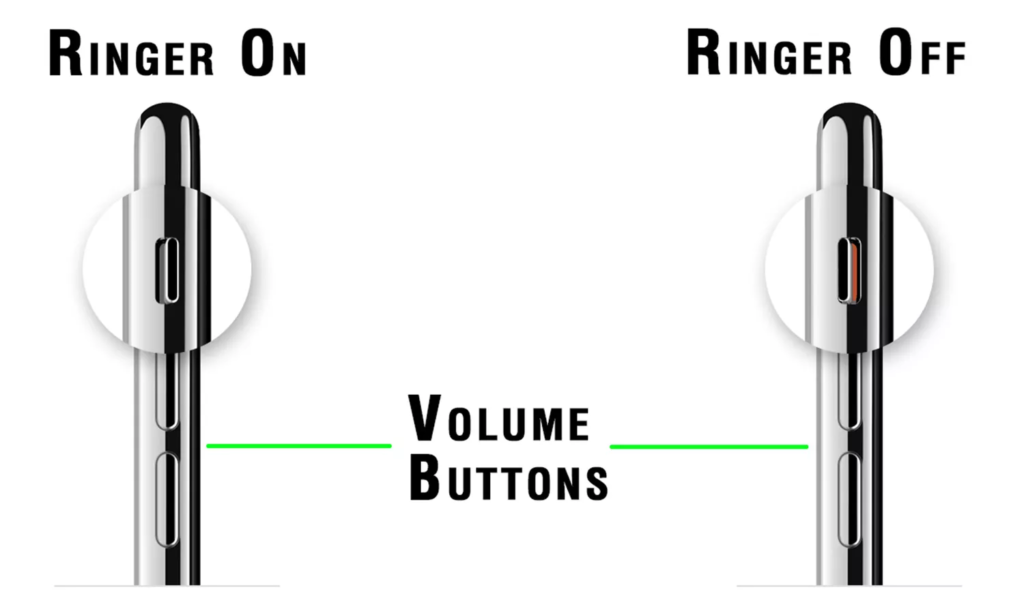
Every iPhone has:
- A ringer/mute switch
- Two volume buttons
If the ringer switch is set to mute, all call and notification sounds are disabled.
What to do:
- Flip the ringer switch so the orange indicator appears
- Flip it back again
- Press the volume up button repeatedly until the volume is maxed out
This alone fixes a surprising number of “dead speaker” complaints.
2. Review Sound Settings in iOS
It’s possible that specific sounds were turned off accidentally.
Go to:
Settings → Sounds & Haptics
Check the following:
- Increase the Ringer and Alerts slider
- Turn on Change with Buttons
- Set a ringtone and text tone (don’t leave them on “None”)
This ensures the system is actually allowed to play sounds.
3. Make Sure the iPhone Isn’t Stuck in Headphone Mode
Sometimes iOS mistakenly thinks headphones are connected — even when they aren’t. When this happens, sound is routed away from the speaker.
Signs of this issue:
- No sound from speaker
- Audio works through wired or Bluetooth headphones
This is a known software glitch and often resolves itself after other steps below.
4. Turn Off Bluetooth Completely
Your iPhone can only send audio to one output at a time.
If Bluetooth is on, your phone may be sending sound to:
- Wireless earbuds
- A car stereo
- A Bluetooth speaker in another room
Fix it:
- Go to Settings → Bluetooth
- Toggle Bluetooth off
If sound returns immediately, Bluetooth routing was the issue.
5. Check AirPlay Audio Output
Even with Bluetooth off, audio can still be routed elsewhere using AirPlay.
How to check:
- Open Control Center
- Tap the AirPlay icon in the music playback panel
- Select iPhone as the output device
If AirPlay was active, this instantly restores speaker audio.
6. Restart Your iPhone
A restart won’t fix everything — but it’s fast and surprisingly effective.
Temporary software glitches can cause the speaker to stop responding even when settings are correct.
Restart your iPhone, then test sound again.
7. Update iOS
Speaker issues can sometimes be caused by bugs in the current iOS version.
Go to:
Settings → General → Software Update
Installing the latest version of iOS may resolve audio problems you didn’t cause.
Updates are free, relatively quick, and worth trying.
8. Contact Apple Support (Last Resort)
If none of the above steps restore sound, the issue is likely hardware-related.
Common hardware causes include:
- Speaker damage
- Water intrusion
- Internal connector failure
At this point, contact Apple:
- Visit an Apple Store (make an appointment first)
- Or request phone/chat support
A technician can confirm whether a repair is required.
Why iPhone Speaker Problems Are So Confusing
Speaker issues are rarely obvious because multiple systems control audio:
- Mute switch
- Volume levels
- Bluetooth routing
- AirPlay output
- App-specific sound permissions
- iOS bugs
Often, you won’t know the real cause until you try the correct fix.
Tip:
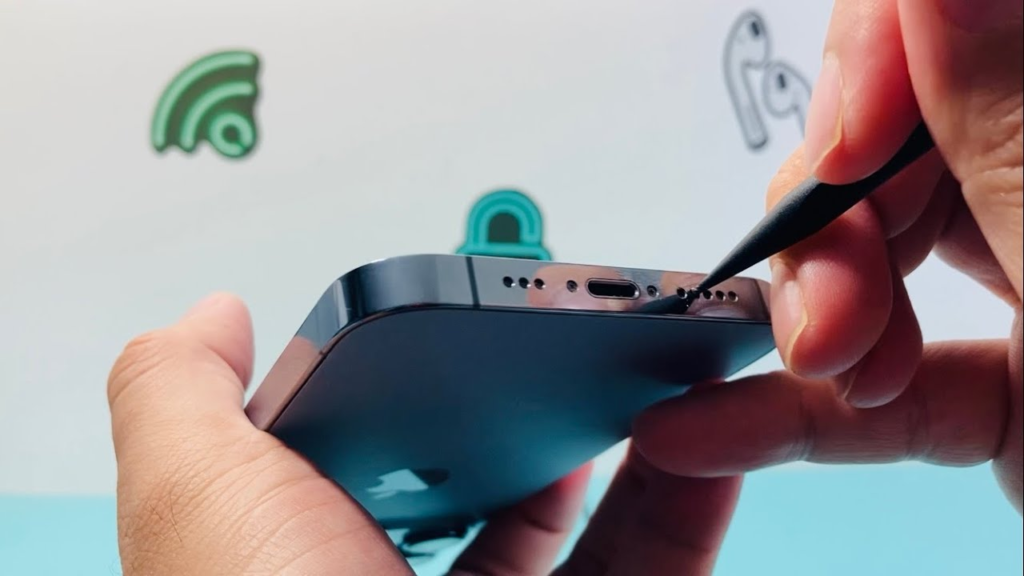
If sound works but is muffled or very quiet, the speaker grille may be clogged with dust or debris. In that case, gently cleaning the speaker openings can help — without changing any settings.
FAQ
Why isn’t my iPhone microphone working?
Microphone issues can be caused by:
- App permissions
- Bluetooth routing
- Blocked mic openings
- Outdated iOS
Try restarting, checking app permissions, updating iOS, or carefully cleaning the mic area.
Why does speakerphone stop working during calls?
If sound cuts out when you tap Speaker, the issue may involve:
- The speaker
- The microphone
- Network settings
Try:
- Closing and reopening the Phone app
- Restarting the iPhone
- Installing iOS updates
- Resetting network settings (Settings → General → Transfer or Reset iPhone → Reset → Network Settings)
Final Takeaway
Most iPhone speaker problems aren’t hardware failures — they’re routing issues, muted settings, or minor software bugs.
Work through these steps calmly, one by one. In many cases, sound comes back long before step eight.



'%3e%3cg id='Final-Copy-2_2_' transform='translate(1275.000000, 200.000000)'%3e%3cpath class='st0' d='M7.4,12.8h6.8l3.1-11.6H7.4C4.2,1.2,1.6,3.8,1.6,7S4.2,12.8,7.4,12.8z'/%3e%3c/g%3e%3c/g%3e%3c/g%3e%3cg id='final---dec.11-2020'%3e%3cg id='_x30_208-our-toggle' transform='translate(-1275.000000, -200.000000)'%3e%3cg id='Final-Copy-2' transform='translate(1275.000000, 200.000000)'%3e%3cpath class='st1' d='M22.6,0H7.4c-3.9,0-7,3.1-7,7s3.1,7,7,7h15.2c3.9,0,7-3.1,7-7S26.4,0,22.6,0z M1.6,7c0-3.2,2.6-5.8,5.8-5.8 h9.9l-3.1,11.6H7.4C4.2,12.8,1.6,10.2,1.6,7z'/%3e%3cpath id='x' class='st2' d='M24.6,4c0.2,0.2,0.2,0.6,0,0.8l0,0L22.5,7l2.2,2.2c0.2,0.2,0.2,0.6,0,0.8c-0.2,0.2-0.6,0.2-0.8,0 l0,0l-2.2-2.2L19.5,10c-0.2,0.2-0.6,0.2-0.8,0c-0.2-0.2-0.2-0.6,0-0.8l0,0L20.8,7l-2.2-2.2c-0.2-0.2-0.2-0.6,0-0.8 c0.2-0.2,0.6-0.2,0.8,0l0,0l2.2,2.2L23.8,4C24,3.8,24.4,3.8,24.6,4z'/%3e%3cpath id='y' class='st3' d='M12.7,4.1c0.2,0.2,0.3,0.6,0.1,0.8l0,0L8.6,9.8C8.5,9.9,8.4,10,8.3,10c-0.2,0.1-0.5,0.1-0.7-0.1l0,0 L5.4,7.7c-0.2-0.2-0.2-0.6,0-0.8c0.2-0.2,0.6-0.2,0.8,0l0,0L8,8.6l3.8-4.5C12,3.9,12.4,3.9,12.7,4.1z'/%3e%3c/g%3e%3c/g%3e%3c/g%3e%3c/g%3e%3c/svg%3e)


0 comments