

Windows 11 has many tools to help you read aloud any text displayed on the screen. You can use these tools to read the contents of application windows, application menus, etc. For those who have difficulty reading text, these tools are very suitable to be able to follow the content. Below are instructions for reading aloud on Windows 11.
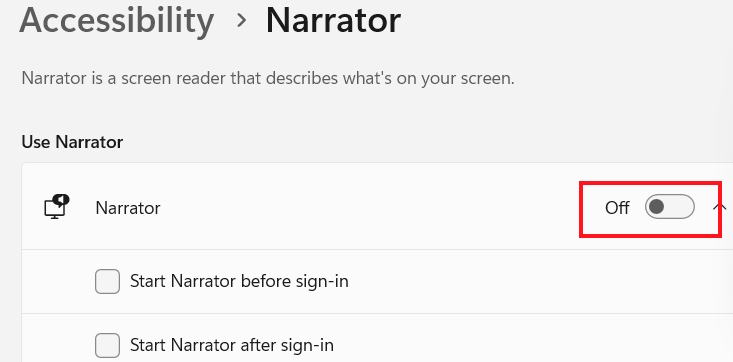
Read Windows 11 text with Narrator
The Narrator tool on Windows 11 computers is a reading tool available on computers, helping you read the content displayed in application windows, application menus,…
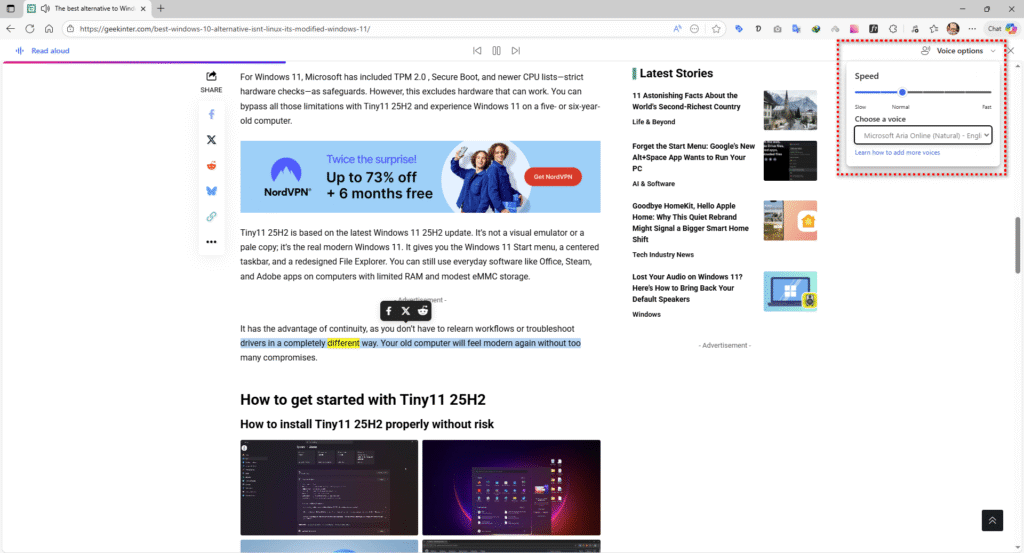
Instructions for reading web pages on Microsoft Edge
Edge’s read aloud feature reads web pages aloud and is built into the browser, so you don’t need to download or install anything.

You highlight the content area on the web page and then select More tools > Read selection aloud .

As a result, you will see the content on the Edge browser’s website read aloud and clearly for users to follow.
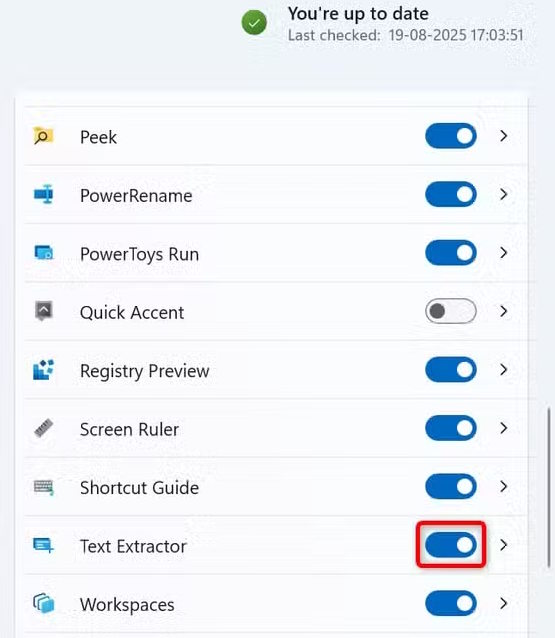
Read text from images and videos Windows 11
To be able to read text in photos and videos on your computer, you install PowerToys from the Microsoft Store. After installation, open PowerToys and enable the Text Extractor option to extract text.
Now you select the data area you want to read and copy the data area into Notepad. Then you use the Narrator tool to read the extracted text.
Read Word documents and Outlook emails
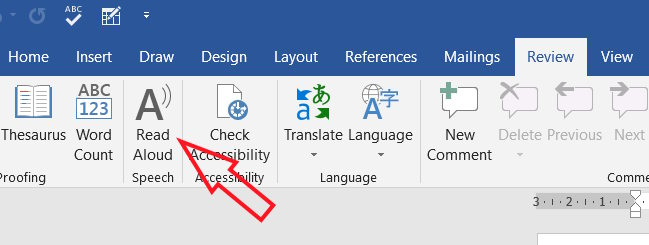
In the Word interface , click on the Review tool and then select Read Aloud to read the content in the Word document.
To use the read feature in Outlook, click the Message tab and select Read Aloud .






'%3e%3cg id='Final-Copy-2_2_' transform='translate(1275.000000, 200.000000)'%3e%3cpath class='st0' d='M7.4,12.8h6.8l3.1-11.6H7.4C4.2,1.2,1.6,3.8,1.6,7S4.2,12.8,7.4,12.8z'/%3e%3c/g%3e%3c/g%3e%3c/g%3e%3cg id='final---dec.11-2020'%3e%3cg id='_x30_208-our-toggle' transform='translate(-1275.000000, -200.000000)'%3e%3cg id='Final-Copy-2' transform='translate(1275.000000, 200.000000)'%3e%3cpath class='st1' d='M22.6,0H7.4c-3.9,0-7,3.1-7,7s3.1,7,7,7h15.2c3.9,0,7-3.1,7-7S26.4,0,22.6,0z M1.6,7c0-3.2,2.6-5.8,5.8-5.8 h9.9l-3.1,11.6H7.4C4.2,12.8,1.6,10.2,1.6,7z'/%3e%3cpath id='x' class='st2' d='M24.6,4c0.2,0.2,0.2,0.6,0,0.8l0,0L22.5,7l2.2,2.2c0.2,0.2,0.2,0.6,0,0.8c-0.2,0.2-0.6,0.2-0.8,0 l0,0l-2.2-2.2L19.5,10c-0.2,0.2-0.6,0.2-0.8,0c-0.2-0.2-0.2-0.6,0-0.8l0,0L20.8,7l-2.2-2.2c-0.2-0.2-0.2-0.6,0-0.8 c0.2-0.2,0.6-0.2,0.8,0l0,0l2.2,2.2L23.8,4C24,3.8,24.4,3.8,24.6,4z'/%3e%3cpath id='y' class='st3' d='M12.7,4.1c0.2,0.2,0.3,0.6,0.1,0.8l0,0L8.6,9.8C8.5,9.9,8.4,10,8.3,10c-0.2,0.1-0.5,0.1-0.7-0.1l0,0 L5.4,7.7c-0.2-0.2-0.2-0.6,0-0.8c0.2-0.2,0.6-0.2,0.8,0l0,0L8,8.6l3.8-4.5C12,3.9,12.4,3.9,12.7,4.1z'/%3e%3c/g%3e%3c/g%3e%3c/g%3e%3c/g%3e%3c/svg%3e)


0 comments