


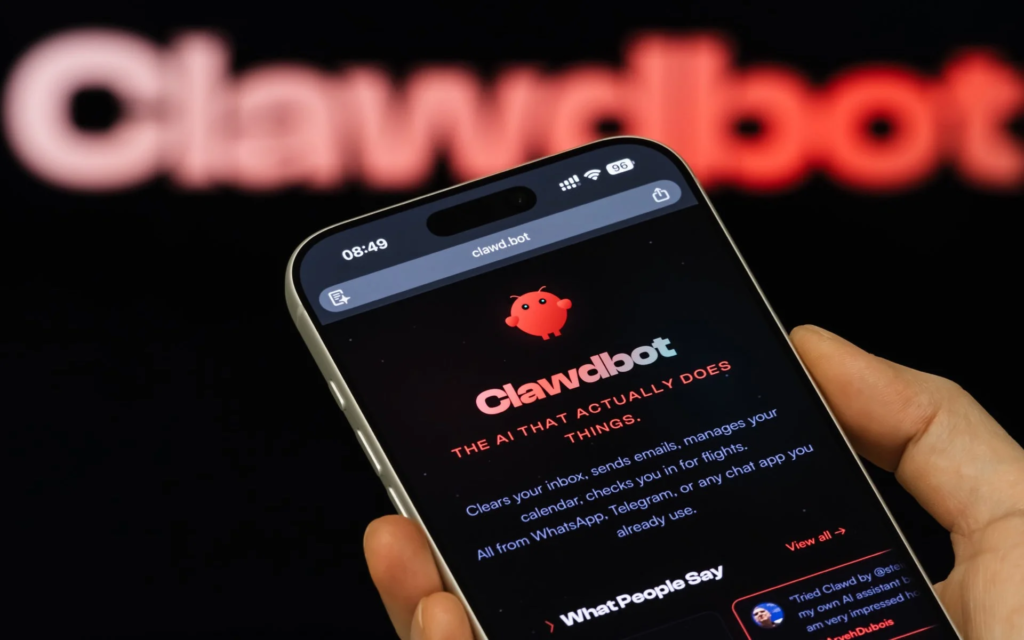
You are halfway through making coffee when a Slack message lands: someone needs the quarterly report right away.
The problem? The file is sitting on your computer at home.
Instead of rushing back to your desk or fumbling with remote desktop software, you open WhatsApp and type:
“Find the Q4 quarterly report PDF on my computer.”

A short while later, you have the file path in hand and can tell your coworker exactly where to find it.
That is the appeal of OpenClaw.
OpenClaw is a self-hosted AI assistant that connects your messaging apps to an agent running on your own machine. You message it through channels like WhatsApp, Telegram, or a terminal, and it can respond by taking action on your computer—searching for files, running scripts, checking logs, and more. The gateway stays on your device, acting as the bridge between chat and the shell.
This guide walks through how to set up OpenClaw from scratch and what you can actually do with it once it is running.
Setting up OpenClaw: requirements, installation, and cost
Let’s start with the basics.
What you need to run it
OpenClaw runs on macOS and Linux. If you are on Windows, you will need WSL2, which is supported but adds an extra setup layer. The official getting-started docs also point to a quick install flow and onboarding command for first-time setup.
As for hardware, this is not the kind of tool that demands a powerful workstation just to stay alive. The gateway itself is lightweight enough that almost any reasonably modern machine can handle it.
Is OpenClaw free?
Yes—OpenClaw itself is free and open source under the MIT license. The real cost comes from the model you connect to it. OpenClaw’s docs and repository position it as the control layer; the usage cost depends on the AI provider you choose.
If you use Claude through the API, Anthropic’s official pricing for Sonnet starts at about $3 per million input tokens and $15 per million output tokens, while Opus starts higher at $5 input / $25 output per million tokens.
In practical terms, your monthly bill depends heavily on how often you use it and how long your tasks are:
- light use: occasional commands and quick lookups
- moderate use: regular file work, research, and automation
- heavy use: long-running sessions and frequent agent-driven workflows
If you already use Claude Pro or Max, OpenClaw’s FAQ notes support for Anthropic’s claude setup-token flow, which can simplify authentication depending on your setup.
Step-by-step: installing OpenClaw
The quickest install method in the current docs is:
curl -fsSL https://openclaw.ai/install.sh | bash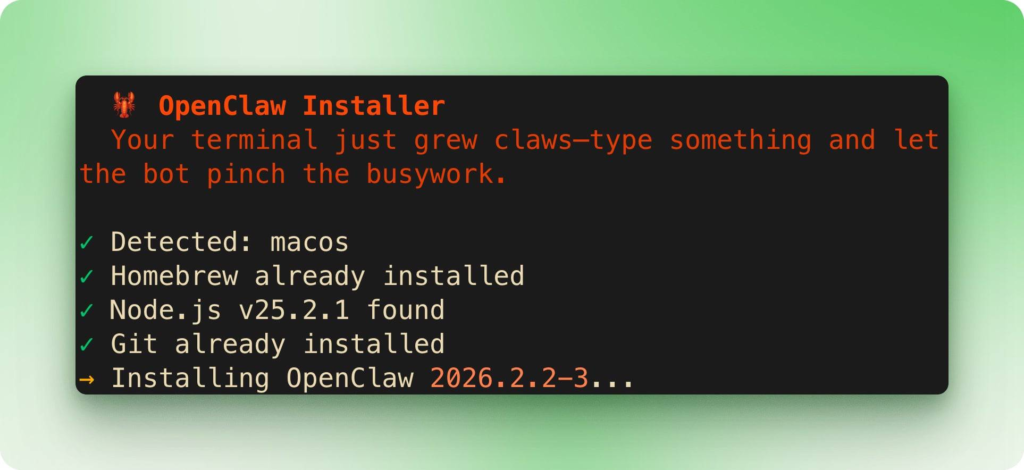
After installation, the onboarding flow can be started with:
openclaw onboard --install-daemon
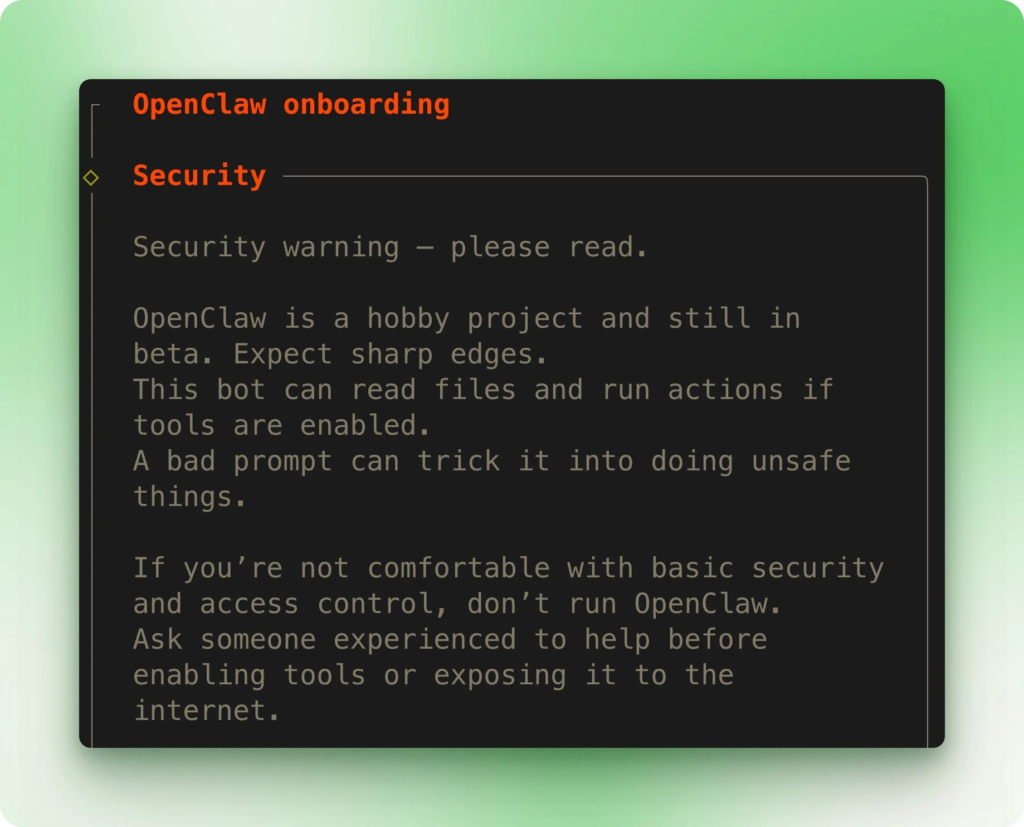
That setup wizard walks you through the main choices.
The first thing you will encounter is a security warning. That is not just legal boilerplate. OpenClaw is designed to let an AI assistant act on your machine, so you should be very clear about what it is allowed to access. The documentation includes configuration and sandboxing guidance for people who want tighter control.
From there, the onboarding process typically lets you choose between a faster default-style setup and more advanced configuration. For most people, the simpler path is enough to get started.
Next, you choose your model provider. If you are using Anthropic with a Claude subscription or token-based auth, OpenClaw’s documentation references the setup-token flow.
Then comes channel setup.
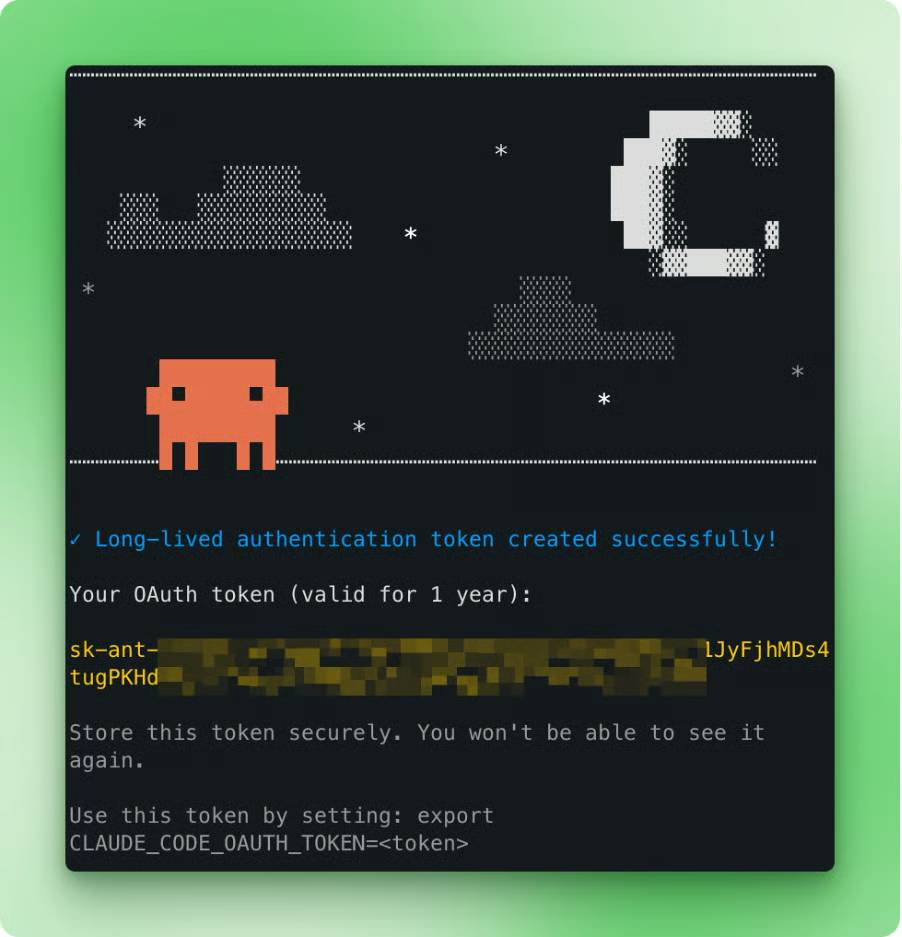
If you want to use WhatsApp, you pair it by scanning a QR code from your phone. OpenClaw also supports a long list of other channels, including Telegram, Discord, Slack, Signal, Google Chat, Microsoft Teams, Matrix, and more.
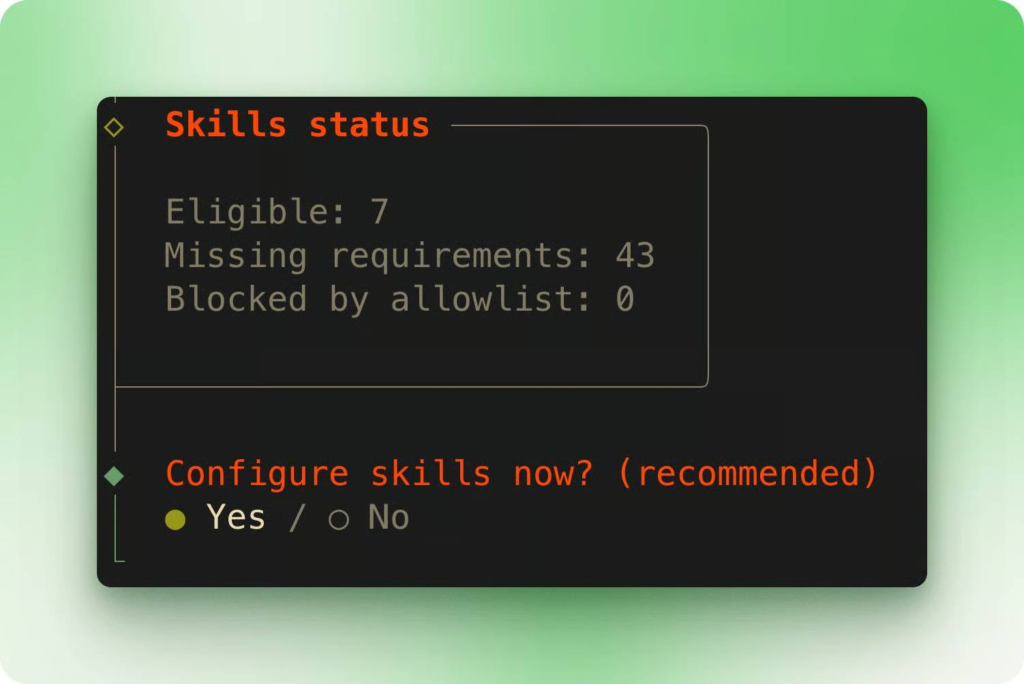
The wizard may also ask about optional skills or extensions. These can expand what OpenClaw can do, but they often bring extra dependencies with them. If your goal is simply to get the system running and test the core workflow, keeping the initial setup minimal is the smart move.
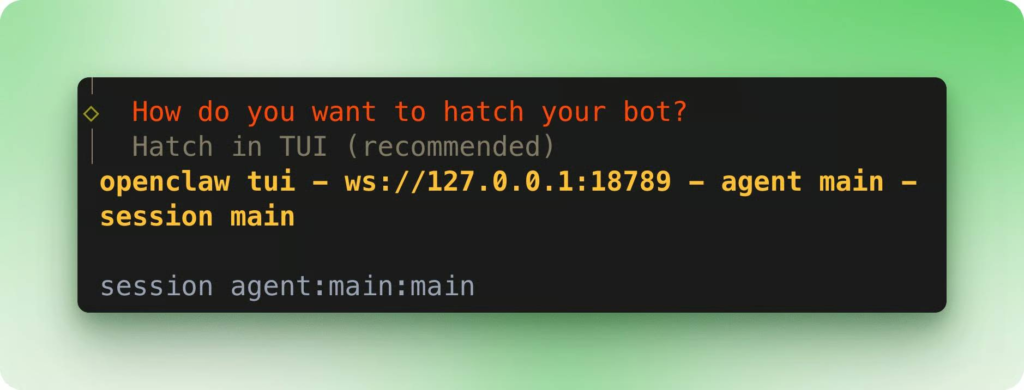
Once onboarding is complete, the gateway service is installed and your assistant can be launched through the terminal interface and web dashboard. When everything is connected properly, messages should show up in all the active surfaces at once—your messaging app, the terminal UI, and the web view.
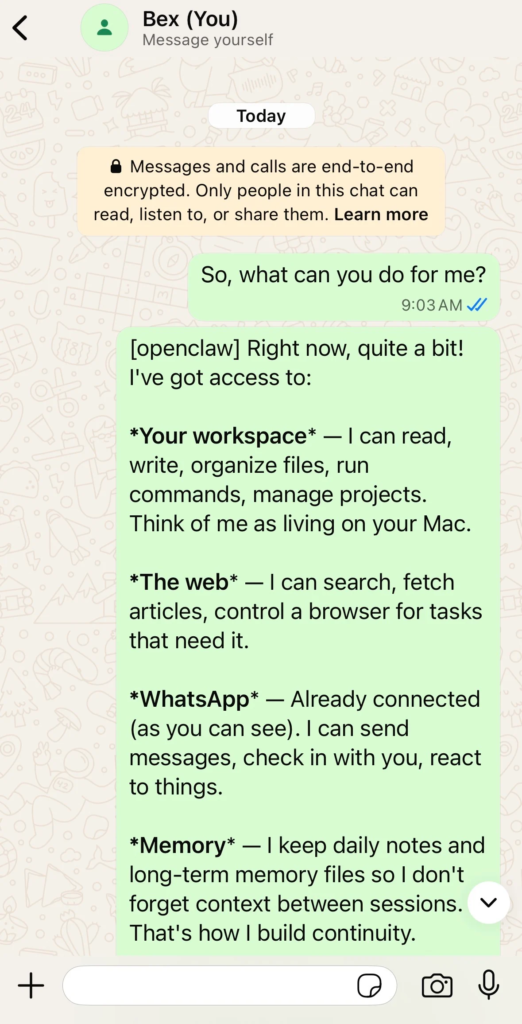
That is when you know it is live.
What OpenClaw can do out of the box
The interesting part is not installation. It is what happens after the first ten minutes.
OpenClaw becomes useful surprisingly fast because it can already handle practical, real-world tasks without a complicated workflow.
Example 1: Find and send back a buried screenshot
Imagine you are away from home and suddenly realize you forgot to send yourself a file. You know it is somewhere in your Downloads folder, but the filename is vague and buried among dozens of screenshots.
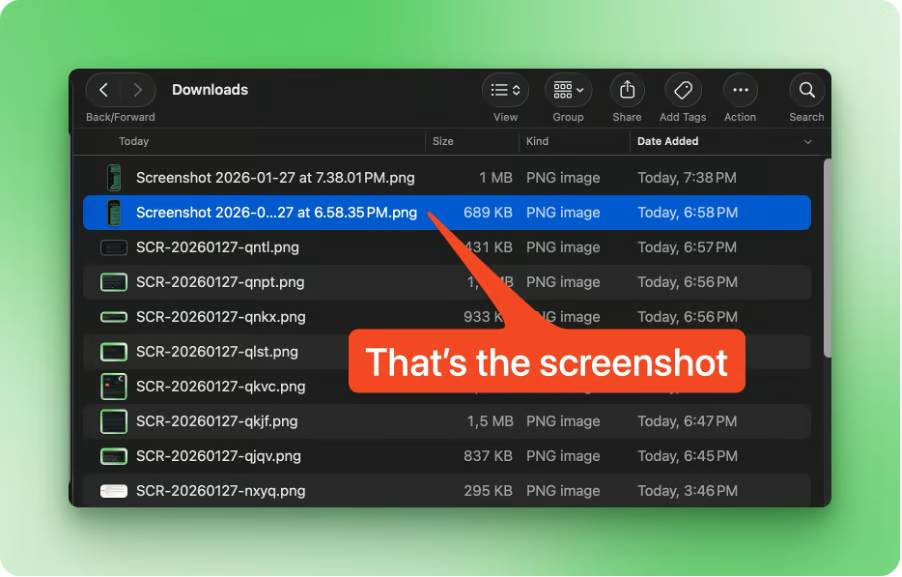
You send a message like this:
“I have a screenshot in my Downloads folder from a WhatsApp conversation. Can you find it and send it here?”
That is exactly the kind of task OpenClaw is good at. It can inspect the folder, work through the files, identify the likely match, and send the result back through the same chat channel.
There is one catch, especially on macOS: the first time the agent tries to access protected folders like Downloads, the operating system may ask for permission. If you plan to rely on OpenClaw remotely, granting the right disk permissions ahead of time can save you trouble later.
Example 2: Check free disk space and build a PDF report
Now picture a different situation.
A coworker is about to send you a large Dropbox package, and you want to know whether your machine has enough free space before it arrives. You could wait until you are back at your desk. Or you could simply message your assistant.
For example:
“Check my disk space and create a PDF report with charts in Python showing usage by folder.”
That one request turns into a chain of tasks: scanning the file system, calculating folder sizes, writing Python code to generate charts, and exporting everything into a PDF.
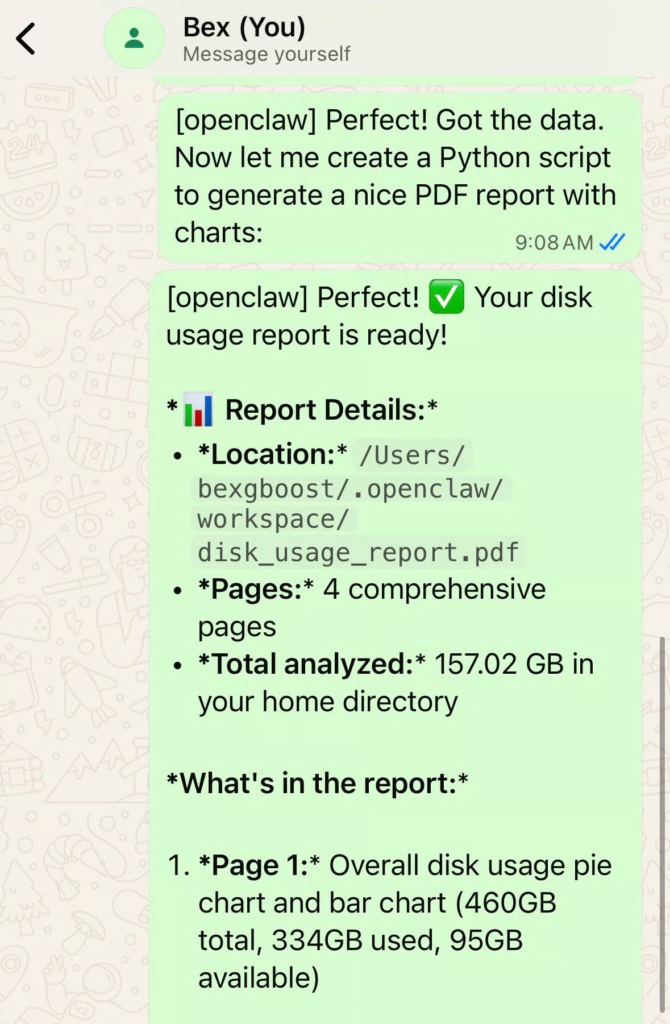
The result is more than a yes-or-no answer. You get a useful snapshot of your storage situation—how much space is free, where the biggest folders are, and what is eating your disk.
And that is really where OpenClaw starts to stand out.
It is not just responding with text. It is coordinating tools, commands, and scripts on your own machine to produce something genuinely useful.
Where OpenClaw feels different
A lot of AI tools sound impressive in demos but fall apart the moment you ask them to handle something practical.
OpenClaw is different because it lives close to your real workflow. It is not just a chatbot sitting in a browser tab. It is an assistant you can message from everyday apps, one that can actually interact with your files, scripts, logs, and local environment. The official docs describe it as a gateway between your existing chat apps and an always-available assistant running under your control.
That makes it especially appealing for developers, tinkerers, home-lab users, and anyone who wants lightweight remote control without building a whole remote-access stack from scratch.
It also explains why the tool feels more powerful than its simple setup suggests. Under the surface, it is less like a messaging bot and more like a personal operations layer for your machine.
One thing to keep in mind
OpenClaw can be cautious. That is usually a good thing.
If you compare it with a more aggressive coding agent, you may find that OpenClaw takes a cleaner, more restrained route unless you explicitly ask for more depth. So if you want a deep storage audit, twenty charts, or recursive breakdowns of every subfolder, say so directly.
The better your instruction, the better the result.
That is not a flaw. It is the trade-off of working with an assistant that is meant to be useful on your real machine rather than flashy in a one-off demo.
Final takeaway
OpenClaw turns something surprisingly ordinary—sending a message on WhatsApp—into a remote control surface for your computer.
Need a missing file? Ask.
Need logs checked? Ask.
Need a quick system report while you are out? Ask.
And because the gateway runs on your own device, the whole setup feels more personal, more flexible, and more under your control than a typical cloud-only AI tool.
That is the real hook here: OpenClaw is not trying to replace your computer. It is trying to make your computer reachable, useful, and intelligent from wherever you happen to be.




'%3e%3cg id='Final-Copy-2_2_' transform='translate(1275.000000, 200.000000)'%3e%3cpath class='st0' d='M7.4,12.8h6.8l3.1-11.6H7.4C4.2,1.2,1.6,3.8,1.6,7S4.2,12.8,7.4,12.8z'/%3e%3c/g%3e%3c/g%3e%3c/g%3e%3cg id='final---dec.11-2020'%3e%3cg id='_x30_208-our-toggle' transform='translate(-1275.000000, -200.000000)'%3e%3cg id='Final-Copy-2' transform='translate(1275.000000, 200.000000)'%3e%3cpath class='st1' d='M22.6,0H7.4c-3.9,0-7,3.1-7,7s3.1,7,7,7h15.2c3.9,0,7-3.1,7-7S26.4,0,22.6,0z M1.6,7c0-3.2,2.6-5.8,5.8-5.8 h9.9l-3.1,11.6H7.4C4.2,12.8,1.6,10.2,1.6,7z'/%3e%3cpath id='x' class='st2' d='M24.6,4c0.2,0.2,0.2,0.6,0,0.8l0,0L22.5,7l2.2,2.2c0.2,0.2,0.2,0.6,0,0.8c-0.2,0.2-0.6,0.2-0.8,0 l0,0l-2.2-2.2L19.5,10c-0.2,0.2-0.6,0.2-0.8,0c-0.2-0.2-0.2-0.6,0-0.8l0,0L20.8,7l-2.2-2.2c-0.2-0.2-0.2-0.6,0-0.8 c0.2-0.2,0.6-0.2,0.8,0l0,0l2.2,2.2L23.8,4C24,3.8,24.4,3.8,24.6,4z'/%3e%3cpath id='y' class='st3' d='M12.7,4.1c0.2,0.2,0.3,0.6,0.1,0.8l0,0L8.6,9.8C8.5,9.9,8.4,10,8.3,10c-0.2,0.1-0.5,0.1-0.7-0.1l0,0 L5.4,7.7c-0.2-0.2-0.2-0.6,0-0.8c0.2-0.2,0.6-0.2,0.8,0l0,0L8,8.6l3.8-4.5C12,3.9,12.4,3.9,12.7,4.1z'/%3e%3c/g%3e%3c/g%3e%3c/g%3e%3c/g%3e%3c/svg%3e)


0 comments