



Bluetooth pairing on Windows 11 can be much easier when Swift Pair is enabled. Instead of digging through menus every time you want to connect a device, Windows can simply show a pop-up notification the moment a nearby Bluetooth device enters pairing mode.
From there, all it takes is a couple of clicks.
That convenience is exactly why Swift Pair is useful—but it is also why some users prefer to turn it off. Whether you want fewer pairing prompts or a faster way to connect accessories, Windows 11 lets you enable or disable Bluetooth Quick Pair whenever you like.

What Is Bluetooth Quick Pair on Windows 11?
Swift Pair is a Windows feature that makes Bluetooth pairing faster and more seamless.
When a supported Bluetooth device is nearby and set to pairing mode, your PC can display a notification on screen. Instead of manually searching for the device through Bluetooth settings, you can connect directly from that prompt.
It is a small feature, but it can make pairing headphones, keyboards, mice, and other accessories much quicker.
How to Turn Bluetooth Quick Pair On or Off in Settings
The easiest way to manage Swift Pair is through the Settings app.
Step 1
Open Settings on your Windows 11 PC.
In the left-hand menu, click Bluetooth & devices.
Then, on the right side, select Devices.
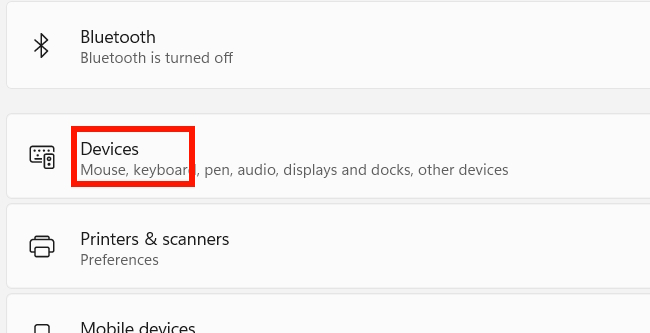
Step 2
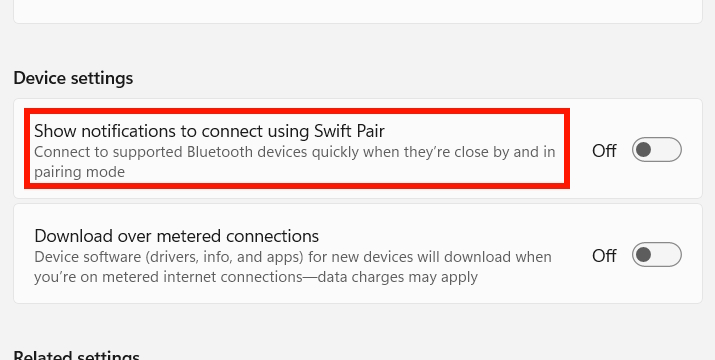
Scroll to Device settings.
There, you will find the option:
Show notifications to connect using Swift Pair
Turn this option on to enable Bluetooth Quick Pair notifications.
Turn it off to disable them.
How to Enable or Disable Bluetooth Quick Pair Using Registry Editor
If you prefer using commands, you can also control Swift Pair through the Windows Registry.
Enable Bluetooth Quick Pair:
reg add "HKEY_CURRENT_USER\Software\Microsoft\Windows\CurrentVersion\Bluetooth" /v QuickPair /t REG_DWORD /d 1 /fDisable Bluetooth Quick Pair:
reg add "HKEY_CURRENT_USER\Software\Microsoft\Windows\CurrentVersion\Bluetooth" /v QuickPair /t REG_DWORD /d 0 /fThese commands apply the setting only to the current user account.
How to Use Registry for All User Accounts
You need to be signed in as an administrator to use this option.
Enable Swift Pair for all users:
reg add "HKEY_LOCAL_MACHINE\SOFTWARE\Microsoft\PolicyManager\default\Bluetooth\AllowPromptedProximalConnections" /v value /t REG_DWORD /d 1 /fDisable Swift Pair for all users:
reg add "HKEY_LOCAL_MACHINE\SOFTWARE\Microsoft\PolicyManager\default\Bluetooth\AllowPromptedProximalConnections" /v value /t REG_DWORD /d 0 /fWhy You Might Want to Turn Swift Pair Off
Swift Pair is handy, but it is not for everyone.
Some users would rather avoid on-screen pairing prompts, especially in busy environments where multiple Bluetooth devices may appear nearby. Others simply prefer managing connections manually through Settings.
On the other hand, if you frequently connect wireless accessories, leaving Swift Pair enabled can save time and make the whole process feel far more effortless.
Final Thoughts
Swift Pair is one of those small Windows 11 features that can quietly make everyday tasks easier. If you like fast Bluetooth pairing with less menu-hopping, it is worth keeping on. If you want a cleaner, less intrusive experience, turning it off takes only a moment.
Either way, Windows 11 gives you full control.




'%3e%3cg id='Final-Copy-2_2_' transform='translate(1275.000000, 200.000000)'%3e%3cpath class='st0' d='M7.4,12.8h6.8l3.1-11.6H7.4C4.2,1.2,1.6,3.8,1.6,7S4.2,12.8,7.4,12.8z'/%3e%3c/g%3e%3c/g%3e%3c/g%3e%3cg id='final---dec.11-2020'%3e%3cg id='_x30_208-our-toggle' transform='translate(-1275.000000, -200.000000)'%3e%3cg id='Final-Copy-2' transform='translate(1275.000000, 200.000000)'%3e%3cpath class='st1' d='M22.6,0H7.4c-3.9,0-7,3.1-7,7s3.1,7,7,7h15.2c3.9,0,7-3.1,7-7S26.4,0,22.6,0z M1.6,7c0-3.2,2.6-5.8,5.8-5.8 h9.9l-3.1,11.6H7.4C4.2,12.8,1.6,10.2,1.6,7z'/%3e%3cpath id='x' class='st2' d='M24.6,4c0.2,0.2,0.2,0.6,0,0.8l0,0L22.5,7l2.2,2.2c0.2,0.2,0.2,0.6,0,0.8c-0.2,0.2-0.6,0.2-0.8,0 l0,0l-2.2-2.2L19.5,10c-0.2,0.2-0.6,0.2-0.8,0c-0.2-0.2-0.2-0.6,0-0.8l0,0L20.8,7l-2.2-2.2c-0.2-0.2-0.2-0.6,0-0.8 c0.2-0.2,0.6-0.2,0.8,0l0,0l2.2,2.2L23.8,4C24,3.8,24.4,3.8,24.6,4z'/%3e%3cpath id='y' class='st3' d='M12.7,4.1c0.2,0.2,0.3,0.6,0.1,0.8l0,0L8.6,9.8C8.5,9.9,8.4,10,8.3,10c-0.2,0.1-0.5,0.1-0.7-0.1l0,0 L5.4,7.7c-0.2-0.2-0.2-0.6,0-0.8c0.2-0.2,0.6-0.2,0.8,0l0,0L8,8.6l3.8-4.5C12,3.9,12.4,3.9,12.7,4.1z'/%3e%3c/g%3e%3c/g%3e%3c/g%3e%3c/g%3e%3c/svg%3e)


0 comments