



On Windows 10, you can easily find a page dedicated to managing background apps. However, on Windows 11, this will be a bit more difficult. However, Windows 11 still allows you to disable background apps. You can set it for each app or for all apps, set it for a user or all users on the computer.
- Turn off background apps in Settings
- Turn off background apps via Power & battery settings
- Turn off all background apps on Windows 11 using Registry
- Use pre-made REG file
- Turn off background apps on Windows 11 for all users using Group Policy
- Turn off background apps on Windows 11 for all users using Registry
- Use pre-made REG file
Note: What Network Administrator guides you in this article only works with apps you install from Microsoft Store. All apps you download from other sources will not have settings to set up background running. In addition, preventing apps from running in the background does not mean you cannot use them. You can still run these apps normally.
There are several ways to disable background apps on Windows 11. Here are the steps in detail:

Turn off background apps in Settings
1. Open Settings in Windows 11. You can use the Win + I shortcut to open it quickly or use other methods.
2. Tap on Apps then continue to tap on Apps & features .
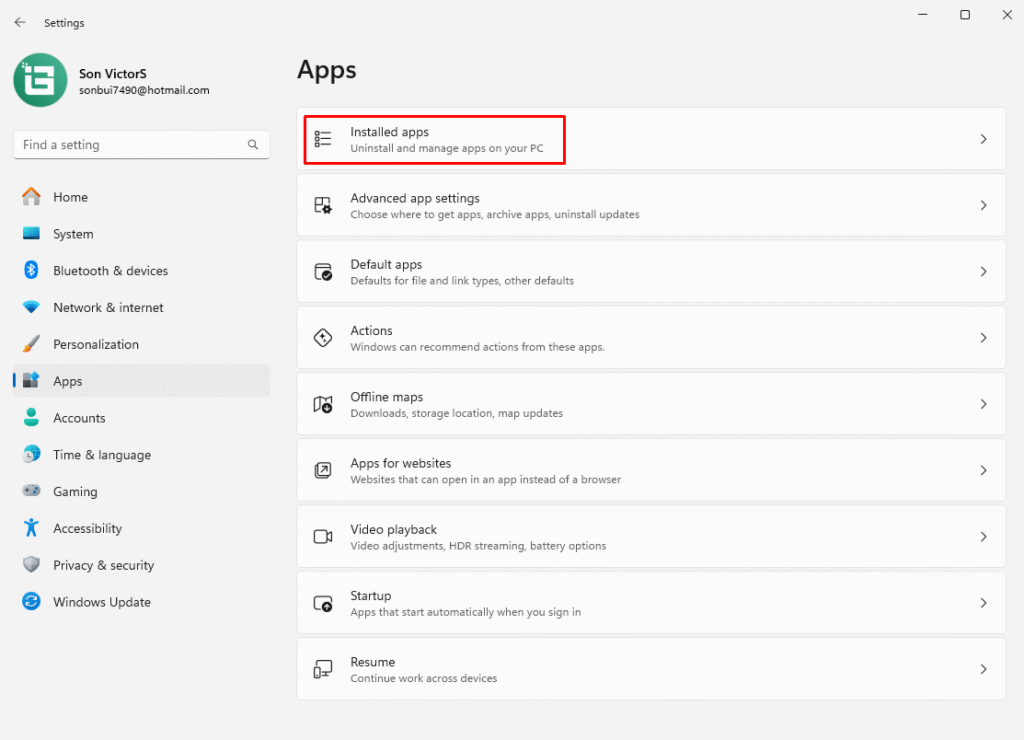
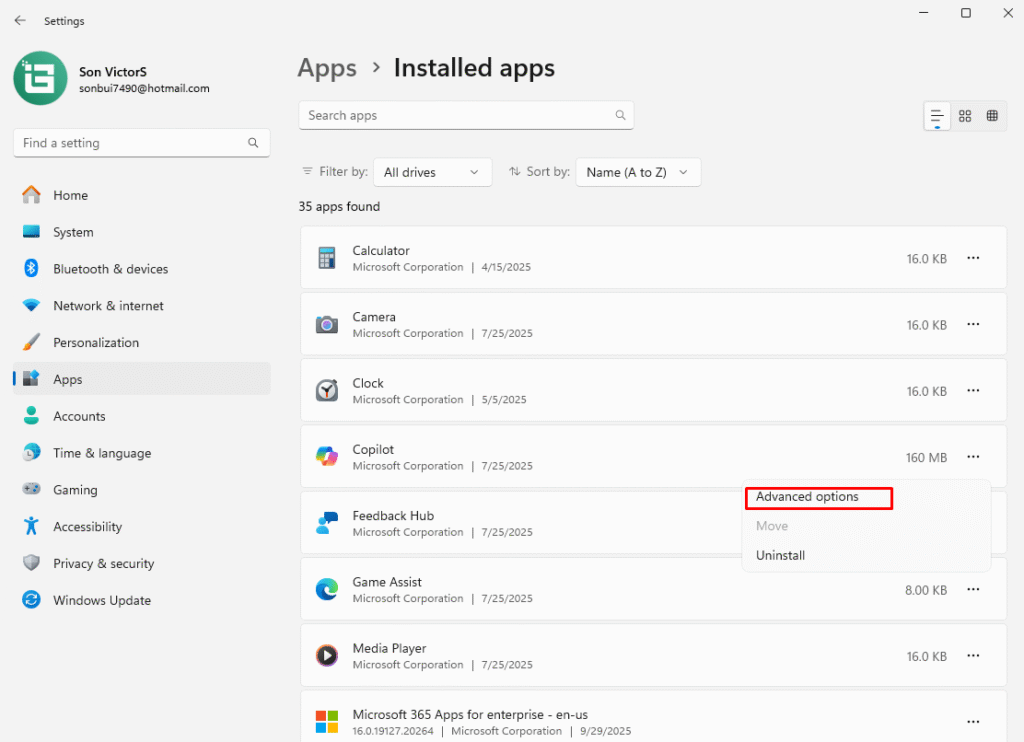
3. Find the app you want to disable from running in the background. Click the three dots and select
Advanced options .
4. Find Background apps permissions and select the mode you want. By default, Windows 11 will be set to
Power optimized mode . This allows Windows to manage how an application works in the background. For example, the system will automatically shut down all background applications if you turn on battery saving mode.
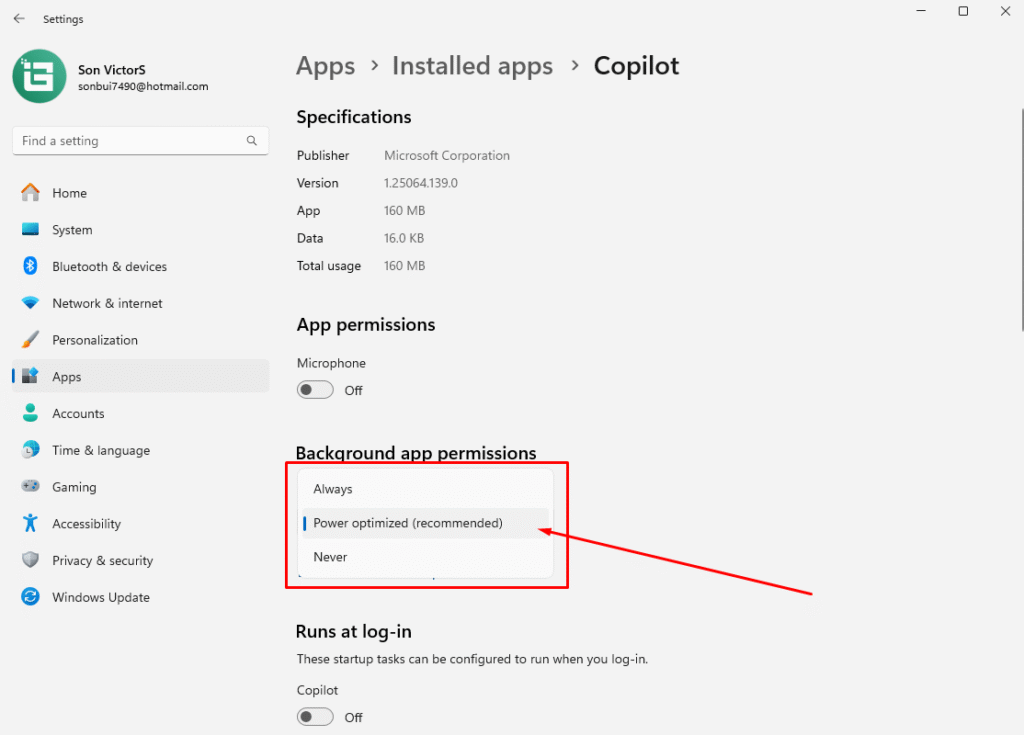
5. Select Never mode to prevent the application from running in the background. However, if after selecting Never the application crashes, does not send notifications, does not update data, you should change its settings back to Power optimized or Always.
6. Repeat the above steps for other apps.
Turn off background apps via Power & battery settings
The Power & battery page in Windows 11 Settings provides data on battery usage by installed apps. This is really useful if you want to shut down background apps based on battery usage to save power.
Here’s how to do it.
1. Press Win + I to open the Settings page.
2. In the System tab , scroll down and click Power & battery .
3. Scroll down to the Battery section and click Battery usage.
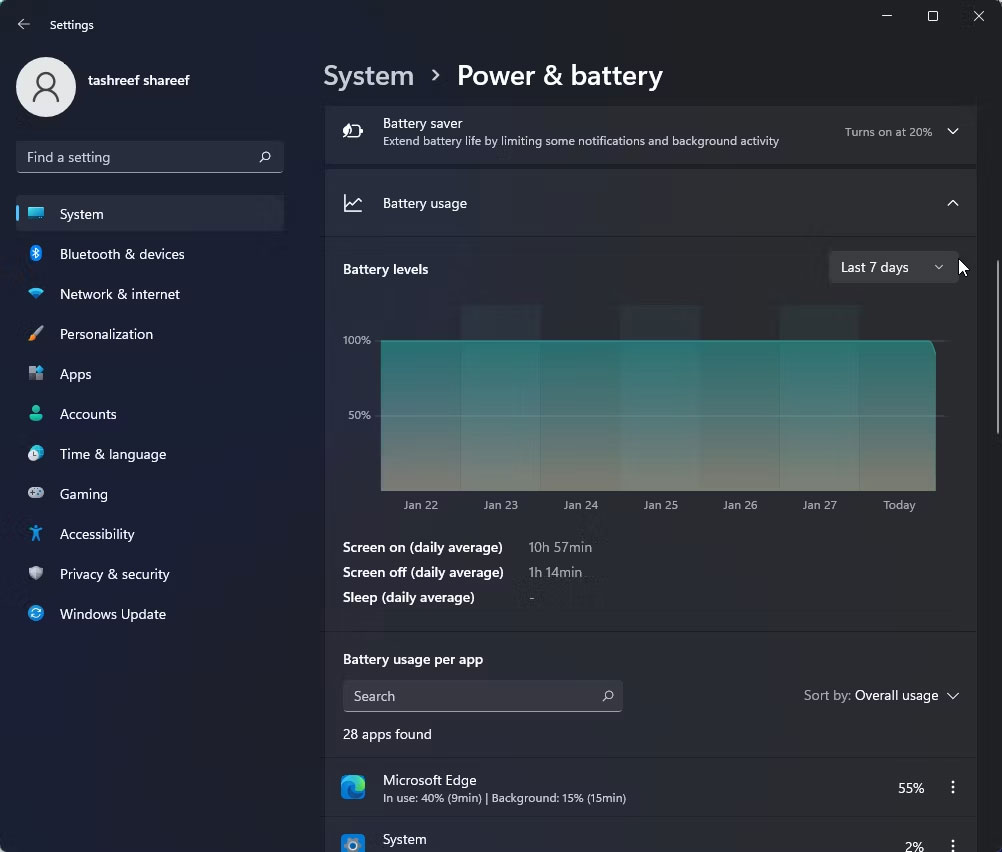
4. Click the
Battery levels drop-down menu and select
Last 7 days . Windows will load all apps that used battery power in the last 7 days.
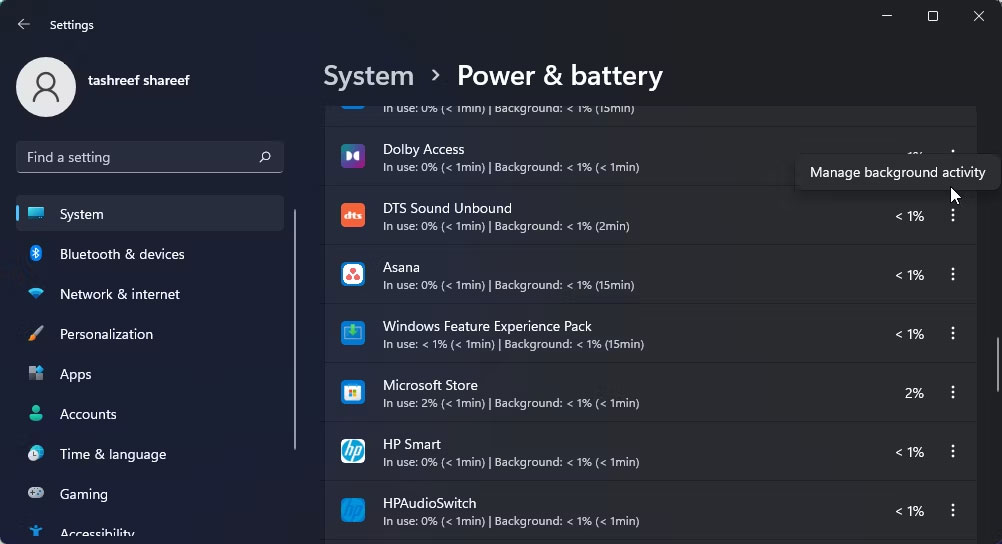
5. To change background app permissions, click the three-dot menu next to the app name and select Manage background productivity . This option is only available for Microsoft Store apps.
6. Click the drop-down menu (Power optimized) in the Background apps permissions section and select Never. This will disable the app from running in the background. If you set it to Always , the app will continue to run in the background regardless of your power status.
7. Repeat the steps for all apps that may be draining battery or affecting system performance.
There is no button in Windows 11 Settings to disable all background apps at once. So, we will continue to the next part, using the Registry.
Turn off all background apps on Windows 11 using Registry
1. Press Win + R to open Run then type regedit and press Enter.
2. Access the following key:
HKEY_CURRENT_USER\Software\Microsoft\Windows\CurrentVersion\BackgroundAccessApplications3. In the right window, you edit or create a DWORD (32-bit) Value named GlobalUserDisabled.
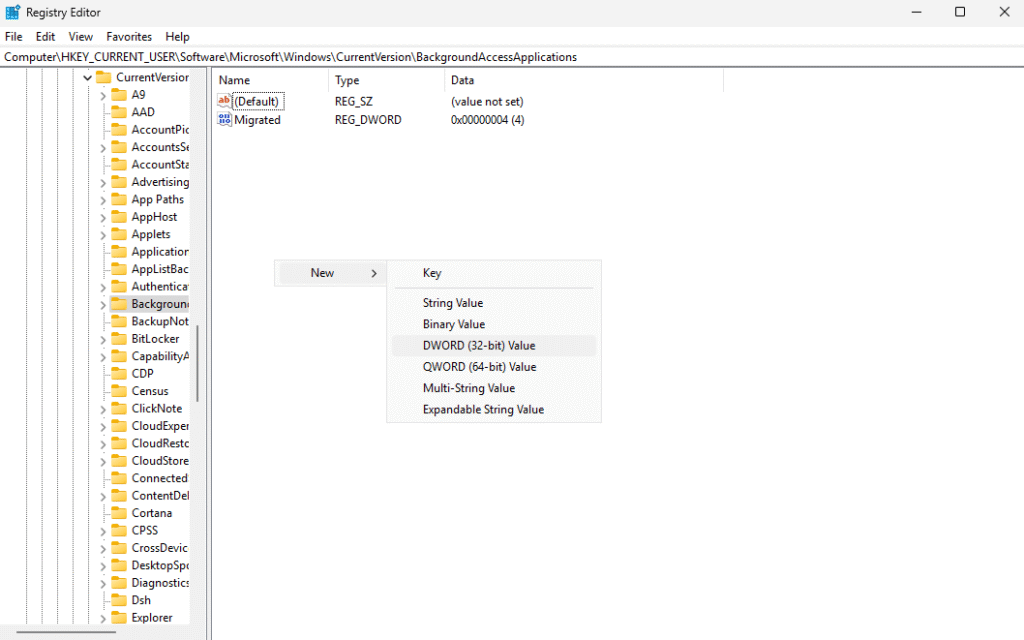
4. Set 1 in the Value data box to prevent all background apps from running on Windows 11.
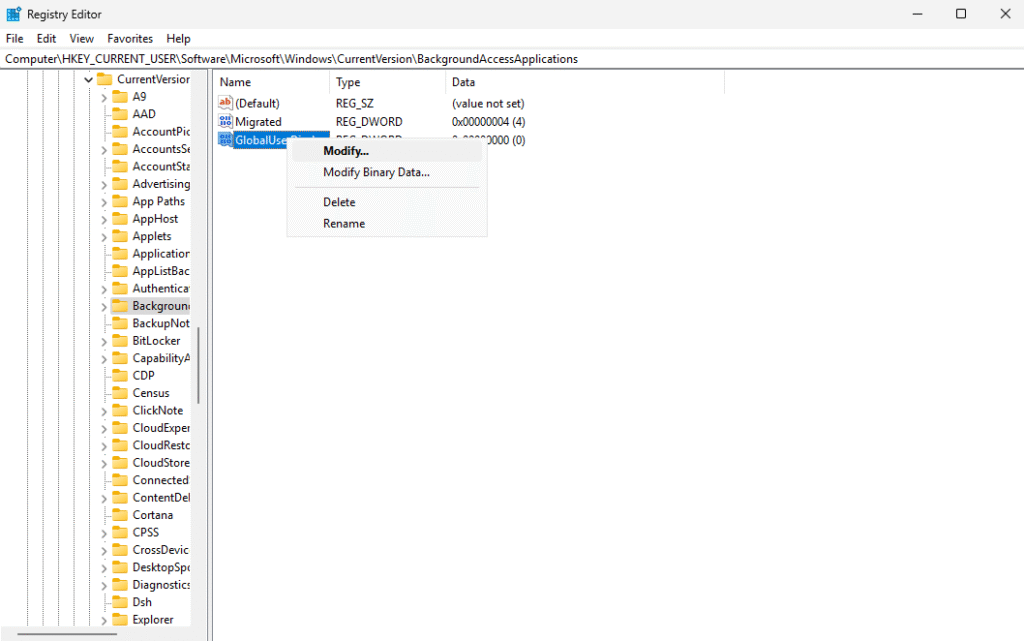
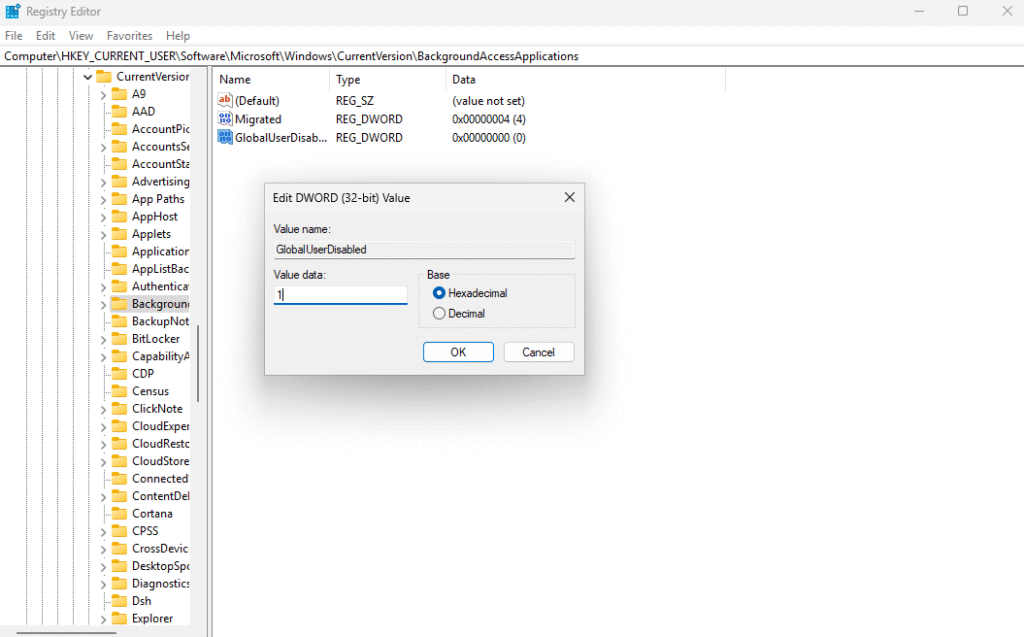
5. Restart your device to apply the changes.
To undo the changes, simply adjust the value of GlobalUserDisabled to 0 .
Use pre-made REG file
If you don’t want to waste time editing the Registry, you can download the REG file that Network Administrator has created.
1. Download the ZIP file of the pre-made REG file .
2. Extract to any folder.
3. Double-click the file How-to-turn-off-background-apps-in-Windows-11.reg to disable all background apps.
4. Confirm the action and restart your computer.
You can undo the changes by double-clicking the How-to-turn-off-background-apps-in-Windows-11.reg file in the ZIP file you just downloaded.
Turn off background apps on Windows 11 for all users using Group Policy
Besides Registry, you can use Group Policy to disable background apps on Windows 11 for all users on a computer. For Windows 11 Home, Group Policy cannot be opened, we will also provide a pre-edited REG file.
1. Open Local Group Policy Editor by pressing Win + R then typing gpedit.msc then pressing Enter.
2. Navigate to the folder: Computer Configuration\Administrative Templates\Windows Components\App Privacy
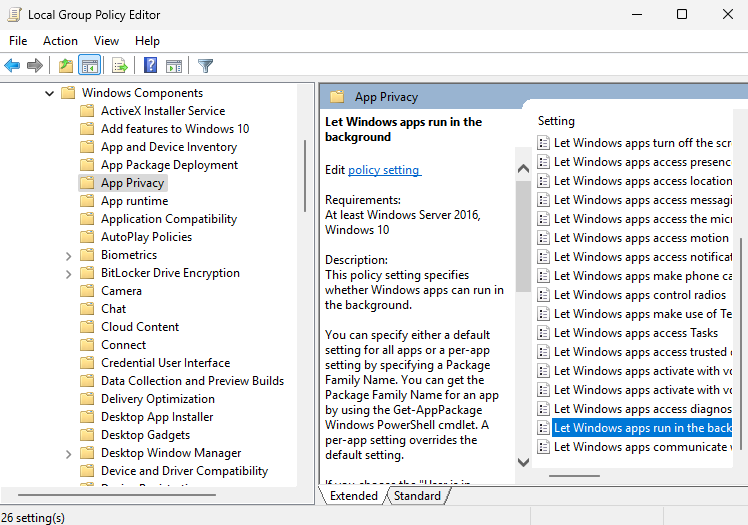
3. On the right pane, find and click on Let Windows apps run in the background and select Enabled.
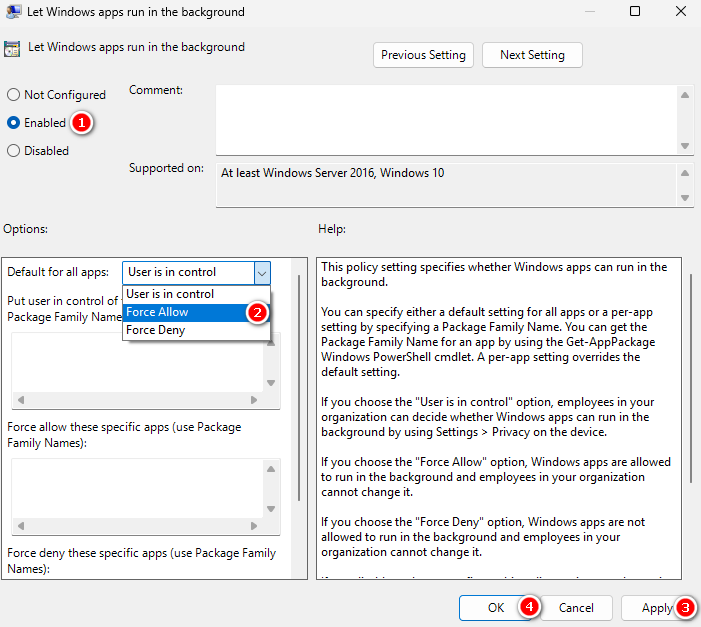
4. In the Default for all apps menu , select Force Deny . Click Apply and OK.
So you have disabled background apps for all users on a Windows 11 computer.
As mentioned, Windows 11 Home doesn’t allow you to use Local Group Policy Editor so you have to use Registry to disable background apps for all users.
Turn off background apps on Windows 11 for all users using Registry
1. Press Win + R to open Run then type regedit and press Enter.
2. Access the following key:
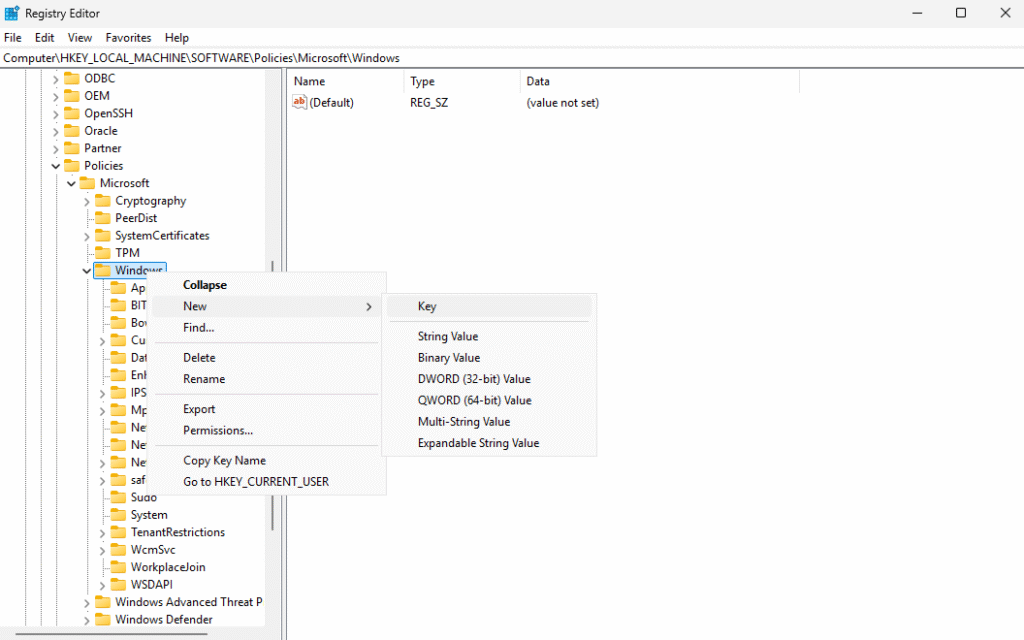
HKEY_LOCAL_MACHINE\SOFTWARE\Policies\Microsoft\Windows\AppPrivacyIf you can’t find AppPrivacy, you can create a new one by right-clicking on Windows and selecting New > Key .
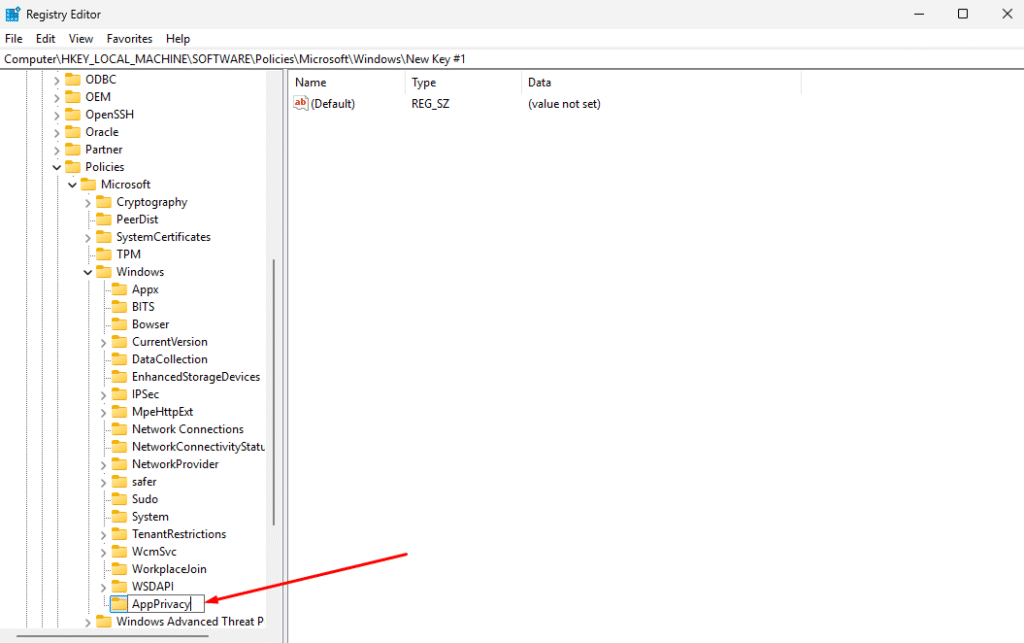
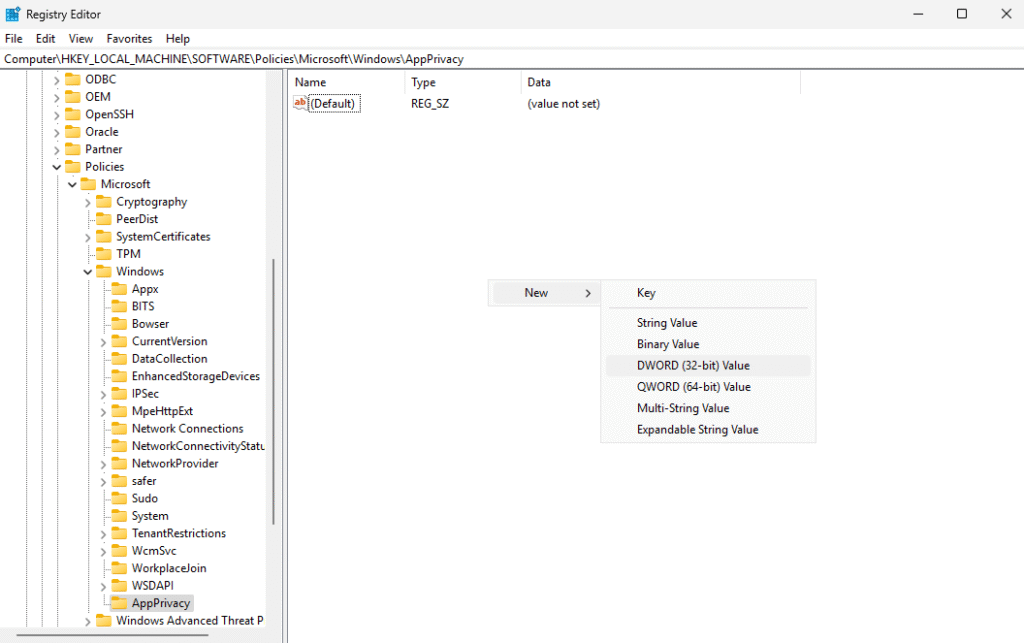
3. Once you have AppPrivacy , click on the right box to create a DWORD (32-bit) Value named LetAppsRunInBackground and set the value to 2 .
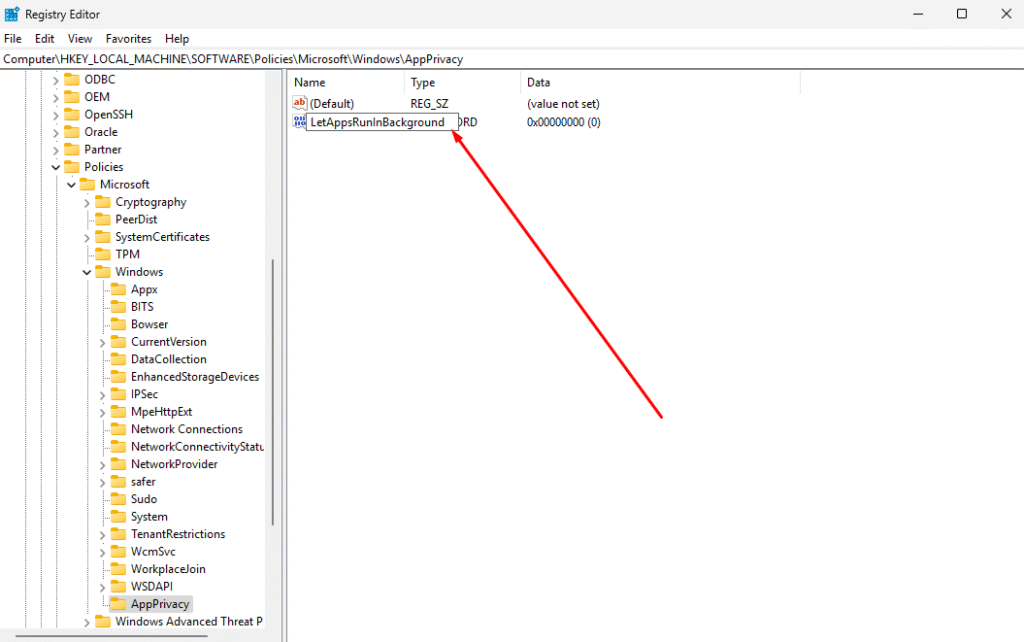
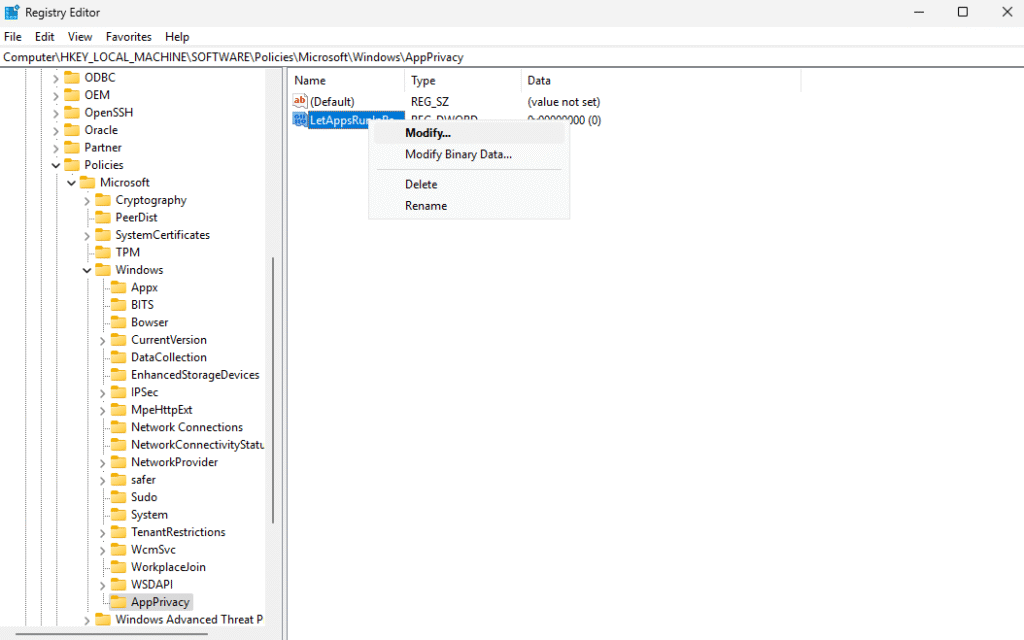
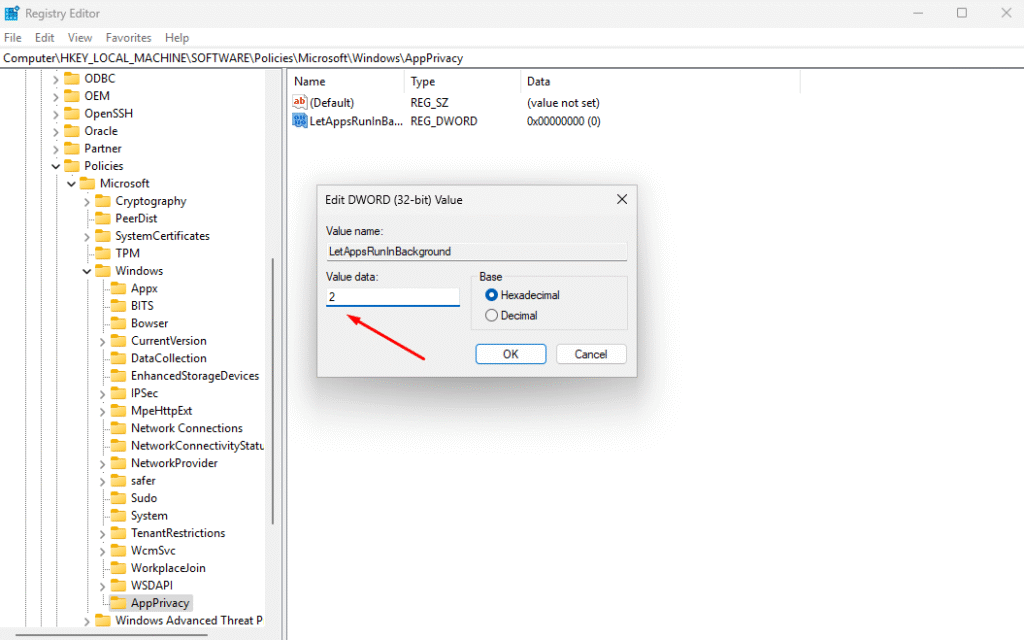
4. Restart your computer.
Use pre-made REG file
As usual, Network Administrator has created a REG file for you to download to quickly change the Registry. There are two REG files, Tatappchayngamalluser.reg and Batappchayngamalluser.reg , corresponding to the function of turning off and on the background app. You download the ZIP file, unzip it and use it:
Good luck!




'%3e%3cg id='Final-Copy-2_2_' transform='translate(1275.000000, 200.000000)'%3e%3cpath class='st0' d='M7.4,12.8h6.8l3.1-11.6H7.4C4.2,1.2,1.6,3.8,1.6,7S4.2,12.8,7.4,12.8z'/%3e%3c/g%3e%3c/g%3e%3c/g%3e%3cg id='final---dec.11-2020'%3e%3cg id='_x30_208-our-toggle' transform='translate(-1275.000000, -200.000000)'%3e%3cg id='Final-Copy-2' transform='translate(1275.000000, 200.000000)'%3e%3cpath class='st1' d='M22.6,0H7.4c-3.9,0-7,3.1-7,7s3.1,7,7,7h15.2c3.9,0,7-3.1,7-7S26.4,0,22.6,0z M1.6,7c0-3.2,2.6-5.8,5.8-5.8 h9.9l-3.1,11.6H7.4C4.2,12.8,1.6,10.2,1.6,7z'/%3e%3cpath id='x' class='st2' d='M24.6,4c0.2,0.2,0.2,0.6,0,0.8l0,0L22.5,7l2.2,2.2c0.2,0.2,0.2,0.6,0,0.8c-0.2,0.2-0.6,0.2-0.8,0 l0,0l-2.2-2.2L19.5,10c-0.2,0.2-0.6,0.2-0.8,0c-0.2-0.2-0.2-0.6,0-0.8l0,0L20.8,7l-2.2-2.2c-0.2-0.2-0.2-0.6,0-0.8 c0.2-0.2,0.6-0.2,0.8,0l0,0l2.2,2.2L23.8,4C24,3.8,24.4,3.8,24.6,4z'/%3e%3cpath id='y' class='st3' d='M12.7,4.1c0.2,0.2,0.3,0.6,0.1,0.8l0,0L8.6,9.8C8.5,9.9,8.4,10,8.3,10c-0.2,0.1-0.5,0.1-0.7-0.1l0,0 L5.4,7.7c-0.2-0.2-0.2-0.6,0-0.8c0.2-0.2,0.6-0.2,0.8,0l0,0L8,8.6l3.8-4.5C12,3.9,12.4,3.9,12.7,4.1z'/%3e%3c/g%3e%3c/g%3e%3c/g%3e%3c/g%3e%3c/svg%3e)


0 comments