



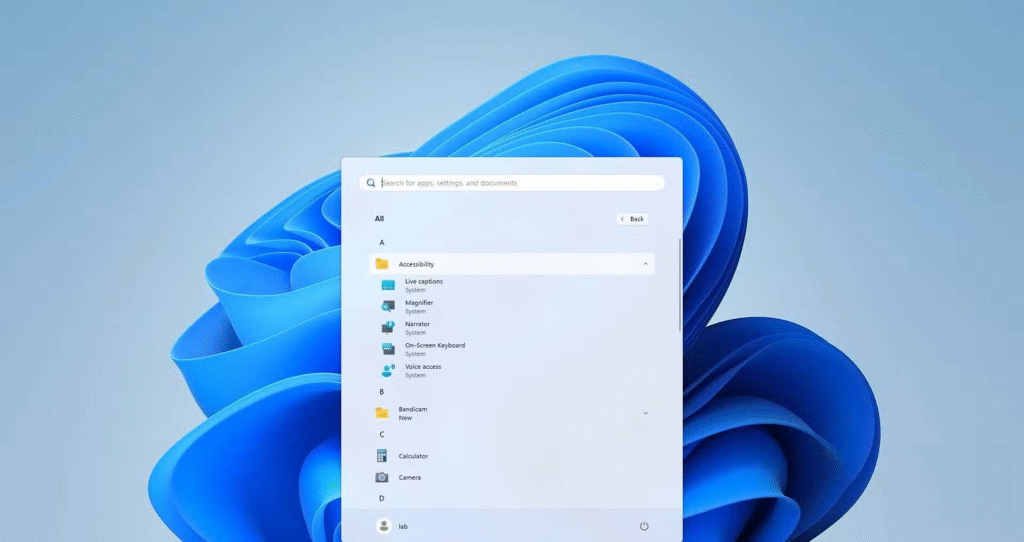
If your Windows 11 Taskbar is frozen, missing icons, or simply not responding, you don’t have to reboot your entire PC. The fastest and most effective fix is to restart the Taskbar by restarting Windows Explorer.
This refreshes the Taskbar instantly without interrupting your work, bringing back normal functionality in just a few seconds. Below is a simple, reliable method to do it.
Why restarting the Taskbar works
The Windows 11 Taskbar is closely tied to Windows Explorer (explorer.exe). When Explorer crashes, slows down, or glitches, the Taskbar often misbehaves as well.

Restarting Windows Explorer essentially reloads the Taskbar, Start menu, File Explorer, and system tray — clearing minor bugs without a full system reboot.
How to restart the Taskbar in Windows 11 (Step-by-step)
Step 1: Open Task Manager

Press:
Ctrl + Shift + Esc
This will open Task Manager immediately.
In the list of running processes, scroll and locate Windows Explorer.
Step 2: Restart Windows Explorer

Right-click on Windows Explorer, then click Restart.
Your screen may flicker briefly. The Taskbar will disappear for a second or two, then reappear refreshed and fully functional.
At this point, your icons, system tray, and Start menu should behave normally again.
What to do if the Taskbar is still broken
If restarting Windows Explorer doesn’t fix the problem, try one of these next steps:
Option 1 — Restart your computer
A full reboot can clear deeper system conflicts that a simple restart can’t fix.
Option 2 — Check recently installed apps
If the Taskbar started freezing after installing a new program, that app might be the cause. Try:
- Updating the app
- Disabling it from startup
- Or uninstalling it temporarily
Many third-party customization tools, taskbar mods, or system utilities can interfere with Windows Explorer.
Bonus tip for recurring issues
If your Taskbar freezes frequently, consider:
- Updating Windows 11
- Updating your graphics driver
- Running Windows Update
- Running
sfc /scannowin Command Prompt (as admin)
These steps can prevent future crashes.
Final thought
Restarting the Taskbar via Task Manager is one of the quickest Windows 11 troubleshooting tricks every user should know.
It’s simple, safe, and usually solves 90% of common Taskbar problems in seconds — without shutting down your computer.



'%3e%3cg id='Final-Copy-2_2_' transform='translate(1275.000000, 200.000000)'%3e%3cpath class='st0' d='M7.4,12.8h6.8l3.1-11.6H7.4C4.2,1.2,1.6,3.8,1.6,7S4.2,12.8,7.4,12.8z'/%3e%3c/g%3e%3c/g%3e%3c/g%3e%3cg id='final---dec.11-2020'%3e%3cg id='_x30_208-our-toggle' transform='translate(-1275.000000, -200.000000)'%3e%3cg id='Final-Copy-2' transform='translate(1275.000000, 200.000000)'%3e%3cpath class='st1' d='M22.6,0H7.4c-3.9,0-7,3.1-7,7s3.1,7,7,7h15.2c3.9,0,7-3.1,7-7S26.4,0,22.6,0z M1.6,7c0-3.2,2.6-5.8,5.8-5.8 h9.9l-3.1,11.6H7.4C4.2,12.8,1.6,10.2,1.6,7z'/%3e%3cpath id='x' class='st2' d='M24.6,4c0.2,0.2,0.2,0.6,0,0.8l0,0L22.5,7l2.2,2.2c0.2,0.2,0.2,0.6,0,0.8c-0.2,0.2-0.6,0.2-0.8,0 l0,0l-2.2-2.2L19.5,10c-0.2,0.2-0.6,0.2-0.8,0c-0.2-0.2-0.2-0.6,0-0.8l0,0L20.8,7l-2.2-2.2c-0.2-0.2-0.2-0.6,0-0.8 c0.2-0.2,0.6-0.2,0.8,0l0,0l2.2,2.2L23.8,4C24,3.8,24.4,3.8,24.6,4z'/%3e%3cpath id='y' class='st3' d='M12.7,4.1c0.2,0.2,0.3,0.6,0.1,0.8l0,0L8.6,9.8C8.5,9.9,8.4,10,8.3,10c-0.2,0.1-0.5,0.1-0.7-0.1l0,0 L5.4,7.7c-0.2-0.2-0.2-0.6,0-0.8c0.2-0.2,0.6-0.2,0.8,0l0,0L8,8.6l3.8-4.5C12,3.9,12.4,3.9,12.7,4.1z'/%3e%3c/g%3e%3c/g%3e%3c/g%3e%3c/g%3e%3c/svg%3e)


0 comments