



Telegram bots are automated accounts that run inside Telegram and interact with users. They can help automate tasks, provide support, send alerts, process payments, and offer custom services. These bots can respond to commands, work in private chats or group chats, and handle a wide range of functions depending on how they are set up.
Here’s a simple guide to creating and customizing your own Telegram bot.
How to Create a Telegram Bot on a Computer
Step 1
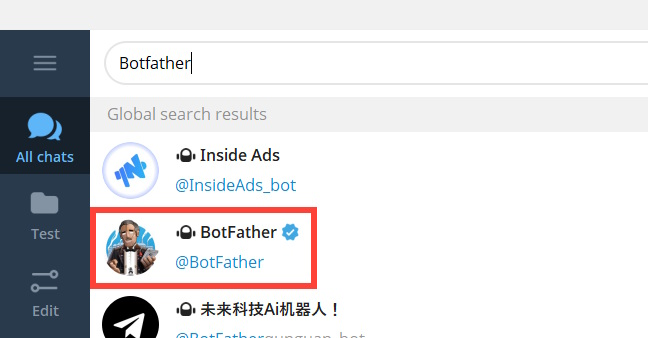
Open Telegram and search for BotFather. Make sure you select the verified account with the blue checkmark.

Step 2
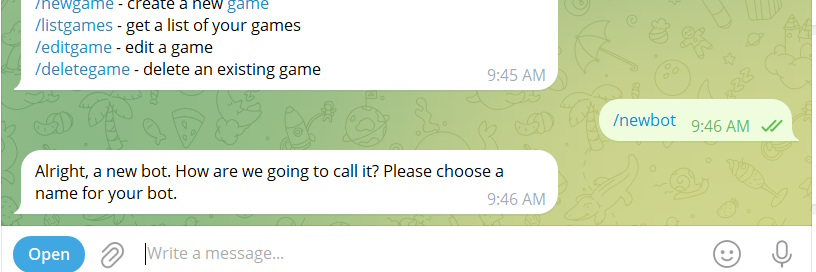
Type the command /start and press Enter to begin. Then enter /newbot to create a new bot.
Step 3
Enter a name for your bot and press Enter.
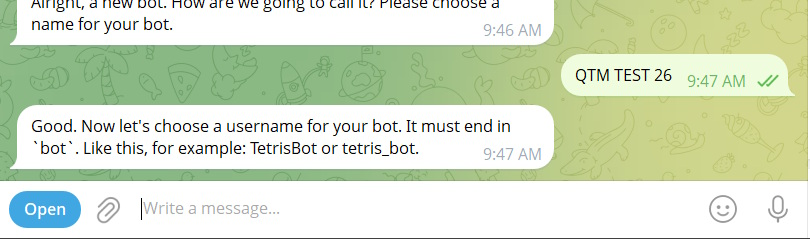
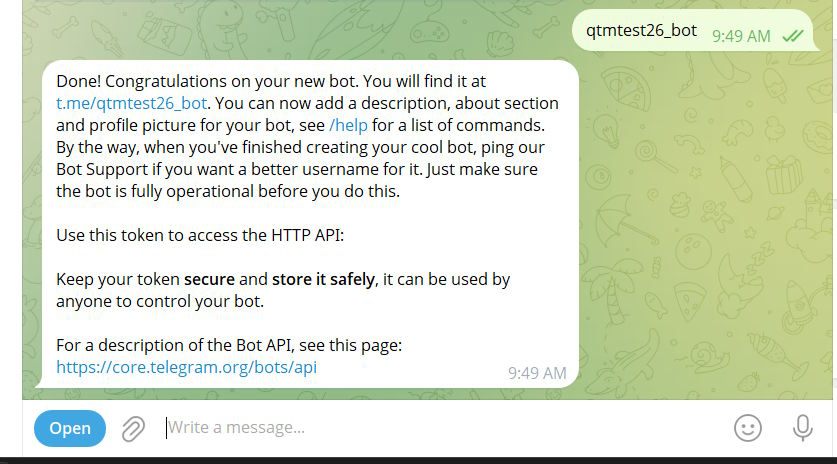
Next, choose a username for the bot. The username must end with _bot, so keep that in mind when creating it. Once you do that, BotFather will confirm that your bot has been created successfully.
You will also receive an important Telegram HTTP API token. This token is what connects your bot to Telegram’s system, so make sure you keep it safe.
How to Rename, Add a Description, and Customize a Telegram Bot
Step 1
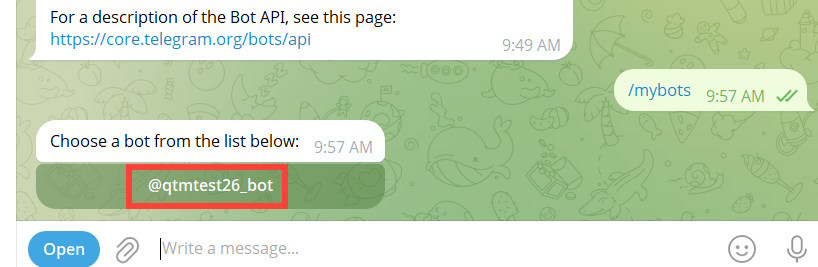
Type /mybots and press Enter. Then select the bot you just created to open its settings and customization options.
Step 2
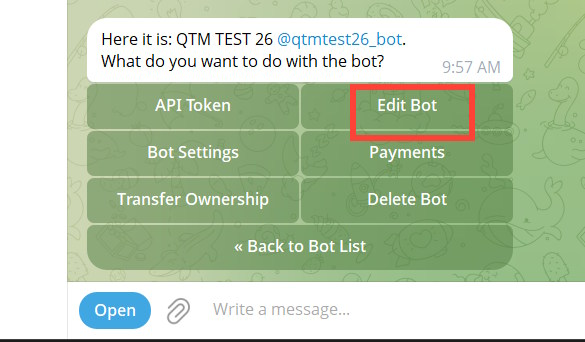
You’ll now see several available options for managing your bot. Click Edit Bot to make changes.
Step 3
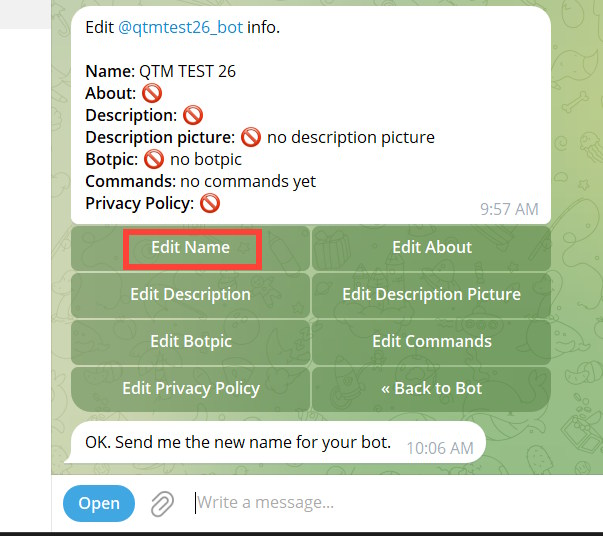
A new menu will appear with different customization settings.
If you want to rename your bot, click Edit Name. Then enter the new name you want and press Enter.
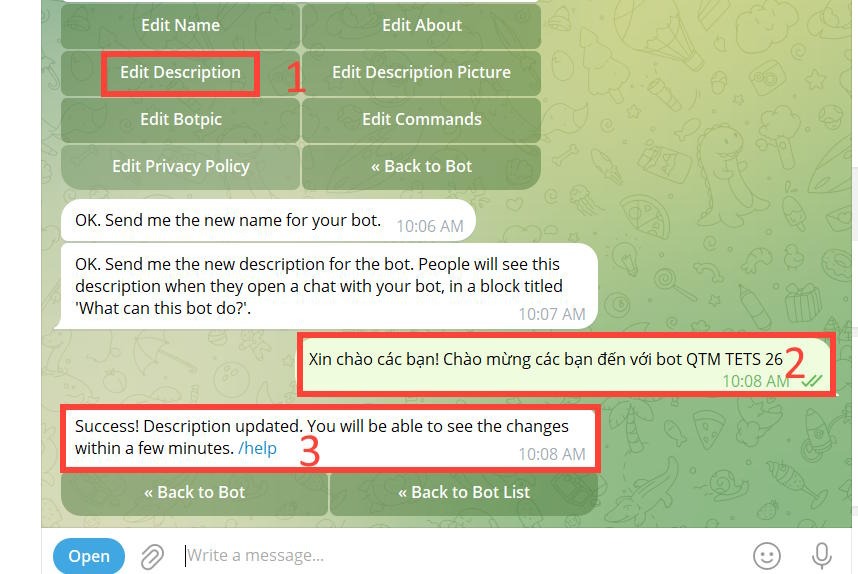
If you want to add or update the bot’s description, click Edit Description. Type in the description you want, then press Enter. Telegram will confirm that the new description has been saved.
After that, click Back to Bot to return to the main bot settings menu.
How to Find Your Telegram Bot ID
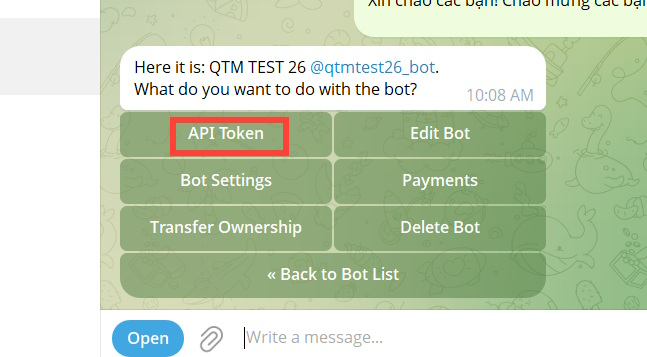
If you want to access your bot token again, tap API Key and Telegram will display it for you.
Be sure to save this token somewhere secure for later use. The number that appears before the colon : is your bot ID. For example, if your token looks like this:
1234567:ABC...
then 1234567 is your bot ID.
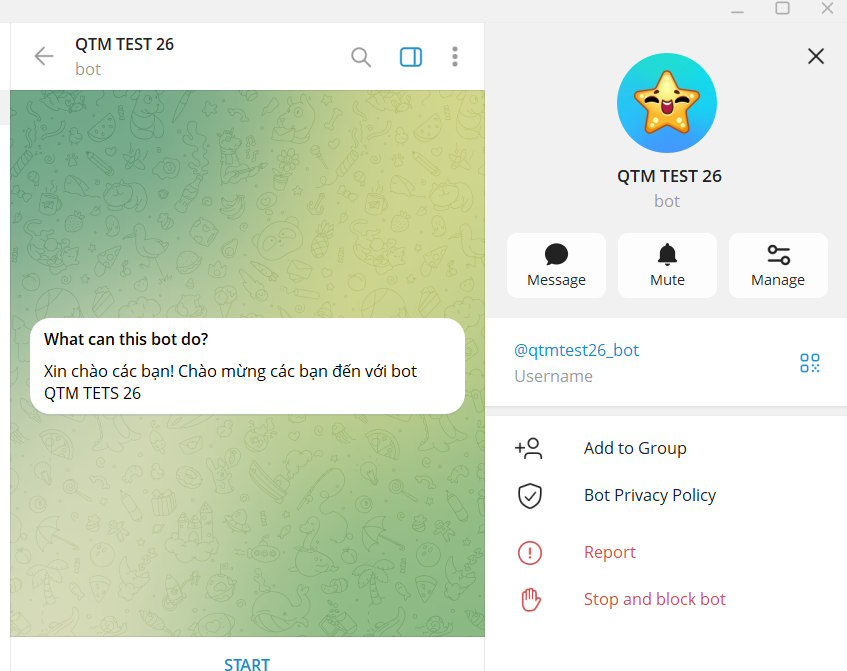
Once the bot has been created, clicking its name will open a chat window where you can see the bot along with the description you set for it.
How to Check Whether Your Bot Is Working
You can test your bot directly in a web browser by visiting this address:
https://api.telegram.org/bot<YOUR_TOKEN>/getMeReplace <YOUR_TOKEN> with your actual bot token.
If everything is working correctly, Telegram will return a JSON response containing your bot’s details.
Useful BotFather Commands on Telegram
Here are some other BotFather commands that are useful when managing your bot:
- /mybots – View a list of the bots you’ve created
- /revoke – Revoke the current token and generate a new one
- /setdescription – Set a description for your bot
- /setcommands – Configure the list of commands your bot can use
- /deletebot – Delete a bot you no longer need
Important Security Tip
Never share your bot token with anyone.
If you think your token may have been exposed, use the /revoke command right away to invalidate the old token and generate a new one.








'%3e%3cg id='Final-Copy-2_2_' transform='translate(1275.000000, 200.000000)'%3e%3cpath class='st0' d='M7.4,12.8h6.8l3.1-11.6H7.4C4.2,1.2,1.6,3.8,1.6,7S4.2,12.8,7.4,12.8z'/%3e%3c/g%3e%3c/g%3e%3c/g%3e%3cg id='final---dec.11-2020'%3e%3cg id='_x30_208-our-toggle' transform='translate(-1275.000000, -200.000000)'%3e%3cg id='Final-Copy-2' transform='translate(1275.000000, 200.000000)'%3e%3cpath class='st1' d='M22.6,0H7.4c-3.9,0-7,3.1-7,7s3.1,7,7,7h15.2c3.9,0,7-3.1,7-7S26.4,0,22.6,0z M1.6,7c0-3.2,2.6-5.8,5.8-5.8 h9.9l-3.1,11.6H7.4C4.2,12.8,1.6,10.2,1.6,7z'/%3e%3cpath id='x' class='st2' d='M24.6,4c0.2,0.2,0.2,0.6,0,0.8l0,0L22.5,7l2.2,2.2c0.2,0.2,0.2,0.6,0,0.8c-0.2,0.2-0.6,0.2-0.8,0 l0,0l-2.2-2.2L19.5,10c-0.2,0.2-0.6,0.2-0.8,0c-0.2-0.2-0.2-0.6,0-0.8l0,0L20.8,7l-2.2-2.2c-0.2-0.2-0.2-0.6,0-0.8 c0.2-0.2,0.6-0.2,0.8,0l0,0l2.2,2.2L23.8,4C24,3.8,24.4,3.8,24.6,4z'/%3e%3cpath id='y' class='st3' d='M12.7,4.1c0.2,0.2,0.3,0.6,0.1,0.8l0,0L8.6,9.8C8.5,9.9,8.4,10,8.3,10c-0.2,0.1-0.5,0.1-0.7-0.1l0,0 L5.4,7.7c-0.2-0.2-0.2-0.6,0-0.8c0.2-0.2,0.6-0.2,0.8,0l0,0L8,8.6l3.8-4.5C12,3.9,12.4,3.9,12.7,4.1z'/%3e%3c/g%3e%3c/g%3e%3c/g%3e%3c/g%3e%3c/svg%3e)


0 comments