


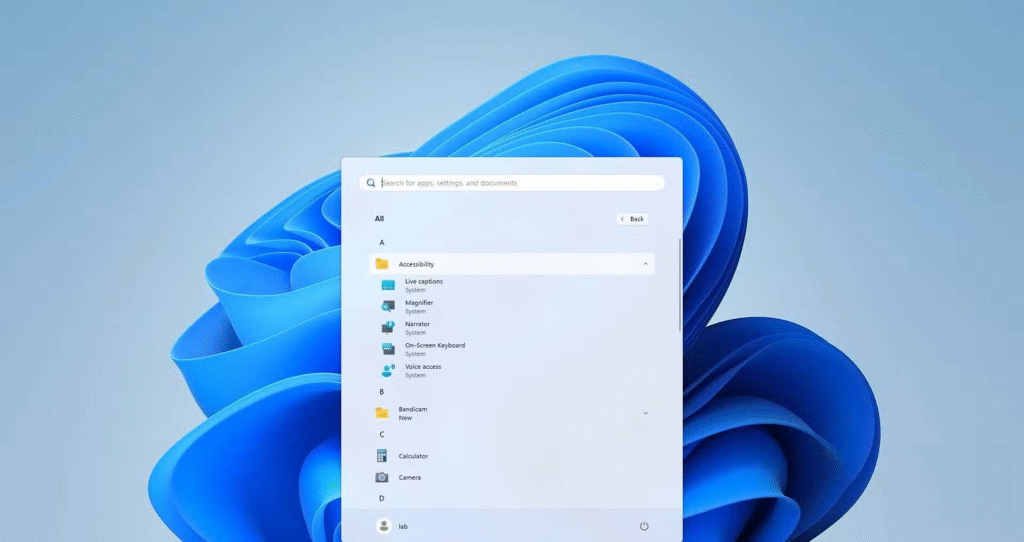
With Microsoft officially ending support for Windows 10 , some laptops that used to be great performers are being pushed aside. This isn’t because they lack power or storage, but simply because Microsoft’s hardware requirements for Windows 11 are quite restrictive. Switching to Linux is a viable option if you’re willing to learn new tools and give up familiar software.
The second option is Tiny11 25H2. This community-built, lightweight version of Windows 11 might be a smarter way to go. It avoids Secure Boot and TPM checks, runs smoothly even with just 2GB of RAM, and is in many ways preferable to Linux distributions, especially for those who still prefer the Windows experience and environment.
As Windows 10 support ends, Tiny11 is here
Experience Windows 11 without hardware control
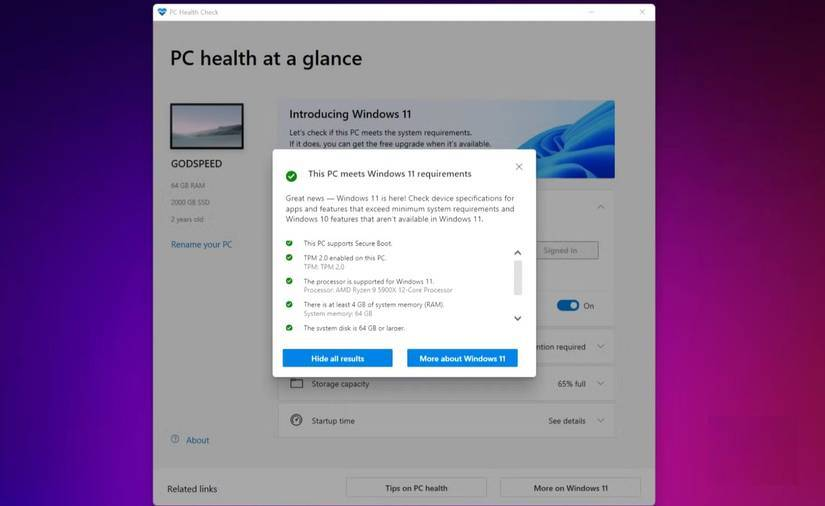
For Windows 11, Microsoft has included TPM 2.0 , Secure Boot, and newer CPU lists—strict hardware checks—as safeguards. However, this excludes hardware that can work. You can bypass all those limitations with Tiny11 25H2 and experience Windows 11 on a five- or six-year-old computer.

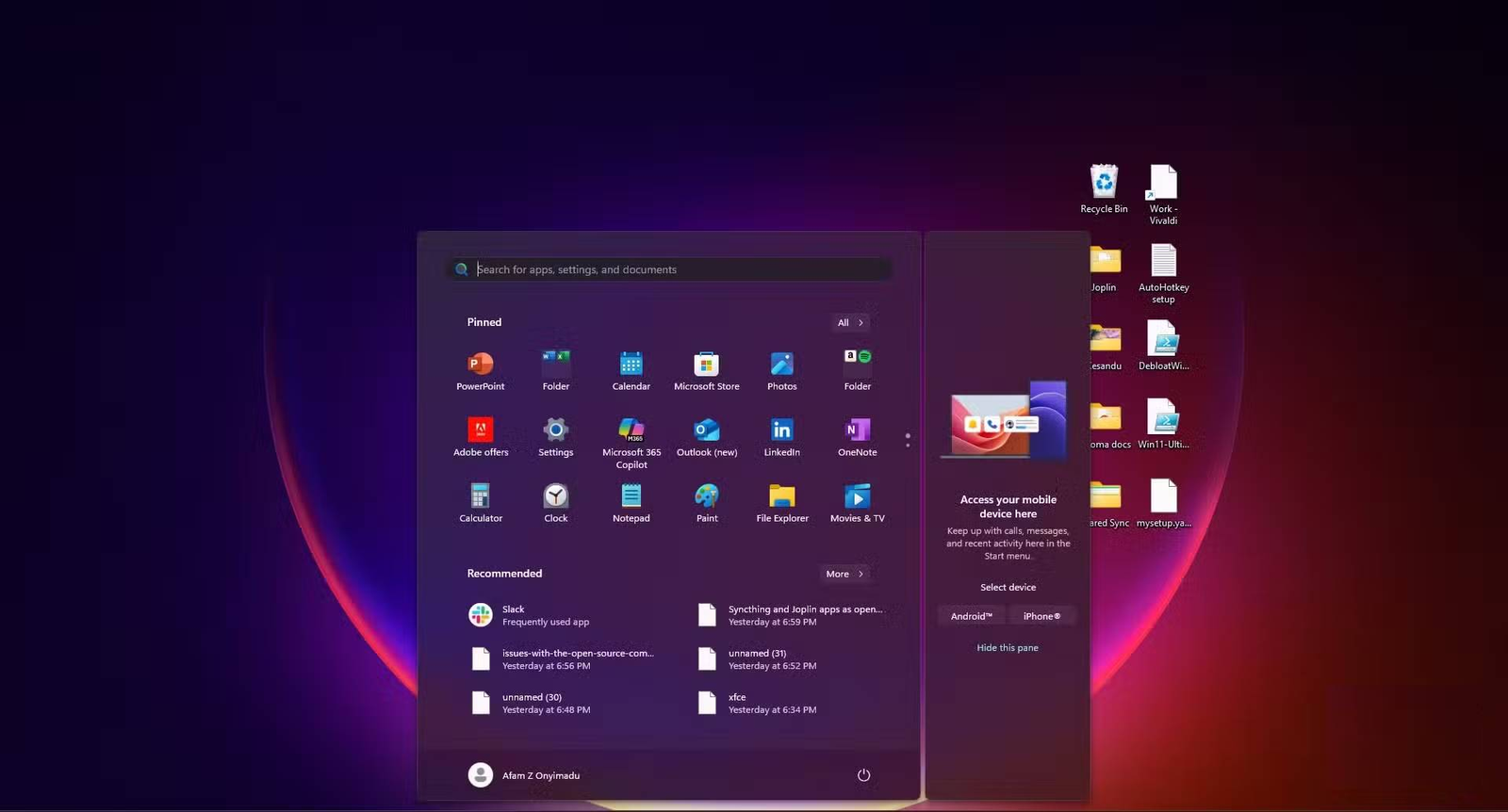
Tiny11 25H2 is based on the latest Windows 11 25H2 update. It’s not a visual emulator or a pale copy; it’s the real modern Windows 11. It gives you the Windows 11 Start menu, a centered taskbar, and a redesigned File Explorer. You can still use everyday software like Office, Steam, and Adobe apps on computers with limited RAM and modest eMMC storage.
It has the advantage of continuity, as you don’t have to relearn workflows or troubleshoot drivers in a completely different way. Your old computer will feel modern again without too many compromises.
How to get started with Tiny11 25H2
How to install Tiny11 25H2 properly without risk
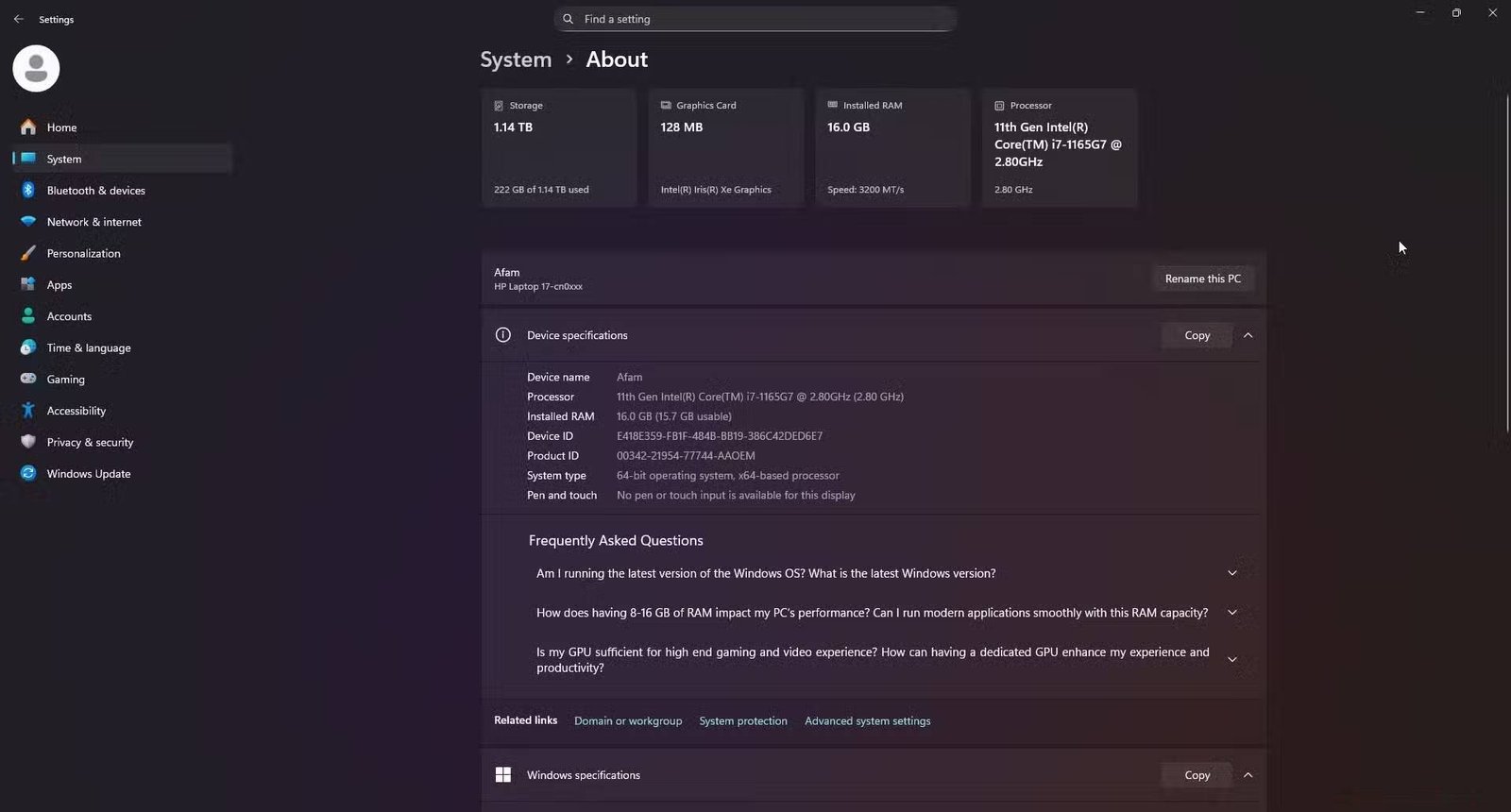
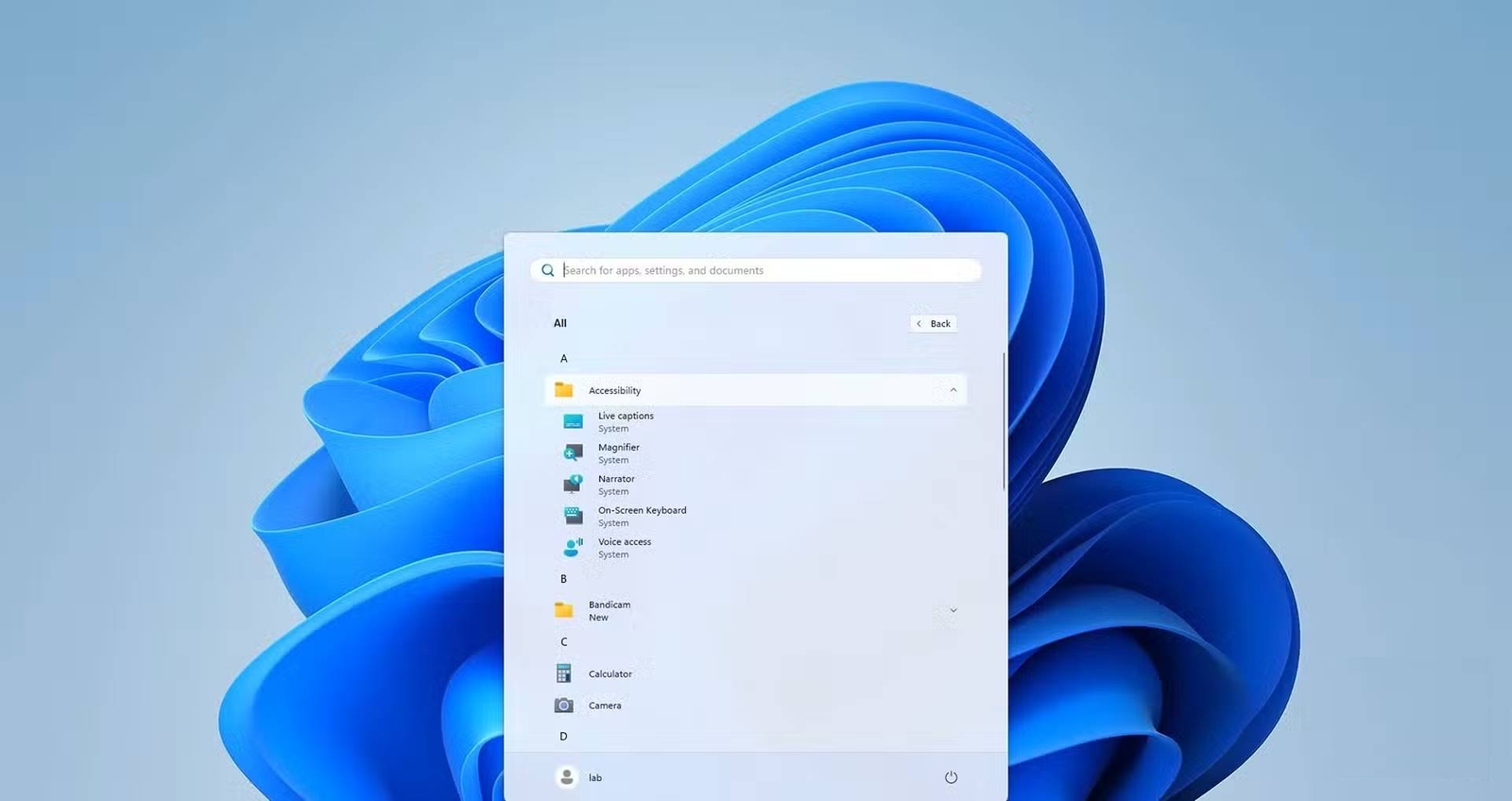
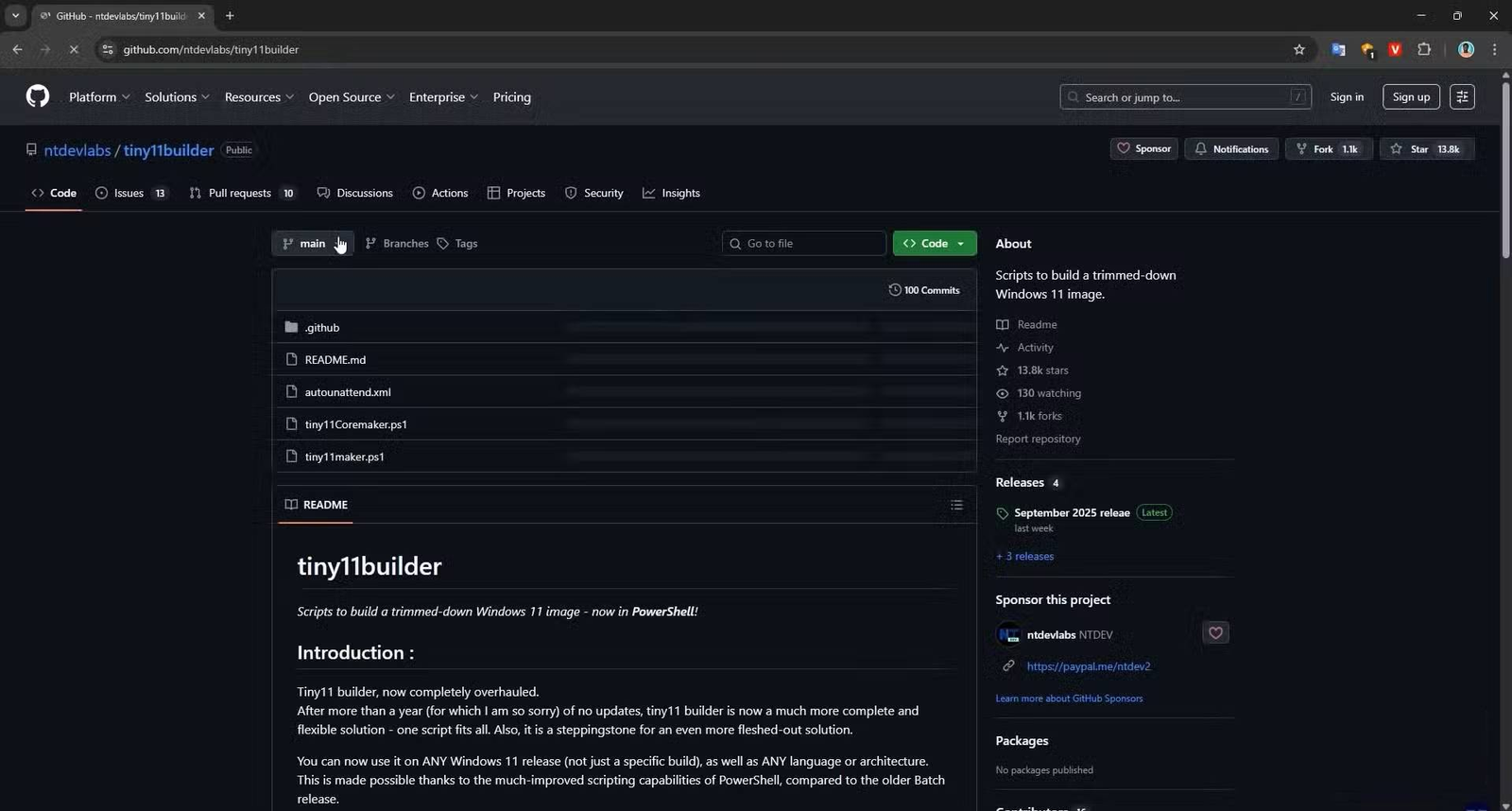
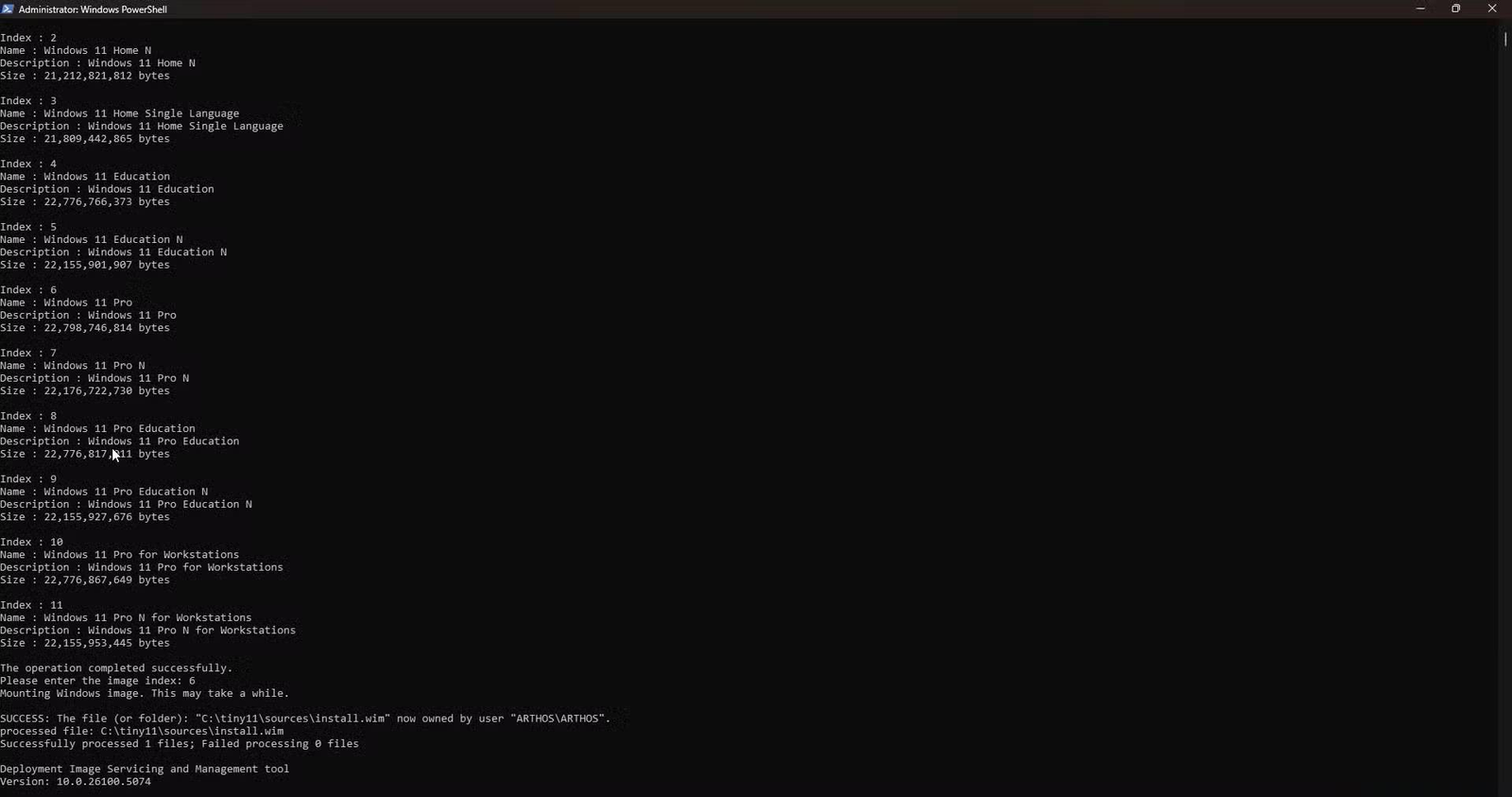
If you are planning to try Tiny11 25H2, download it from the best sources. The first step to download Tiny11 25H2 is to download the latest Windows 11 ISO. Here are the steps to follow:
- Visit the official Windows 11 download page .
- Under Download Windows 11 Disk Image (ISO) for x64 devices , select Windows 11 (Multi-edition ISO for x64 devices) in the drop-down list, and then click Confirm .
- Under Select the product language , select a language and click Confirm .
- Click 64-bit Download to initiate the Win11_25H2 download.
Now, you need to download the Tiny11 builder:
- Visit tiny11builder’s GitHub page .
- Click the green Code button and select Download Zip .
- Unzip Tiny11 builder.
For the last part, you need to use the downloaded Tiny11 builder to create an installable Tiny11 25H2:
- Right-click on the downloaded Windows 11 ISO and select Mount .
- Confirm the drive is mounted by opening File Explorer , clicking My PC and making a note of the drive letter with the mounted ISO.
- Open the Start menu, search for “PowerShell”, right-click on it and select Run as Administrator .
- Run the Set-ExecutionPolicy Unrestricted command to allow Tiny11 scripts to run on your computer. When prompted, press Y and Enter .
- Enter the path to the tiny11Coremaker.ps1 file inside the downloaded Tiny11 file and press Enter . For example: [Download Location]\tiny11builder-main\tiny11Coremaker.ps1
- When prompted, press Y to continue setup, then enter the drive letter for your Windows 11 ISO.
- You will see a list of Tiny11 options, including Windows Pro, Home, Education, etc. Type the number corresponding to the Tiny11 ISO you want to create from the displayed list, then press Enter .
Tiny11 builder will proceed to create Tiny11 25H2 ISO file.
Practical, safe, up-to-date and sustainable
One of the most important things to note is that Tiny11 25H2 is a community-built fork, not an official Windows operating system. This means it is not directly supported by the vendor, does not have guaranteed feature updates, and does not have official digital licensing. Trusting this passionate project means accepting all security risks.
It’s understandable why some people are against using Tiny11. Don’t use it on mission-critical work computers, and it’s best to use it on secondary or older systems. If installed correctly, you’ll still get cumulative security patches from Windows Update. You should only download ISOs from verified sources to minimize any risk. However, you might want to consider using other tools to remove leftover software from Windows 11.




'%3e%3cg id='Final-Copy-2_2_' transform='translate(1275.000000, 200.000000)'%3e%3cpath class='st0' d='M7.4,12.8h6.8l3.1-11.6H7.4C4.2,1.2,1.6,3.8,1.6,7S4.2,12.8,7.4,12.8z'/%3e%3c/g%3e%3c/g%3e%3c/g%3e%3cg id='final---dec.11-2020'%3e%3cg id='_x30_208-our-toggle' transform='translate(-1275.000000, -200.000000)'%3e%3cg id='Final-Copy-2' transform='translate(1275.000000, 200.000000)'%3e%3cpath class='st1' d='M22.6,0H7.4c-3.9,0-7,3.1-7,7s3.1,7,7,7h15.2c3.9,0,7-3.1,7-7S26.4,0,22.6,0z M1.6,7c0-3.2,2.6-5.8,5.8-5.8 h9.9l-3.1,11.6H7.4C4.2,12.8,1.6,10.2,1.6,7z'/%3e%3cpath id='x' class='st2' d='M24.6,4c0.2,0.2,0.2,0.6,0,0.8l0,0L22.5,7l2.2,2.2c0.2,0.2,0.2,0.6,0,0.8c-0.2,0.2-0.6,0.2-0.8,0 l0,0l-2.2-2.2L19.5,10c-0.2,0.2-0.6,0.2-0.8,0c-0.2-0.2-0.2-0.6,0-0.8l0,0L20.8,7l-2.2-2.2c-0.2-0.2-0.2-0.6,0-0.8 c0.2-0.2,0.6-0.2,0.8,0l0,0l2.2,2.2L23.8,4C24,3.8,24.4,3.8,24.6,4z'/%3e%3cpath id='y' class='st3' d='M12.7,4.1c0.2,0.2,0.3,0.6,0.1,0.8l0,0L8.6,9.8C8.5,9.9,8.4,10,8.3,10c-0.2,0.1-0.5,0.1-0.7-0.1l0,0 L5.4,7.7c-0.2-0.2-0.2-0.6,0-0.8c0.2-0.2,0.6-0.2,0.8,0l0,0L8,8.6l3.8-4.5C12,3.9,12.4,3.9,12.7,4.1z'/%3e%3c/g%3e%3c/g%3e%3c/g%3e%3c/g%3e%3c/svg%3e)


0 comments