


Windows Defender, or Windows Security Protection History, displays all the times that threats have been detected on your computer. It runs in the background and continuously blocks threats from entering your system. It doesn’t notify you of every threat it has blocked, but you can view them from the Protection History page. Here are instructions on how to delete Windows Defender protection history.
Manually delete Windows Defender protection history
Step 1:
Open drive C on your computer or the Windows installation drive, click View then select Show > Hidden Items .


Step 2:
Next, enter the link below into the address bar to access.
C:\ProgramData\Microsoft\Windows Defender\Scans\History
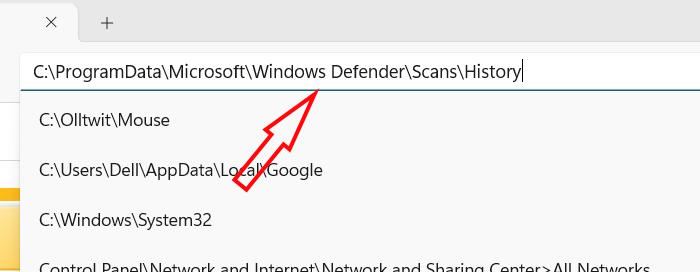
Step 3:
Next, click on the Service folder , then right- click on the History file and select Delete .
Clear Windows Defender protection history via Event Viewer
Step 1:
Type Event Viewer in the search bar to open it. Next, click on Event Viewer (Local) and expand Applications and Services Logs .
In the displayed list double click on Microsoft to expand.
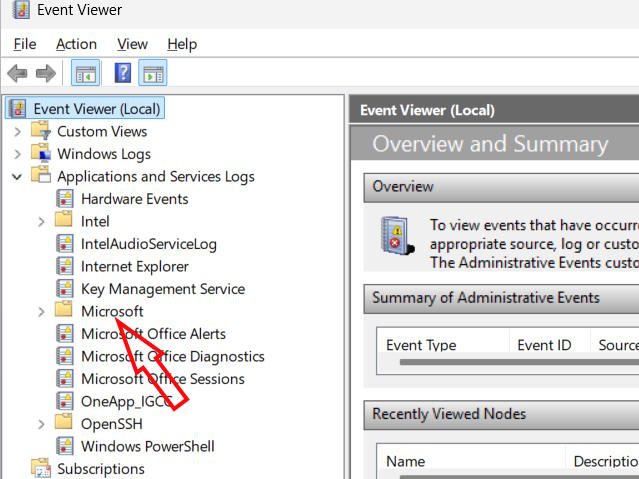
Step 2:
Then click on Windows and double click on Windows Defender .
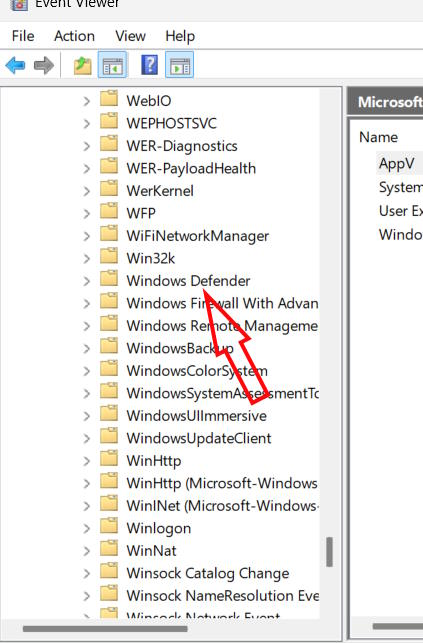
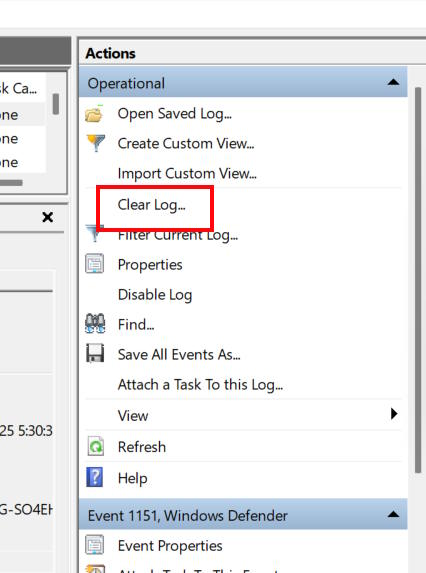
Double-click Operational in Windows Defender.
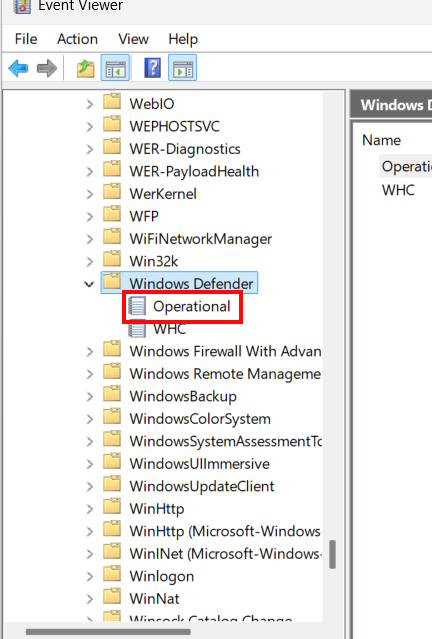
Step 3:
Now the user clicks Clear log to delete Windows Defender protection history. Finally, click Save and Clear to delete quickly.
Delete Windows Defender protection history via Local Group Policy
Step 1:
You enter the keyword Local Group Policy Editor in the search bar and then click on the result above.

Step 2:
Now you access the link below.
Computer Configuration > Administrative Templates > Windows Components > Microsoft Defender Antivirus > Scan
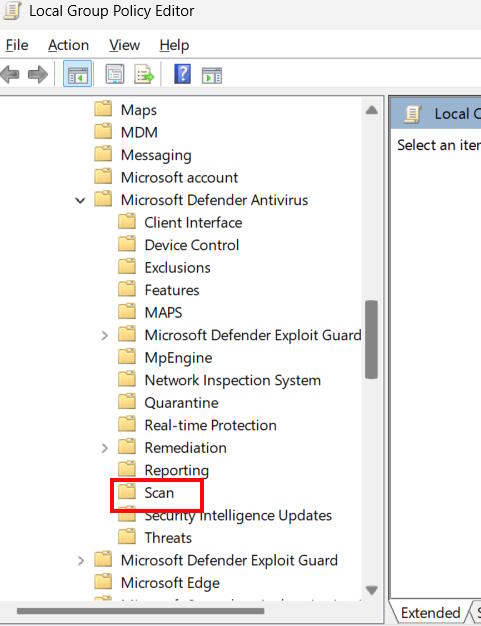
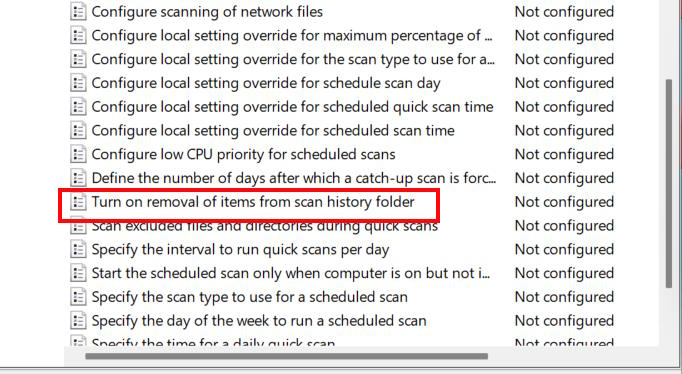
Look to the side and double-click Turn on removing items from scan history folder
Step 3:
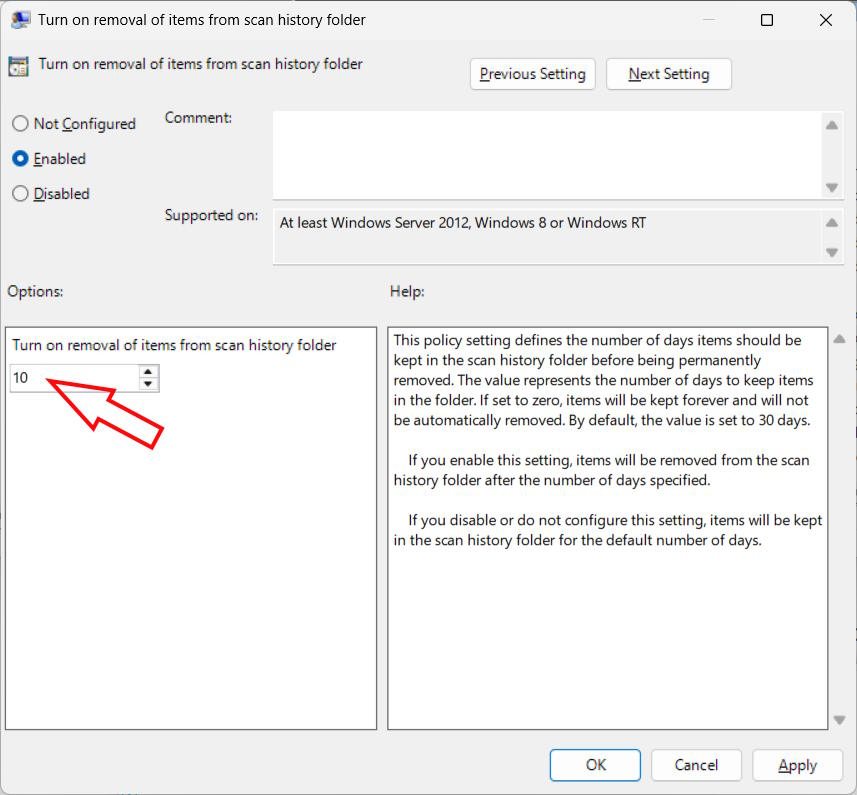
Display the new interface, you select Enabled and then enter the time frame . You must enter the number of days you want Windows Security to delete the protection history. Once completed, click the OK button.
Clear Microsoft Defender protection history via PowerShell
Step 1:
Type PowerShell in the search bar and select Run as administrator

Step 2:
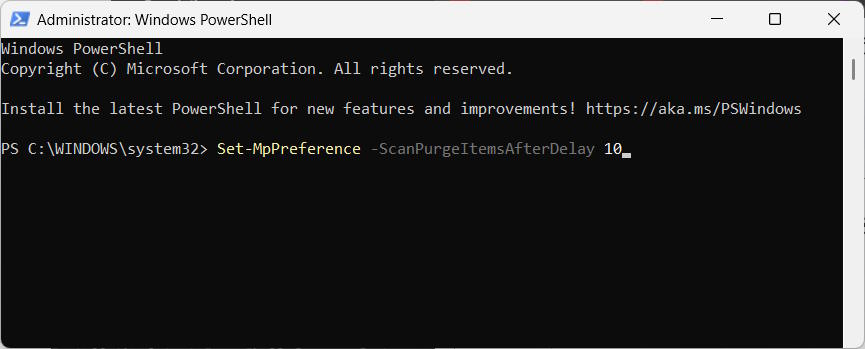
Paste the following command and press Enter to execute the command.
Set-MpPreference -ScanPurgeItemsAfterDelay 5
The 5 at the end of the command represents the number of days after which Windows Security clears the protection history log. You can change the number of days to whatever you like.







'%3e%3cg id='Final-Copy-2_2_' transform='translate(1275.000000, 200.000000)'%3e%3cpath class='st0' d='M7.4,12.8h6.8l3.1-11.6H7.4C4.2,1.2,1.6,3.8,1.6,7S4.2,12.8,7.4,12.8z'/%3e%3c/g%3e%3c/g%3e%3c/g%3e%3cg id='final---dec.11-2020'%3e%3cg id='_x30_208-our-toggle' transform='translate(-1275.000000, -200.000000)'%3e%3cg id='Final-Copy-2' transform='translate(1275.000000, 200.000000)'%3e%3cpath class='st1' d='M22.6,0H7.4c-3.9,0-7,3.1-7,7s3.1,7,7,7h15.2c3.9,0,7-3.1,7-7S26.4,0,22.6,0z M1.6,7c0-3.2,2.6-5.8,5.8-5.8 h9.9l-3.1,11.6H7.4C4.2,12.8,1.6,10.2,1.6,7z'/%3e%3cpath id='x' class='st2' d='M24.6,4c0.2,0.2,0.2,0.6,0,0.8l0,0L22.5,7l2.2,2.2c0.2,0.2,0.2,0.6,0,0.8c-0.2,0.2-0.6,0.2-0.8,0 l0,0l-2.2-2.2L19.5,10c-0.2,0.2-0.6,0.2-0.8,0c-0.2-0.2-0.2-0.6,0-0.8l0,0L20.8,7l-2.2-2.2c-0.2-0.2-0.2-0.6,0-0.8 c0.2-0.2,0.6-0.2,0.8,0l0,0l2.2,2.2L23.8,4C24,3.8,24.4,3.8,24.6,4z'/%3e%3cpath id='y' class='st3' d='M12.7,4.1c0.2,0.2,0.3,0.6,0.1,0.8l0,0L8.6,9.8C8.5,9.9,8.4,10,8.3,10c-0.2,0.1-0.5,0.1-0.7-0.1l0,0 L5.4,7.7c-0.2-0.2-0.2-0.6,0-0.8c0.2-0.2,0.6-0.2,0.8,0l0,0L8,8.6l3.8-4.5C12,3.9,12.4,3.9,12.7,4.1z'/%3e%3c/g%3e%3c/g%3e%3c/g%3e%3c/g%3e%3c/svg%3e)


0 comments