

Most people don’t stick with Windows because it’s fast — they stick with it because they have to. Work tools, gaming, software compatibility, corporate policies… whatever the reason, the reality is the same: we learn to live with Windows rather than love it.
There are countless “optimization” guides out there. Some install third-party tools. Others disable entire features. Many promise speed but deliver little more than placebo.
But this one is different.

A single registry change can make Windows 11 feel noticeably faster — especially when dealing with menus.
Why Windows 11 Feels Slower Than It Should
Even on powerful hardware, Windows 11 can feel oddly sluggish.
File Explorer takes a moment to load. Right-clicking anything often pauses for a second before the context menu appears. Meanwhile, many users notice that games run smoother on Linux than on Windows — which is ironic, but not the point here.
The real issue is that Windows 11 intentionally delays certain menus.
That delay isn’t a bug. It’s a design choice. Fortunately, it’s also something you can change.
The Simple Registry Tweak That Speeds Up Menus
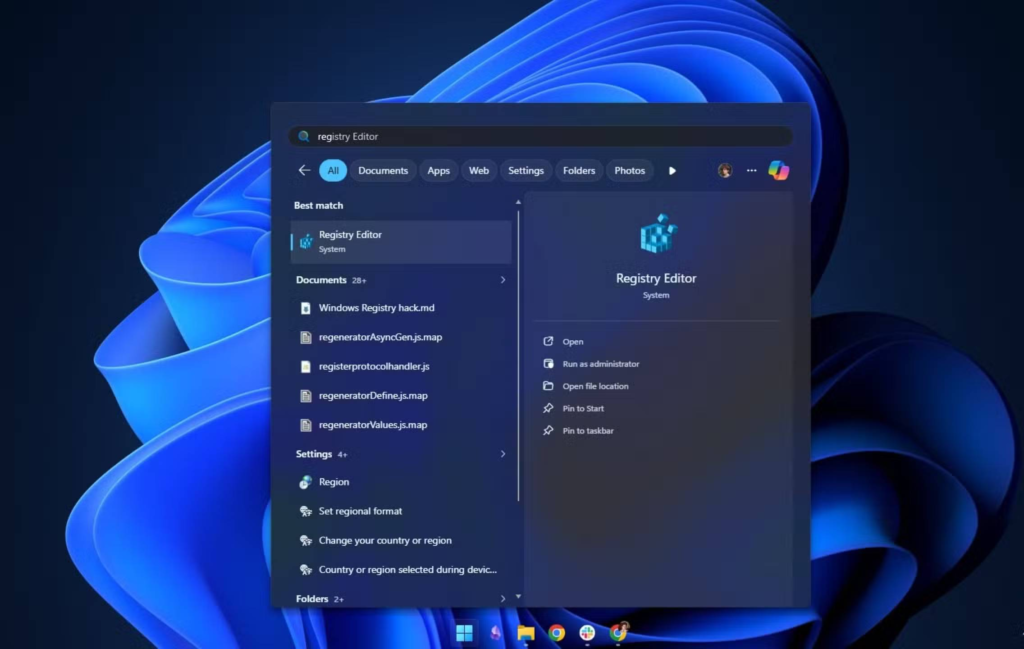
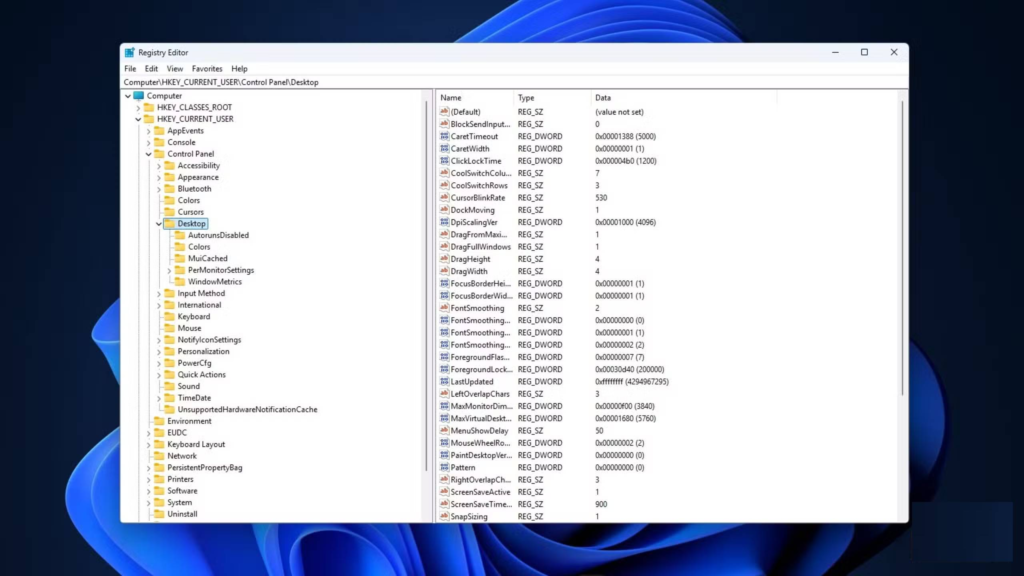
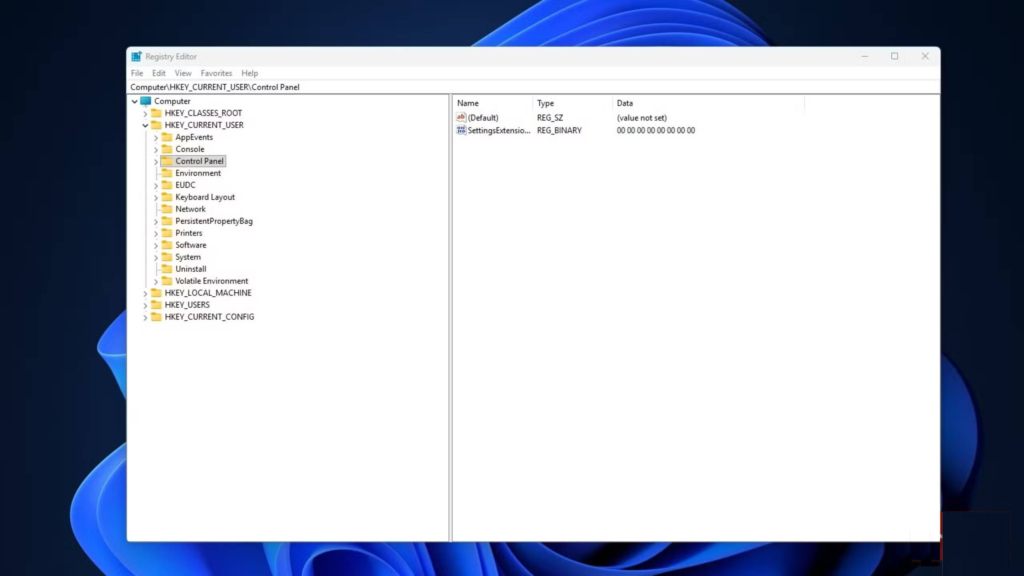
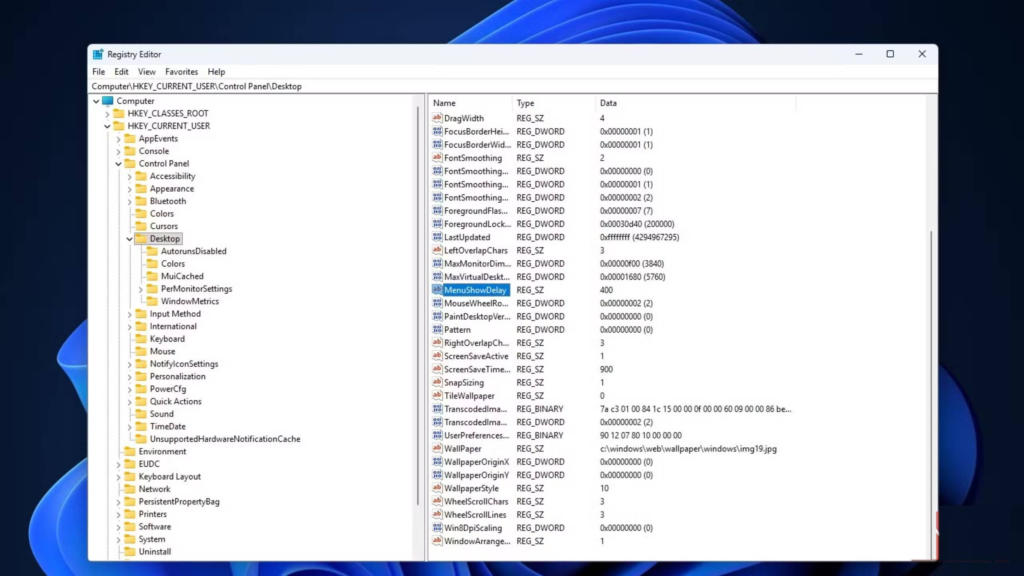
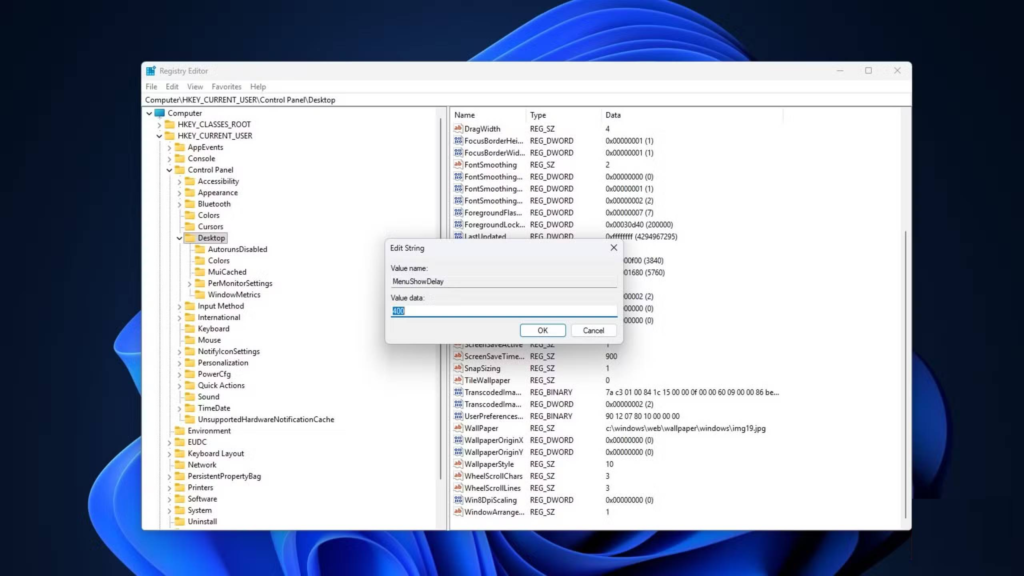

Here’s the exact setting you need to adjust.
- Open the Start menu
- Search for Registry Editor and launch it
- Navigate to:
HKEY_CURRENT_USER\Control Panel\Desktop
- In the right pane, find MenuShowDelay
- Double-click it
- Change the value from 400 to 0
- Restart your PC
That’s it.
After rebooting, menus should appear instantly instead of hesitating.
Important warning
Editing the Windows registry can break things if done carelessly.
Follow the steps exactly. Don’t change random values “just to test.”
What This Actually Affects — And What It Doesn’t
This tweak does not speed up everything in Windows.
It mainly affects legacy Win32 menus, including:
- The “Show more options” expanded context menu
- Classic Control Panel menus
- Older system dialog boxes (like file save menus)
Windows 11 may look modern, but underneath, a surprising amount of it still behaves like Windows 7.
What it does NOT affect
- The new Start menu
- Modern Fluent/Acrylic UI elements
- Some newer system panels
That’s because the Start menu isn’t built on the old Win32 framework, so it ignores this registry setting.
Bonus: Make the Start Menu Feel Faster Too
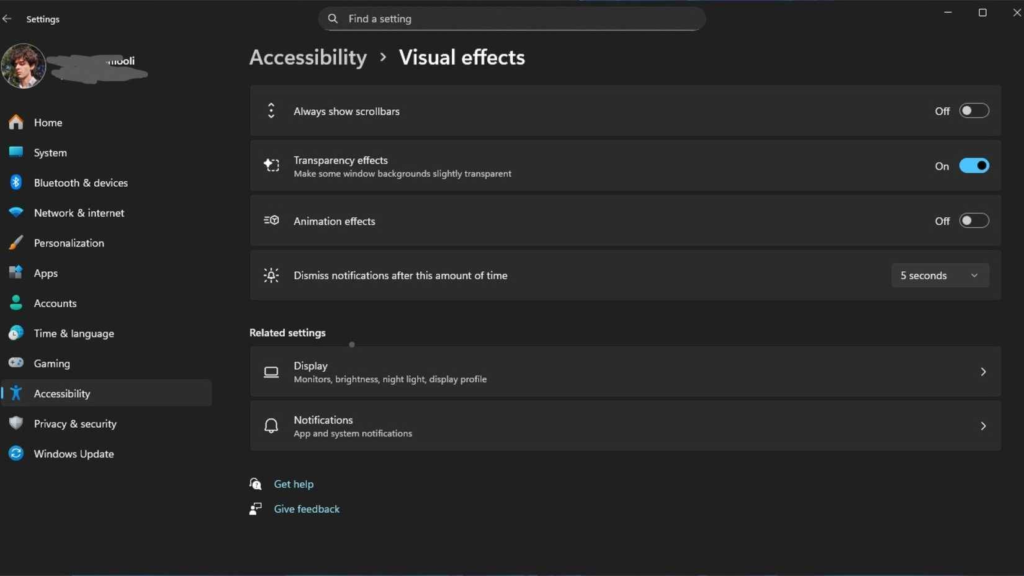
If you changed MenuShowDelay and still feel like Windows is “laggy,” there’s another trick that makes a big difference.
Go to:
Settings → Accessibility → Visual effects
Then turn off animations.
It might take a moment to apply — but once it does, the difference is immediate.
Menus, switches, and transitions suddenly feel closer to the responsiveness of old Windows XP or Windows 7 — fast and direct instead of floaty and delayed.
You can even replace the default Start menu with a third-party alternative if you want a truly instant experience.
Why Turning Off Animations Often Feels Faster
This sounds counterintuitive, but it makes sense.
Many Windows animations are designed to mask delays rather than eliminate them. They make slow actions feel smoother — but also slower.
Remove them, and Windows stops pretending to be “fluid” and simply becomes direct and instant.
That’s why nearly every serious Windows optimization script disables visual effects by default.
Reality Check: This Doesn’t Boost Benchmarks
Let’s be clear:
None of this makes your CPU faster, your GPU stronger, or your SSD quicker.
Your benchmark scores won’t change.
What does change is how fast Windows feels.
And for day-to-day use — opening folders, right-clicking files, navigating menus — that psychological speed boost matters more than raw performance numbers.
Final Thought
If Windows 11 frustrates you with tiny delays, this registry tweak is one of the cleanest, simplest upgrades you can make.
One value. One reboot. A noticeably snappier experience.
Sometimes, the biggest improvements aren’t about hardware — they’re about removing the artificial friction that software puts in your way.





'%3e%3cg id='Final-Copy-2_2_' transform='translate(1275.000000, 200.000000)'%3e%3cpath class='st0' d='M7.4,12.8h6.8l3.1-11.6H7.4C4.2,1.2,1.6,3.8,1.6,7S4.2,12.8,7.4,12.8z'/%3e%3c/g%3e%3c/g%3e%3c/g%3e%3cg id='final---dec.11-2020'%3e%3cg id='_x30_208-our-toggle' transform='translate(-1275.000000, -200.000000)'%3e%3cg id='Final-Copy-2' transform='translate(1275.000000, 200.000000)'%3e%3cpath class='st1' d='M22.6,0H7.4c-3.9,0-7,3.1-7,7s3.1,7,7,7h15.2c3.9,0,7-3.1,7-7S26.4,0,22.6,0z M1.6,7c0-3.2,2.6-5.8,5.8-5.8 h9.9l-3.1,11.6H7.4C4.2,12.8,1.6,10.2,1.6,7z'/%3e%3cpath id='x' class='st2' d='M24.6,4c0.2,0.2,0.2,0.6,0,0.8l0,0L22.5,7l2.2,2.2c0.2,0.2,0.2,0.6,0,0.8c-0.2,0.2-0.6,0.2-0.8,0 l0,0l-2.2-2.2L19.5,10c-0.2,0.2-0.6,0.2-0.8,0c-0.2-0.2-0.2-0.6,0-0.8l0,0L20.8,7l-2.2-2.2c-0.2-0.2-0.2-0.6,0-0.8 c0.2-0.2,0.6-0.2,0.8,0l0,0l2.2,2.2L23.8,4C24,3.8,24.4,3.8,24.6,4z'/%3e%3cpath id='y' class='st3' d='M12.7,4.1c0.2,0.2,0.3,0.6,0.1,0.8l0,0L8.6,9.8C8.5,9.9,8.4,10,8.3,10c-0.2,0.1-0.5,0.1-0.7-0.1l0,0 L5.4,7.7c-0.2-0.2-0.2-0.6,0-0.8c0.2-0.2,0.6-0.2,0.8,0l0,0L8,8.6l3.8-4.5C12,3.9,12.4,3.9,12.7,4.1z'/%3e%3c/g%3e%3c/g%3e%3c/g%3e%3c/g%3e%3c/svg%3e)


0 comments