



Narrator is a built-in screen reader in Windows 11 that reads text and elements on the screen. If you have poor eyesight or want more ways to use assistive technology on your Windows computer, Narrator is a great option. Here’s how to use Narrator in Windows 11.
How to Use Narrator on Windows
Step 1:
There are two ways to launch Narrator on your computer:

- Windows + Ctrl + Enter to start or stop Narrator.
- Windows + Ctrl + N to open the Narrator settings menu and enable it for use.
Step 2:
Now you will see the Narrator tool read aloud all the content displayed on the screen. The content that is read will have a green box as shown below.
Shortcut Capslock or Insert and left or right arrow key to move to previous or next item.

Step 3:
In the Narrator tool adjustment interface, you will see 2 options: Start narrator before sign-in or Start narrator after sign-in to let Narrator automatically start when Windows starts or not.

Step 4:
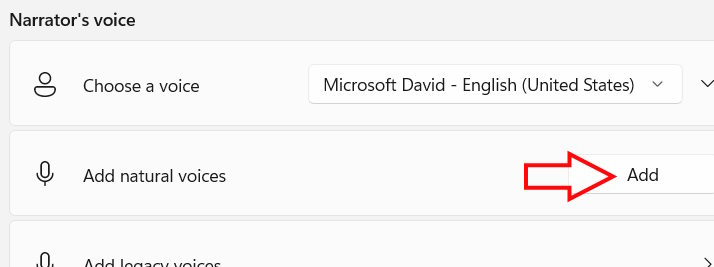
Scroll down to Narrator’s voice and select the voice you want for the tool. You can also click Add to install one of the new natural voice packs.
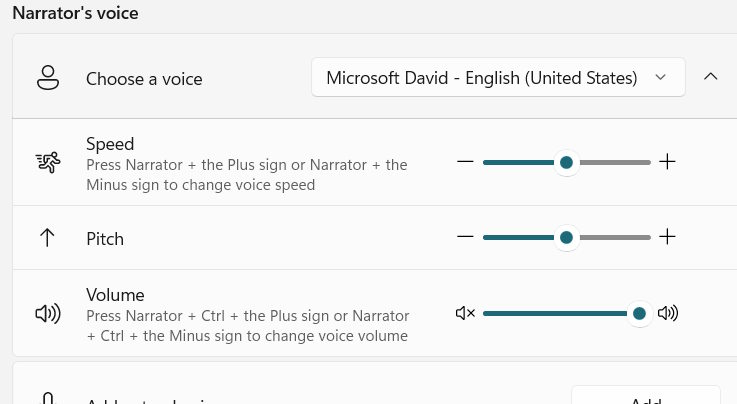
To adjust the speed,
expand Choose a voice and adjust the Speed, Pitch, and Volume to your liking.
Step 5:
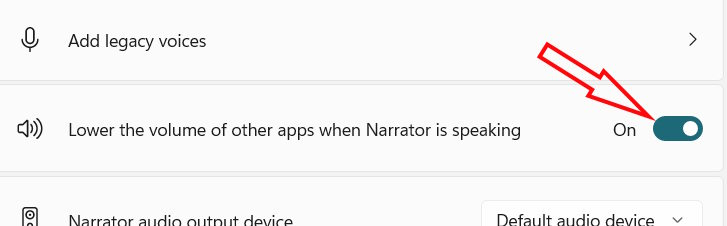
Below is a tool to Lower the volume of other apps when Narrator is speaking if you find background noise or music from other apps making the audio from Narrator difficult to hear.
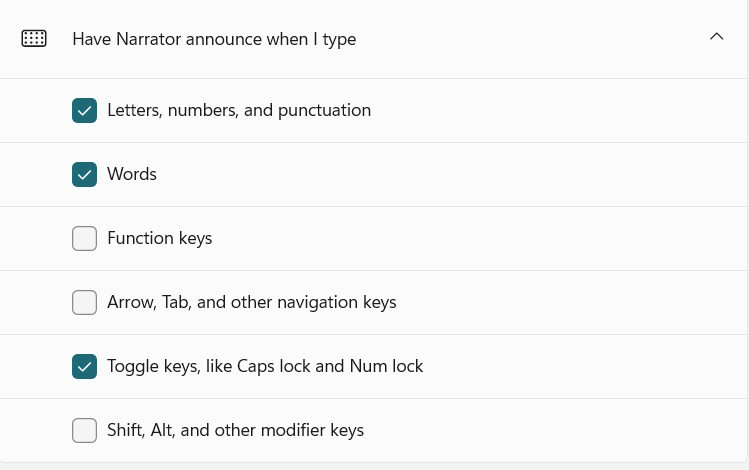
Continuing in the Have Narrator announce when I type section, you choose the level of detail at which Narrator will read the text as you type.







'%3e%3cg id='Final-Copy-2_2_' transform='translate(1275.000000, 200.000000)'%3e%3cpath class='st0' d='M7.4,12.8h6.8l3.1-11.6H7.4C4.2,1.2,1.6,3.8,1.6,7S4.2,12.8,7.4,12.8z'/%3e%3c/g%3e%3c/g%3e%3c/g%3e%3cg id='final---dec.11-2020'%3e%3cg id='_x30_208-our-toggle' transform='translate(-1275.000000, -200.000000)'%3e%3cg id='Final-Copy-2' transform='translate(1275.000000, 200.000000)'%3e%3cpath class='st1' d='M22.6,0H7.4c-3.9,0-7,3.1-7,7s3.1,7,7,7h15.2c3.9,0,7-3.1,7-7S26.4,0,22.6,0z M1.6,7c0-3.2,2.6-5.8,5.8-5.8 h9.9l-3.1,11.6H7.4C4.2,12.8,1.6,10.2,1.6,7z'/%3e%3cpath id='x' class='st2' d='M24.6,4c0.2,0.2,0.2,0.6,0,0.8l0,0L22.5,7l2.2,2.2c0.2,0.2,0.2,0.6,0,0.8c-0.2,0.2-0.6,0.2-0.8,0 l0,0l-2.2-2.2L19.5,10c-0.2,0.2-0.6,0.2-0.8,0c-0.2-0.2-0.2-0.6,0-0.8l0,0L20.8,7l-2.2-2.2c-0.2-0.2-0.2-0.6,0-0.8 c0.2-0.2,0.6-0.2,0.8,0l0,0l2.2,2.2L23.8,4C24,3.8,24.4,3.8,24.6,4z'/%3e%3cpath id='y' class='st3' d='M12.7,4.1c0.2,0.2,0.3,0.6,0.1,0.8l0,0L8.6,9.8C8.5,9.9,8.4,10,8.3,10c-0.2,0.1-0.5,0.1-0.7-0.1l0,0 L5.4,7.7c-0.2-0.2-0.2-0.6,0-0.8c0.2-0.2,0.6-0.2,0.8,0l0,0L8,8.6l3.8-4.5C12,3.9,12.4,3.9,12.7,4.1z'/%3e%3c/g%3e%3c/g%3e%3c/g%3e%3c/g%3e%3c/svg%3e)


0 comments