


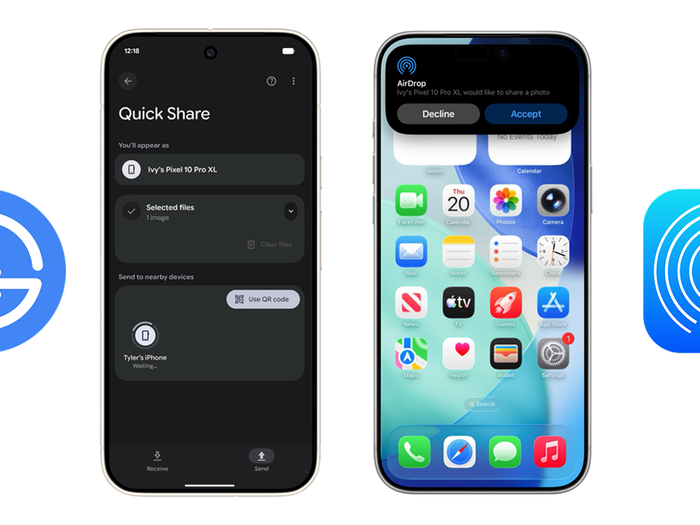
AirDrop has always been one of the easiest ways to share files between Apple devices — but it hasn’t always been the most secure when sending files to strangers.
In earlier versions of iOS and macOS, sharing with someone who wasn’t in your Contacts often required awkward workarounds or temporary visibility settings. Starting with iOS 26.2, iPadOS 26.2, and macOS 26.2, Apple introduced a new layer of protection: a six-digit AirDrop verification code when sharing files with people outside your contacts.
This small change makes AirDrop safer while still keeping it fast and convenient. Here’s exactly how it works.

Step-by-step: Sharing files via AirDrop with a verification code
Step 1 — Prepare both devices
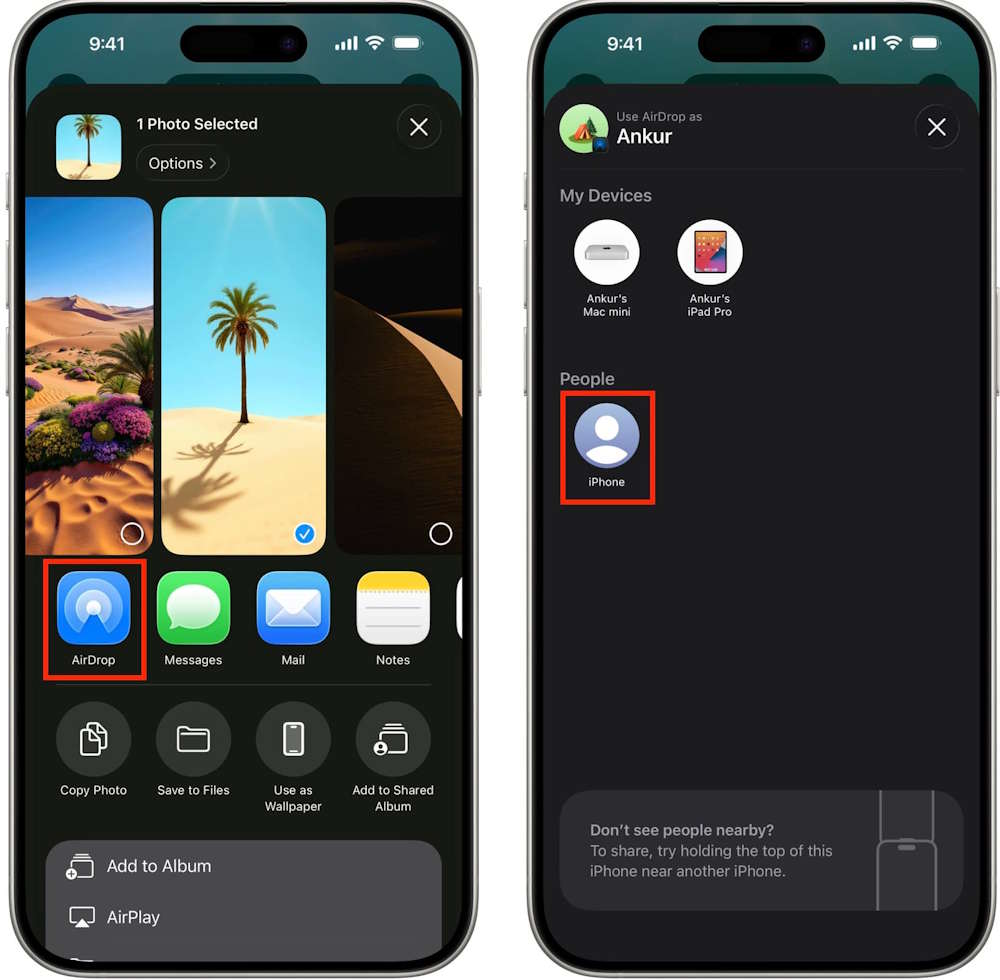
On the receiver’s device, open Control Center and turn on AirDrop, then set visibility to:
Everyone for 10 Minutes
Meanwhile, the sender selects the photo, video, or file they want to share, taps Share, chooses AirDrop, and selects the recipient from the list of nearby devices.
Step 2 — Receiver gets the AirDrop code
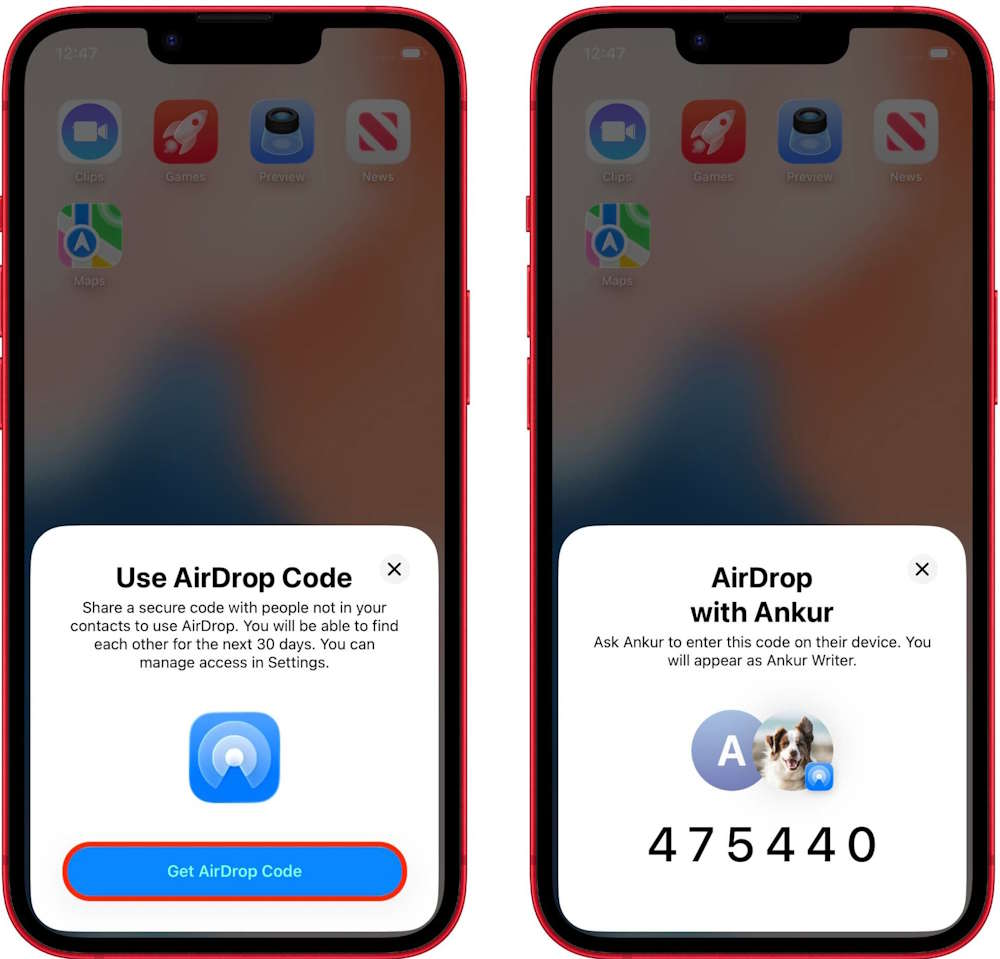
The recipient will now see a prompt saying “Use AirDrop Code.”
They tap Get AirDrop Code, and a unique six-digit code appears on their screen.
Step 3 — Sender enters the code
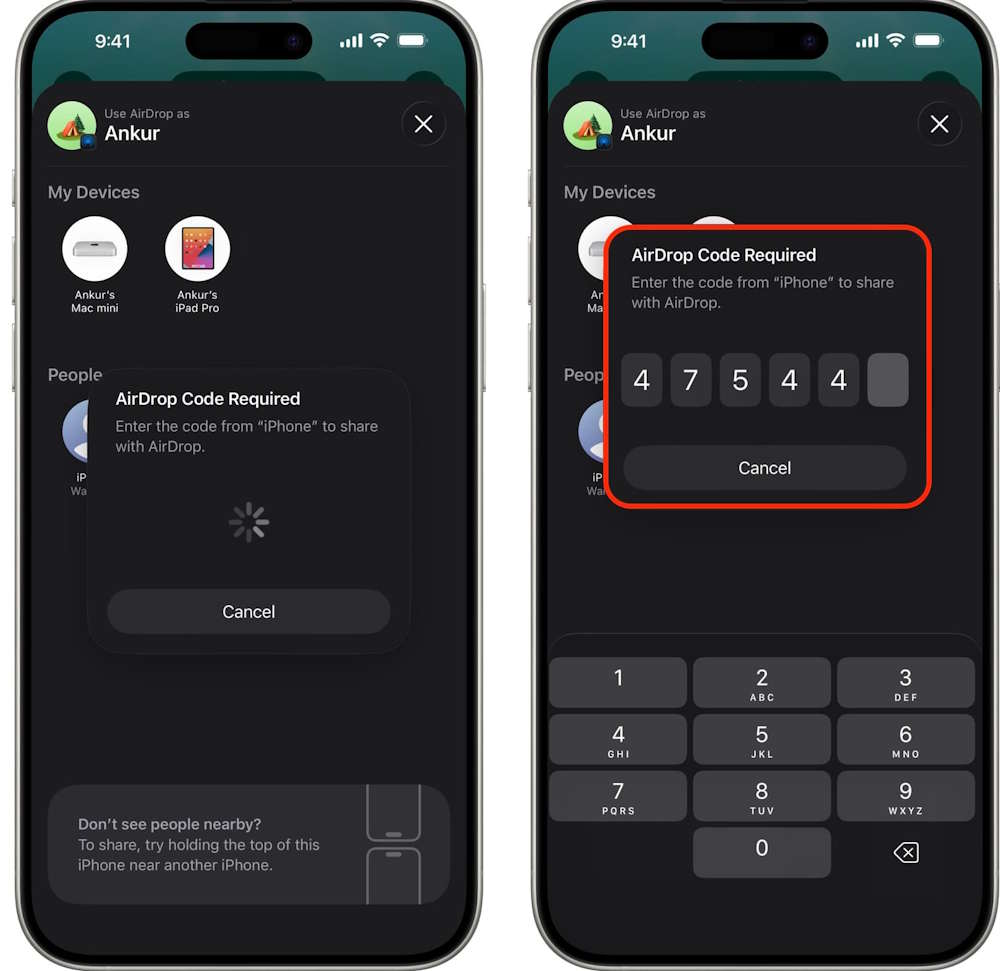
The sender types this six-digit code on their device to confirm the transfer.
Once verified, the file begins sending immediately via AirDrop.
Here’s the nice part: after this one-time verification, you won’t need to repeat the code for the next 30 days when sharing with the same person. Future transfers only require tapping Accept.
Step 4 — View previously connected AirDrop users
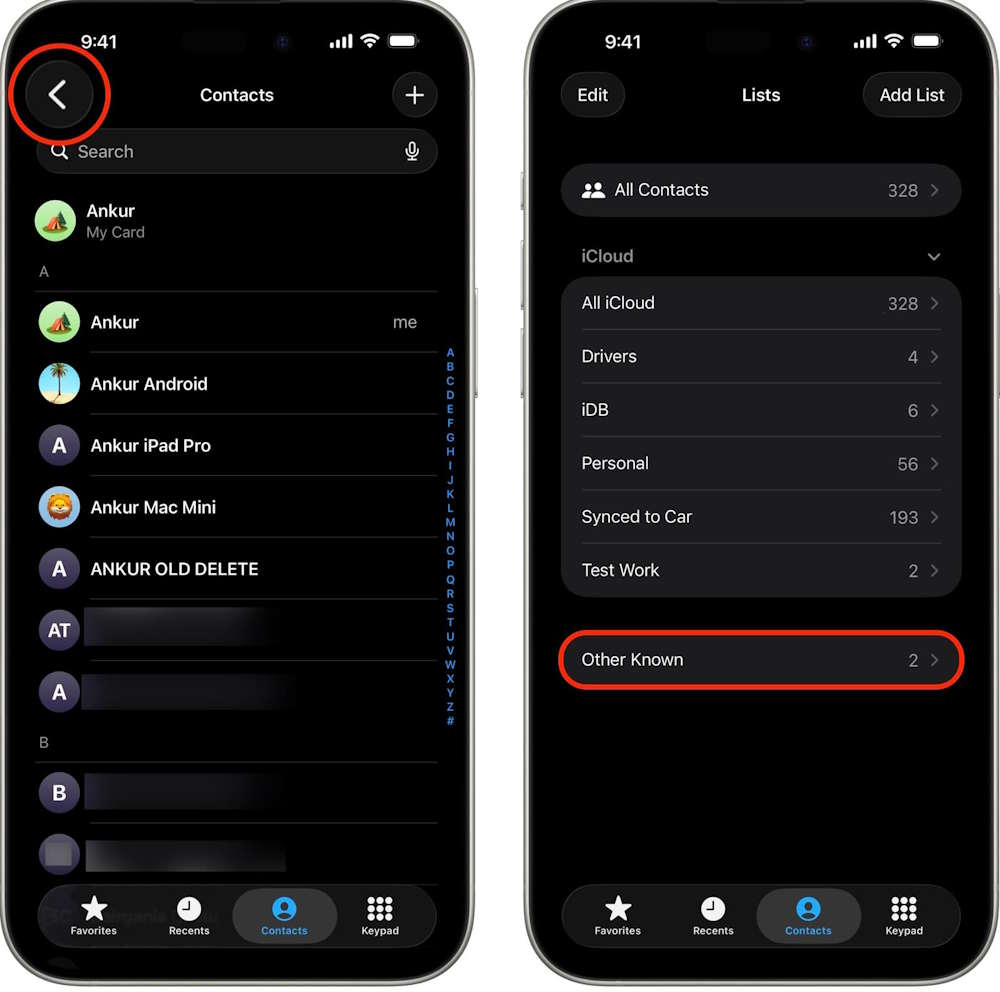
Apple keeps a record of people you’ve shared files with through AirDrop.
To see this list on iPhone:
- Open Contacts
- Tap your profile icon in the top right
- Select Other Known
You’ll see a list of people you’ve recently exchanged files with.
Step 5 — Remove someone from this list
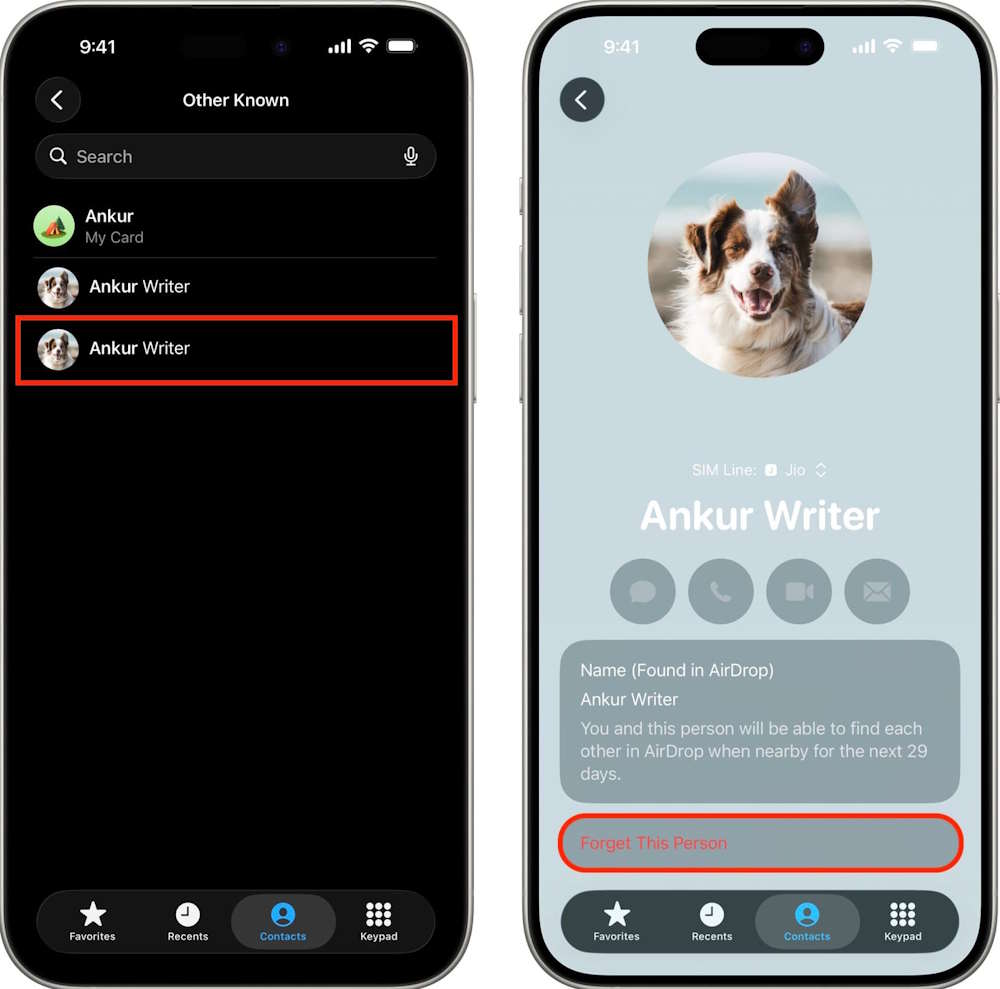
If you no longer want a person to appear in this “known AirDrop users” list:
- Tap their name
- Select Forget This Person
From now on, any new AirDrop transfer with them will require the verification code again.
Why this change actually matters
This update isn’t just bureaucratic friction — it’s a meaningful security upgrade.
It prevents:
- Random strangers from sending you files without confirmation
- Accidental AirDrop transfers in crowded places
- Harassment via unsolicited AirDrop content
At the same time, Apple avoided making AirDrop slower or complicated. The code appears only once every 30 days per person — a reasonable balance between security and convenience.
Final thought
AirDrop remains one of the best file-sharing tools in the Apple ecosystem. With this verification code system, it’s now both fast and safer, especially in public places like airports, cafes, or classrooms.
If you share files with the same people regularly, you’ll barely notice the change. But if you ever send files to strangers, this extra step is a welcome safeguard rather than a nuisance.






'%3e%3cg id='Final-Copy-2_2_' transform='translate(1275.000000, 200.000000)'%3e%3cpath class='st0' d='M7.4,12.8h6.8l3.1-11.6H7.4C4.2,1.2,1.6,3.8,1.6,7S4.2,12.8,7.4,12.8z'/%3e%3c/g%3e%3c/g%3e%3c/g%3e%3cg id='final---dec.11-2020'%3e%3cg id='_x30_208-our-toggle' transform='translate(-1275.000000, -200.000000)'%3e%3cg id='Final-Copy-2' transform='translate(1275.000000, 200.000000)'%3e%3cpath class='st1' d='M22.6,0H7.4c-3.9,0-7,3.1-7,7s3.1,7,7,7h15.2c3.9,0,7-3.1,7-7S26.4,0,22.6,0z M1.6,7c0-3.2,2.6-5.8,5.8-5.8 h9.9l-3.1,11.6H7.4C4.2,12.8,1.6,10.2,1.6,7z'/%3e%3cpath id='x' class='st2' d='M24.6,4c0.2,0.2,0.2,0.6,0,0.8l0,0L22.5,7l2.2,2.2c0.2,0.2,0.2,0.6,0,0.8c-0.2,0.2-0.6,0.2-0.8,0 l0,0l-2.2-2.2L19.5,10c-0.2,0.2-0.6,0.2-0.8,0c-0.2-0.2-0.2-0.6,0-0.8l0,0L20.8,7l-2.2-2.2c-0.2-0.2-0.2-0.6,0-0.8 c0.2-0.2,0.6-0.2,0.8,0l0,0l2.2,2.2L23.8,4C24,3.8,24.4,3.8,24.6,4z'/%3e%3cpath id='y' class='st3' d='M12.7,4.1c0.2,0.2,0.3,0.6,0.1,0.8l0,0L8.6,9.8C8.5,9.9,8.4,10,8.3,10c-0.2,0.1-0.5,0.1-0.7-0.1l0,0 L5.4,7.7c-0.2-0.2-0.2-0.6,0-0.8c0.2-0.2,0.6-0.2,0.8,0l0,0L8,8.6l3.8-4.5C12,3.9,12.4,3.9,12.7,4.1z'/%3e%3c/g%3e%3c/g%3e%3c/g%3e%3c/g%3e%3c/svg%3e)


0 comments