


Local Users and Groups Management is a shell application for managing Windows system administration applications. It allows you to manage local and remote computers, as well as access system administration tools. However, Local Users and Groups Management is not available in the Windows Home version of the operating system.
If you need to use Local Users and Groups Management (lusrmgr.msc) in Windows 11 Home, you’ll have to rely on a third-party program. Here’s how to enable Lusrmgr.msc on a Windows 11 or 10 Home computer.
How to enable Local User and Group Management (Lusrmgr.msc) trong Windows 11/10 Home
Similar to Local Group Policy Editor, Local Users and Groups Management is a feature for advanced users, so it’s only available for Windows 11 Pro, Edu, and Enterprise editions.

However, while you can enable Group Policy Editor on Windows Home, you cannot activate the built-in Local Users and Groups Management snap-in for Windows Home.
Instead, you’ll need to use a third-party alternative to enable lusrmgr.msc in Windows 11 Home. Lusrmgr.exe is a third-party snap-in with similar functionality to the built-in Local Users and Groups Management Console. It’s a portable application and you can download it for free from GitHub.
Follow these steps to enable the Local User Group and Management Console in Windows 11 Home Edition using the lusrmgr.exe tool:
1. Open the lusrmgr GitHub page . In the Code tab , click on the lusrmgr.exe file.
2. Then click the Download button in the upper right corner to download the file to your PC.
3. After downloading, double-click the lusrmgr.exe file to run the program.
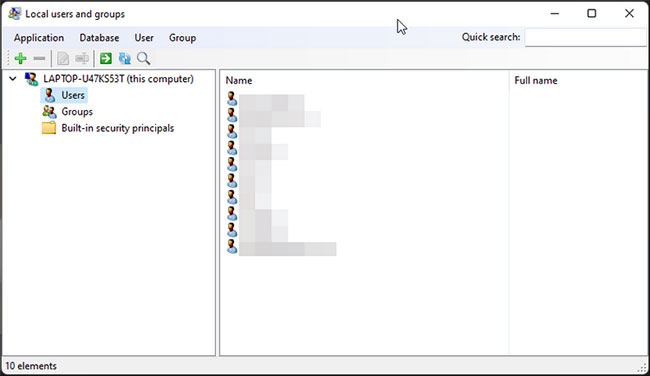
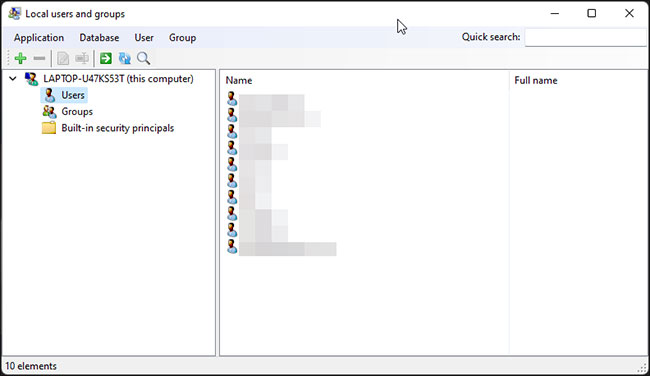
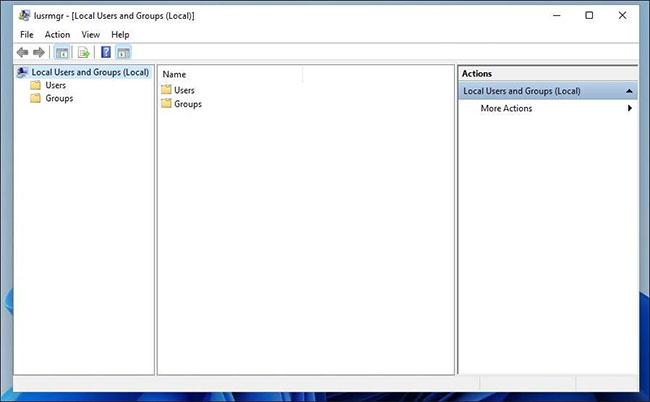
Upon launch, you’ll notice that the lusrmgr application looks similar to the built-in Local User Group and Management Console. However, the difference lies in the tool’s usability. Below is a comparison image of the third-party lusrmgr tool and the built-in option.
Create a new user account using lusrmgr
1. To create a new user, right-click on User and select Create. Then, fill in the details for the new user account.
2. Click the Advanced button to configure advanced account options, local path, and profile path.
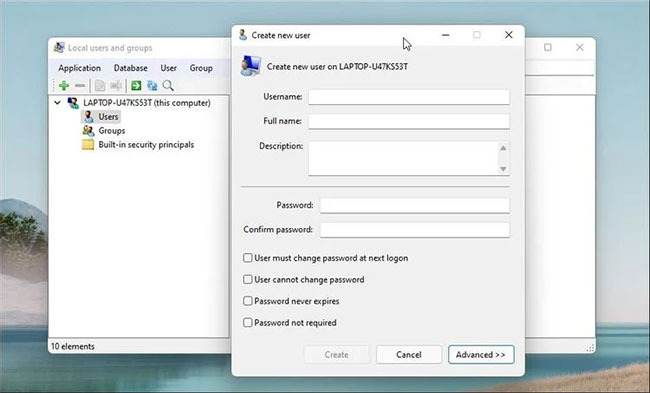
3. Click Create to add a new user account.
Similarly, you can edit, delete, rename, or add passwords to existing user accounts. You can also activate the built-in admin account with a secret password using the Local Users and Groups Management tool.
Additional features in Lusrmgr
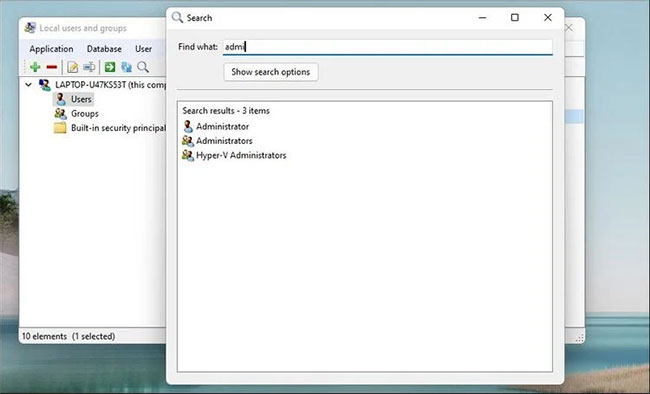
In addition to standard account management features, Lusrmgr offers several functions not found in built-in utilities. For example, you can use the Search function to find a specific account, which is useful for system administrators managing multiple user accounts within an organization.
Another useful feature is the ability to define access times for individual accounts. You can set times to block individual accounts on specific days and hours.
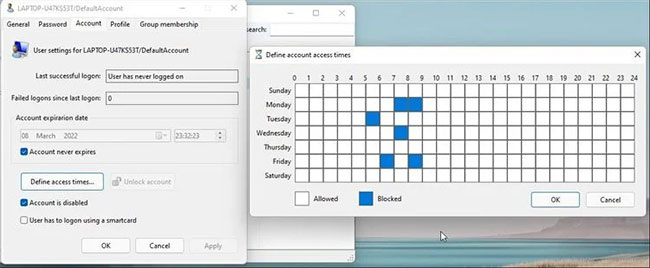
To define access time, right-click on the username and select Edit. Next, open the Account tab and click Define access time . By default, all user accounts have no access time limit. However, if desired, you can define access time by selecting a time block for different days.
Because lusrmgr is a portable application , you cannot open it using the lusrmgr.msc command like the built-in application. To launch the program, simply double-click the executable file, and you will be able to make the necessary changes to the user account or group.
Manage local users and groups using Command Prompt.
You can use the command-line utility “net localgroup” or “net user” to manage users and groups on Windows 11/10. It’s a convenient way to view, add, and remove local groups and users without using third-party utilities.

First, open the Command Prompt window with administrator privileges . To do this, press the Windows key , type cmd , right-click on Command Prompt, and select Run as administrator .
Below is a list of commands to view and manage local users and groups using Command Prompt:
1. To view the names of the servers and local groups on your computer, type:
net localgroup2. To view all users in a group, enter:
net localgroup [groupname]3. To create a new group, use the following command. Replace xyz with the name of the group you want to create:
net localgroup xyz /add4. To view all user accounts:
net user5. To create a new user account (replace abc with the username you want to add):
net user abc /add6. To view all accounts with admin privileges:
net localgroup administrator7. To add a user account to the administrators group (be sure to change abc and Administrator to the group name if necessary):
net localgroup Administrator abc /add8. To delete a local group:
net localgroup xyz /delete9. To delete a local user:
net user abc /delete10. If you need syntax help for a specific command, use the command:
net help <command>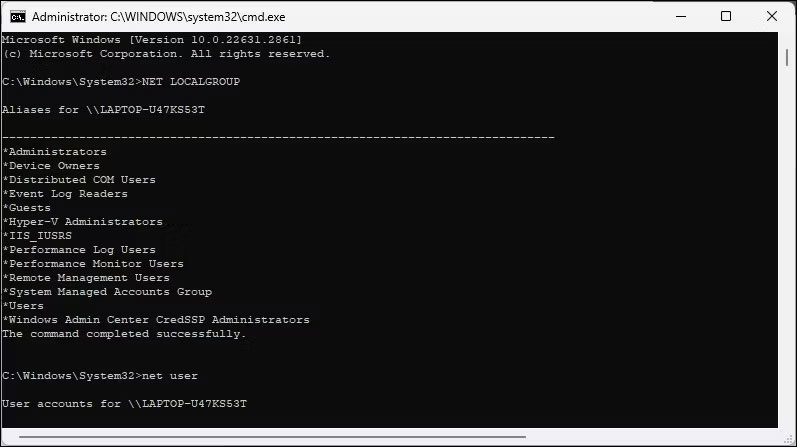
The Local Users and Groups Management console is a useful utility for system administrators in managing local computers as well as remotely connecting to compatible systems. However, if you are running Windows 11 Home and need to use the lusrmgr.msc tool, your only option is to use a third-party application from GitHub.






'%3e%3cg id='Final-Copy-2_2_' transform='translate(1275.000000, 200.000000)'%3e%3cpath class='st0' d='M7.4,12.8h6.8l3.1-11.6H7.4C4.2,1.2,1.6,3.8,1.6,7S4.2,12.8,7.4,12.8z'/%3e%3c/g%3e%3c/g%3e%3c/g%3e%3cg id='final---dec.11-2020'%3e%3cg id='_x30_208-our-toggle' transform='translate(-1275.000000, -200.000000)'%3e%3cg id='Final-Copy-2' transform='translate(1275.000000, 200.000000)'%3e%3cpath class='st1' d='M22.6,0H7.4c-3.9,0-7,3.1-7,7s3.1,7,7,7h15.2c3.9,0,7-3.1,7-7S26.4,0,22.6,0z M1.6,7c0-3.2,2.6-5.8,5.8-5.8 h9.9l-3.1,11.6H7.4C4.2,12.8,1.6,10.2,1.6,7z'/%3e%3cpath id='x' class='st2' d='M24.6,4c0.2,0.2,0.2,0.6,0,0.8l0,0L22.5,7l2.2,2.2c0.2,0.2,0.2,0.6,0,0.8c-0.2,0.2-0.6,0.2-0.8,0 l0,0l-2.2-2.2L19.5,10c-0.2,0.2-0.6,0.2-0.8,0c-0.2-0.2-0.2-0.6,0-0.8l0,0L20.8,7l-2.2-2.2c-0.2-0.2-0.2-0.6,0-0.8 c0.2-0.2,0.6-0.2,0.8,0l0,0l2.2,2.2L23.8,4C24,3.8,24.4,3.8,24.6,4z'/%3e%3cpath id='y' class='st3' d='M12.7,4.1c0.2,0.2,0.3,0.6,0.1,0.8l0,0L8.6,9.8C8.5,9.9,8.4,10,8.3,10c-0.2,0.1-0.5,0.1-0.7-0.1l0,0 L5.4,7.7c-0.2-0.2-0.2-0.6,0-0.8c0.2-0.2,0.6-0.2,0.8,0l0,0L8,8.6l3.8-4.5C12,3.9,12.4,3.9,12.7,4.1z'/%3e%3c/g%3e%3c/g%3e%3c/g%3e%3c/g%3e%3c/svg%3e)


0 comments