



Google Drive is an excellent place to store and share files — until it turns into a digital junk drawer.
- 7. Filter by File Type to Cut Through the Noise
- 6. Search by Owner or Last Modified Date
- 5. Search Inside Files, Not Just File Names
- 4. Use Advanced Search When Basic Filters Aren’t Enough
- 3. Use Search Operators Like a Pro
- 2. Use Recent and Starred Files as Shortcuts
- 1. Search Google Drive Directly from Your Browser’s Address Bar
- Final Thoughts
When your Drive contains years of reports, spreadsheets, presentations, PDFs, and random uploads, finding the right file can feel harder than it should, especially if you don’t remember the exact file name.
The good news: Drive’s search tools are far more powerful than most people realize. If you use them correctly, you can jump straight to the file you need in seconds.

Here are 7 practical techniques to search smarter, not harder.
7. Filter by File Type to Cut Through the Noise
Find PDFs, documents, or spreadsheets instantly
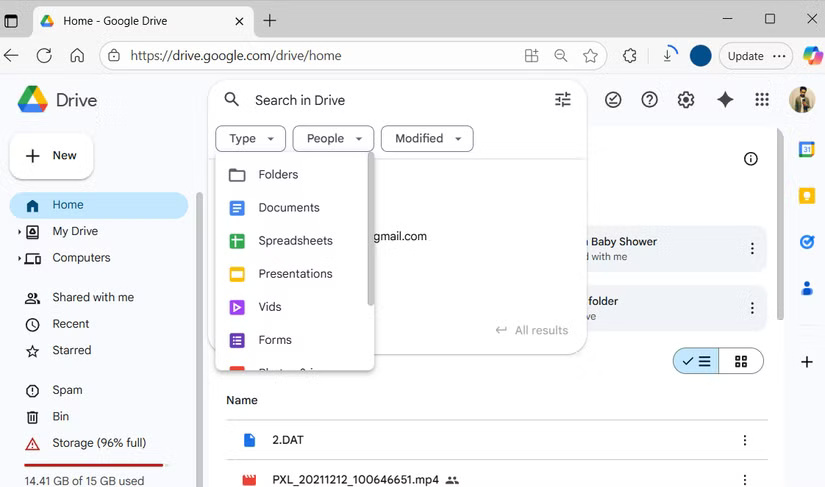
One of the fastest ways to narrow down search results is by file type.
Instead of scrolling through dozens (or hundreds) of mixed files, tell Drive exactly what you’re looking for.
Use the Type drop-down in the search bar to filter by:
- Documents
- Spreadsheets
- Presentations
- PDFs
- Images
- Videos
- Folders
For example, if you know the file is a PDF, select PDF before or after entering your keyword. Drive will immediately limit results to only relevant files.
This simple filter alone can save a surprising amount of time, especially if your Drive has grown organically over the years.
6. Search by Owner or Last Modified Date
Track files by time, not memory
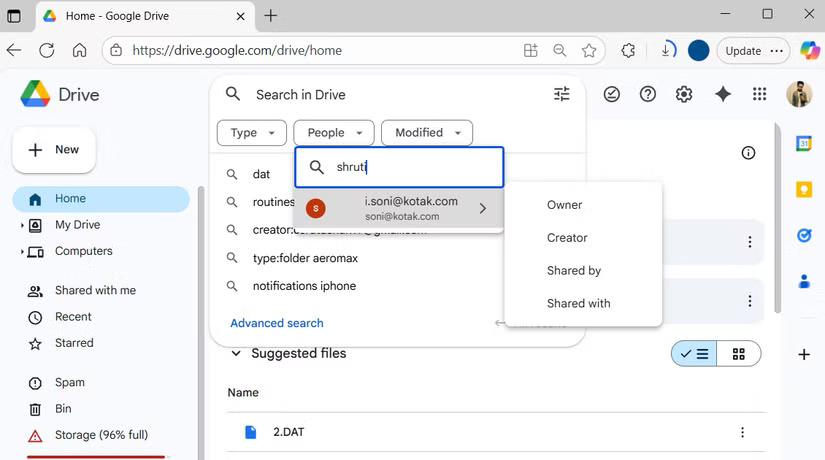
When file names blur together, people and dates become powerful clues.
If you remember who created or shared the file, use the People filter:
- Type the person’s name
- Choose whether they are the owner, creator, shared with you, or shared by you
This instantly narrows results to files tied to that person.
Another highly effective option is filtering by last modified date. You can search for files edited:
- In the last 7 days
- In the last 30 days
- During a specific year
- Within a custom date range
This works perfectly when you remember when you worked on a file but not what it was called.
5. Search Inside Files, Not Just File Names
Let Drive read the content for you
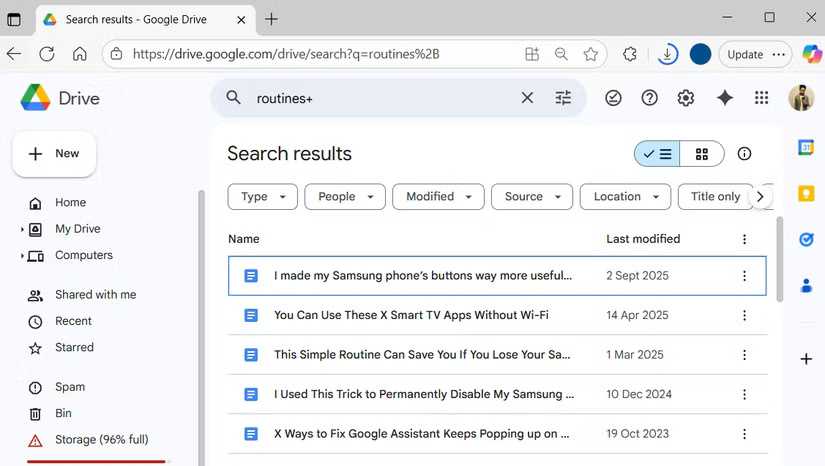
Even if the file name escapes you, chances are you remember a phrase inside the document.
Google Drive can search within files — including:
- Google Docs
- Sheets
- Slides
- PDFs
- Other text-based formats
For example, if a report mentioned “Q3 sales projections,” just type that phrase into the search bar. Drive will surface every file containing those words.
Combine this with filters like file type or date, and searching stops feeling like guesswork and starts feeling precise.
4. Use Advanced Search When Basic Filters Aren’t Enough
Advanced Search is powerful, not complicated
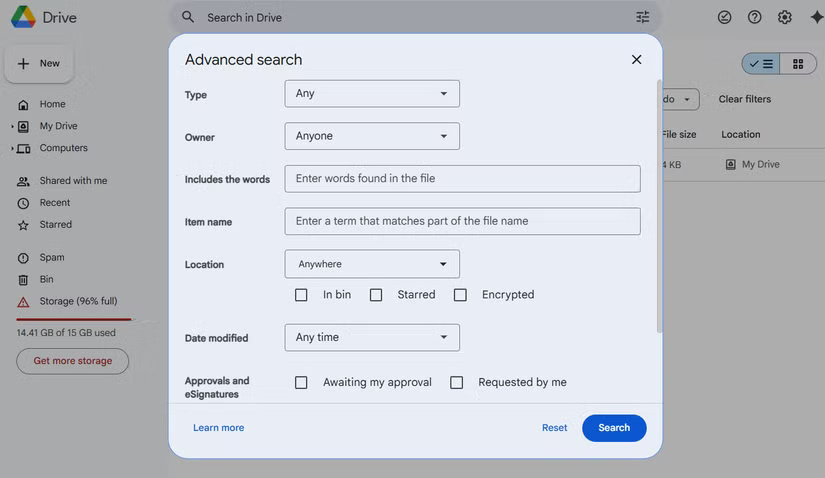
When basic filters fall short, click the Advanced Search icon next to the search bar.
This lets you combine everything in one place:
- File type
- Owner
- Location
- Last modified date
- Keywords inside files
It’s ideal for situations where you remember some details — just not the file name.
Advanced Search also includes options for approvals, signatures, and tracked items, which is especially useful in collaborative or document-heavy workspaces.
The more details you add, the faster Drive zeroes in on the exact file.
3. Use Search Operators Like a Pro
Turn keywords into precision tools
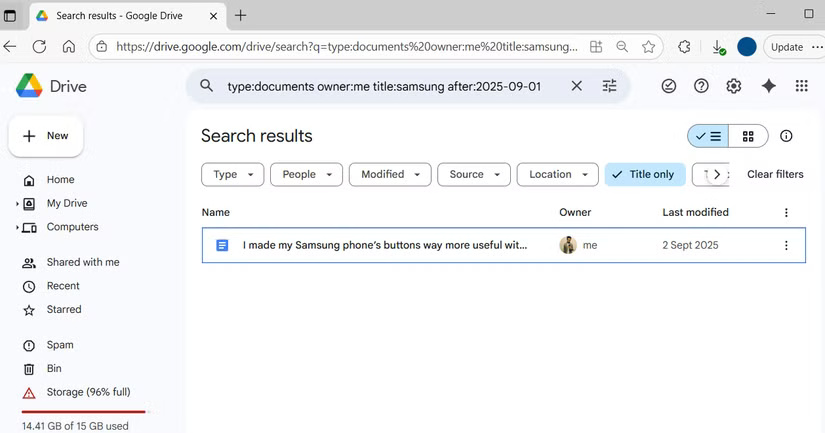
Just like Gmail, Google Drive supports search operators — powerful shortcuts you can type directly into the search bar.
Some useful examples:
type:pdf→ only PDF filesowner:me→ files you owntitle:report→ files with “report” in the titlecontent:budget→ files containing the word “budget”
The real power comes from combining them:
type:docx owner:me content:routineThis finds Word documents you created that mention “routine” inside the file.
There are many more operators available in Google’s help documentation. It takes a little practice, but once you get comfortable, search speed improves dramatically.
2. Use Recent and Starred Files as Shortcuts
Skip searching altogether when possible
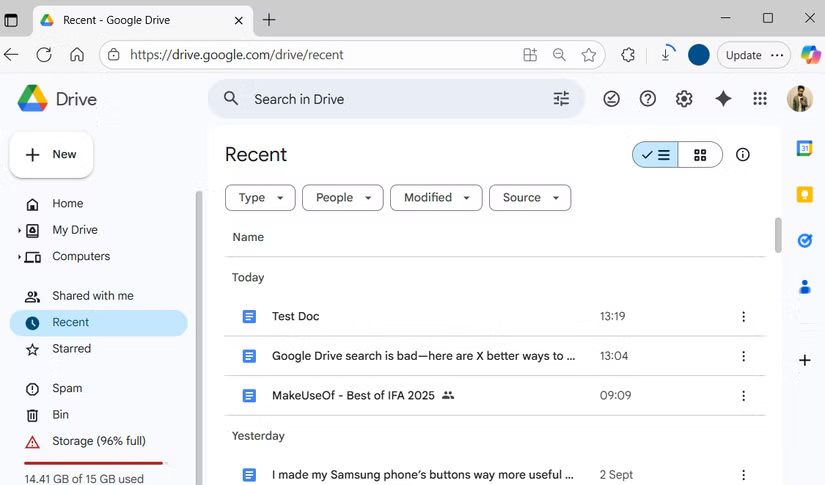
Sometimes the fastest search is no search at all.
The Recent tab shows files you’ve opened or edited lately, organized chronologically — today, yesterday, last week, or earlier. This is perfect when you’re actively working on projects but can’t recall file names.
You can refine Recent files by:
- File type
- Owner
- Last modified date
The Starred section is another underrated time-saver. Star files you use often — monthly reports, reference docs, team presentations — so they’re always one click away.
Color-coded folders can also help visually organize large Drives.
1. Search Google Drive Directly from Your Browser’s Address Bar
Skip extra clicks entirely
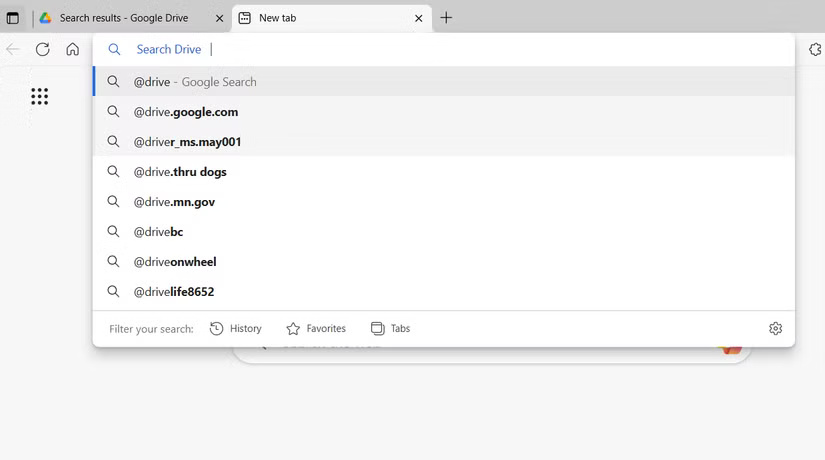
You don’t even need to open Google Drive to start searching.
Most modern browsers let you search Drive directly from the address bar.
In Chrome:
- Go to Settings → Search engine → Manage search engines and site search
- Under Site search, click Add
- Name it Google Drive
- Set the shortcut to
@Drive - Paste this URL:
https://drive.google.com/drive/search?q=%s- Save
Now, open a new tab, type @Drive followed by your search term, and jump straight to results.
This trick also works in Edge and other Chromium-based browsers. You can even make Drive your default search target if you want.
Final Thoughts
A cluttered Google Drive doesn’t have to slow you down.
Once you understand filters, search operators, Advanced Search, and browser shortcuts, finding files becomes fast and predictable — even in massive Drives.
The key is knowing which tool fits which situation:
- Simple filter for quick wins
- Advanced Search for fuzzy memory
- Operators for precision
- Recent and Starred for daily work
The more you use these techniques, the less time you’ll ever waste hunting for files again.





'%3e%3cg id='Final-Copy-2_2_' transform='translate(1275.000000, 200.000000)'%3e%3cpath class='st0' d='M7.4,12.8h6.8l3.1-11.6H7.4C4.2,1.2,1.6,3.8,1.6,7S4.2,12.8,7.4,12.8z'/%3e%3c/g%3e%3c/g%3e%3c/g%3e%3cg id='final---dec.11-2020'%3e%3cg id='_x30_208-our-toggle' transform='translate(-1275.000000, -200.000000)'%3e%3cg id='Final-Copy-2' transform='translate(1275.000000, 200.000000)'%3e%3cpath class='st1' d='M22.6,0H7.4c-3.9,0-7,3.1-7,7s3.1,7,7,7h15.2c3.9,0,7-3.1,7-7S26.4,0,22.6,0z M1.6,7c0-3.2,2.6-5.8,5.8-5.8 h9.9l-3.1,11.6H7.4C4.2,12.8,1.6,10.2,1.6,7z'/%3e%3cpath id='x' class='st2' d='M24.6,4c0.2,0.2,0.2,0.6,0,0.8l0,0L22.5,7l2.2,2.2c0.2,0.2,0.2,0.6,0,0.8c-0.2,0.2-0.6,0.2-0.8,0 l0,0l-2.2-2.2L19.5,10c-0.2,0.2-0.6,0.2-0.8,0c-0.2-0.2-0.2-0.6,0-0.8l0,0L20.8,7l-2.2-2.2c-0.2-0.2-0.2-0.6,0-0.8 c0.2-0.2,0.6-0.2,0.8,0l0,0l2.2,2.2L23.8,4C24,3.8,24.4,3.8,24.6,4z'/%3e%3cpath id='y' class='st3' d='M12.7,4.1c0.2,0.2,0.3,0.6,0.1,0.8l0,0L8.6,9.8C8.5,9.9,8.4,10,8.3,10c-0.2,0.1-0.5,0.1-0.7-0.1l0,0 L5.4,7.7c-0.2-0.2-0.2-0.6,0-0.8c0.2-0.2,0.6-0.2,0.8,0l0,0L8,8.6l3.8-4.5C12,3.9,12.4,3.9,12.7,4.1z'/%3e%3c/g%3e%3c/g%3e%3c/g%3e%3c/g%3e%3c/svg%3e)



0 comments